How to Play
Insert the cartridge when the Game Boy is turned off.
Turn on the Game Boy.
Push Start.
Menu Selection
Select Play to begin a game or Create to build your own warehouse.
Use the + Button to select and the A Button or Start Button to execute.
Press the B Button to return to the previous menu screen.
Starting a Game
When you select Play, you have a choice of Play or Passkey.
To play the game from the beginning, select Play.
If you want to continue an earlier game, select Passkey.
Passkey Input
When you choose Passkey, the passkey input screen will appear.
Use the + Button and the A Button to input the 4-letter passkey you wrote down when you ended your last game.
To erase a letter, push the B Button.
If everything is OK, select END and press the A Button.
If you accidentally put in the wrong passkey, use the A Button to go back to the beginning of the passkey input screen and enter it correctly.
Passkey Characters
Playing the Game Screen Elements
•
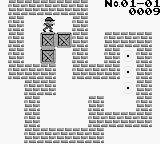
No. 08-01: Area and Screen Number
•
0001: Number of Moves per Screen
Moving Boxes
Use the + Button to move Willy around the screen as he rearranges boxes to fit into the space in the warehouse.
The small dots on each screen indicate where the boxes should be placed.
When all the boxes have been correctly placed, you have cleared one screen and may proceed to the next.
When you have rearranged all 108 screens, you will have successfully cleared the entire game.
The four-digit number at the upper right of each warehouse screen will be 0000 at the beginning of each game. As the character moves, the number will increase per move.
You can only push the boxes.
Back-up Mode
You have one chance to correct each mistaken move.
If you push a box too far, press the A Button. The box will return to the previous position.
You can only do this immediately following the mistake.
End of Each Screen
When you have finished putting all the boxes in their proper place, you will have cleared one screen.
On the menu screen, Next, Select, and a four-character passkey will appear.
If you want to continue the game later, write down the passkey. The next time you play Boxxle, just enter the passkey and you can pick up from where you left off.
End of Screen Options
Next
When you proceed to Next, the next screen will appear.
Select
The area and screen number are indicated on the game screen's upper right-hand side. 10 screens form one area.
You can choose only among the 10 screens from the area in which you are working by using Select.
To move to a screen in another area, you must insert the passkey you saved from that area.
As you press the + Button after choosing select, you can see all the warehouses from the area in sequence.
When you see a warehouse you want to straighten up, press the A Button or the Start Button and you can begin work on that screen.
Retry
To try again or move on to a new screen in the middle of a puzzle, press the Start Button.
When you want to try the same screen again, select Retry. If you want to try another screen, choose Select.
Execute Retry and the screen you were just working on will reappear.
Press the A Button and the boxes will move in the same order you moved them before you pushed Retry.
When you have retraced your steps in the game to the point from where you want to begin, release the A Button and use the + Button to start playing again.
Build Your Own Warehouse
Use the create mode by selecting Create on the menu screen.
With this mode, you can easily build your own warehouse.
Create allows you to build up to 3 warehouse screens per game.
If you have cleared all the screens, or just want to try making your own screen, this is the mode for you.
Create Screen Options
When you create your screen, you may choose large or small boxes.
The large boxes are easier to see. Use small boxes to make a more difficult screen.
When the selection has been made, the edit screen will appear.
Editing in Create Mode
When in the Create screen, use the B Button to choose boxes, walls, erase, and the dots which indicate where the boxes should be placed.
When you have made a choice, use the + Button to move the graphic, and push the A Button to execute.
Press down the A Button while using the + Button to create a continuous line.
To erase a box, wall or dot, push the B Button until the erase square flashes.
Then move it with the + Button to the spot you want to erase.
When you have finished drawing your warehouse map, move the cursor to where you want the character to begin. Push the Start Button.
Playing Created Warehouses
When you push Start in the create mode, you will have a choice between
.png)

 (Rev A).png)


.png)

.png)



.png)