GETTING STARTED
Insert the Nintendo GameCube™ Game Disc into the Nintendo GameCube™, close the Disc Cover, and push the POWER Button. When the title screen appears, press START/PAUSE. Main Menu Options
•
New Game: Start a game from the beginning.
•
Load Game: Start playing from where you left off on a previous session. Requires a Nintendo GameCube™ Memory Card with saved game data. •
Options: Configure the sound, Rumble Feature, Nintendo GameCube™ Controller setups, etc. •
Two Player: Play head-to-head against a friend. Requires a second Controller.
Saving Games
To save a game in progress, you will need a Memory Card with at least 1 file and 2 blocks of memory.
Copying Save Data
When copying game data from one Memory Card to another using the Nintendo GameCube™ Memory Card Screen, the destination Memory Card must have an empty file at the same position as the data file you are copying from, or the copy will fail. To save to a different position, copy the game data from within the game. Load the game data to be copied, select Save Game, and specify the second Memory Card as the save destination. OPTIONS
Select Options from the in-game menus to configure the game settings.
Sound Settings
•
Sound: Controls audio output; choose between Stereo, Mono, and Surround. The default setting is based on the Nintendo GameCube™ Options Screen. •
Music Volume: Controls the volume of the background music. Move the Control Stick to the left and right to adjust the volume.
•
Effects Volume: Controls the volume setting for special effects. Move the Control Stick to the left and right to adjust the volume.
Surround Sound
This game features Surround Sound audio. To play the game with Surround Sound audio, connect the Analog A/V Output on the Nintendo GameCube™ to the audio inputs on your Pro Logic™ or Pro Logic™ II amplifier. Confirm that Pro Logic™ or Pro Logic™ II mode is enabled on your amplifier. Finally, set the sound option to Surround from the Options menu. Controller Settings
•
Rumble Feature: Turns Controller Rumble Feature on and off.
•
Controls: Allows you to choose how the Controller functions in Battle Mode. There are three Controller sets to choose from. Move the Control Stick left or right to change sets. Press the B Button when finished.
GAME BASICS
Entering Your Name
When you start a new game, the first thing to do is enter the name you want to use for your character. Use the Control Stick to highlight letters and numbers, then press the A Button to use that character. Select Delete or press the B Button to delete one character. Select Done when you have finished.
Goal of the Game
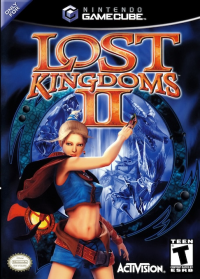
You are Princess Katia, explorer and master of Guardian Creatures. Your mission is to solve the mystery of the Black Fog and the evil power that lurks behind it.
Advancing the Story
The story develops as you play. As you clear one mission, another will become available. Every mission has different success conditions that must be met before you can advance to the next part of the story.
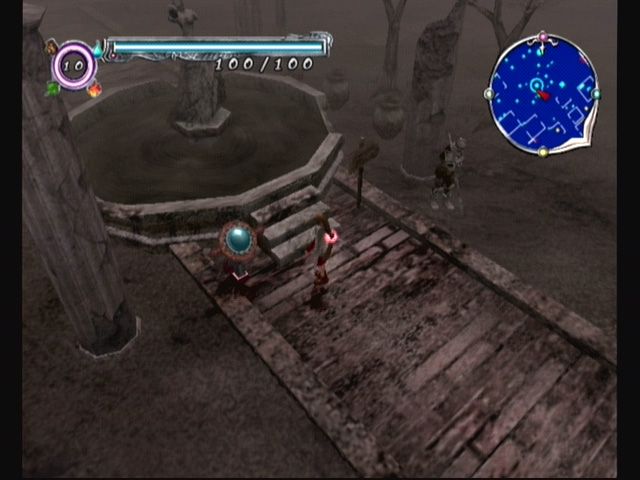
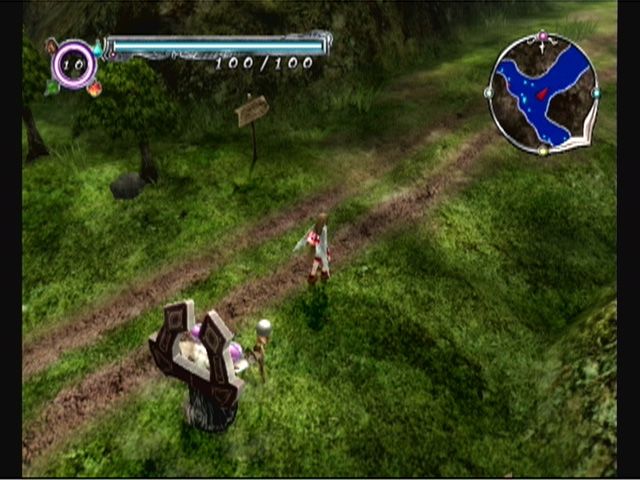
Exploration Mode
•
Local Map: A small map centered on your current position.
Changing Views
Camera settings can be changed at any time while you're on a mission by using the C Stick. Move the C Stick up and down to zoom in and out. Two levels of zoom are available in Battle Mode, three in Exploration and Map Modes. Moving the C Stick to the right and left rotates the viewing angle by 90°. A little skill with the camera settings can often help you find hidden treasure chests and fairies.
BATTLE MODE
If you encounter a monster while exploring, the game will switch to Battle Mode. Avoid being hit, and use your cards to defeat enemy monsters. The only way to defeat a monster is by using cards. Efficient, effective card use is essential, because the number of cards you can carry is limited.
Using Cards
•
Use Card: A/B/X/Y Buttons (When using Controller Set 1)
To use a card, press the control button corresponding to the on-screen position of the desired card. Use your cards carefully: some cards will only be effective if they are activated within a certain distance of a monster. Others require you to be pointing at the enemy when activated, or they will expend their attack on empty space.
Discarding Unwanted Cards
•
Throw Away Card: R + A/B/X/Y Buttons (When using Controller Set 1)
You can discard an unwanted card by holding down the R Button, then pressing the button corresponding to the card you want to dump. Discarded cards will return to your deck when the battle is over.
Used Cards
Once a card has been used in battle, it cannot be used again on the same mission. Used up cards will be available for subsequent missions.
Magic Stones
Magic Stones will appear when you damage an enemy or destroy a terrain object.
Types of Magic Stones
There are three types of Magic Stones. Each type replenishes your Magic Stone Gauge at a different rate.
•
Small Magic Stone: Recharges Magic Stone Gauge by 1.
•
Medium Magic Stone: Recharges Magic Stone Gauge by 3.
•
Large Magic Stone: Recharges Magic Stone Gauge by 5.
Picking up Magic Stones both replenishes your magic power, and adds experience points to all the cards currently in your deck. A Small Magic Stone is worth
.png)

_2.png)

_1.png)
_1.png)
.png)
 (v1.0).png)