GETTING STARTED
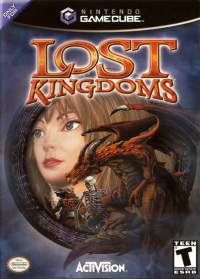
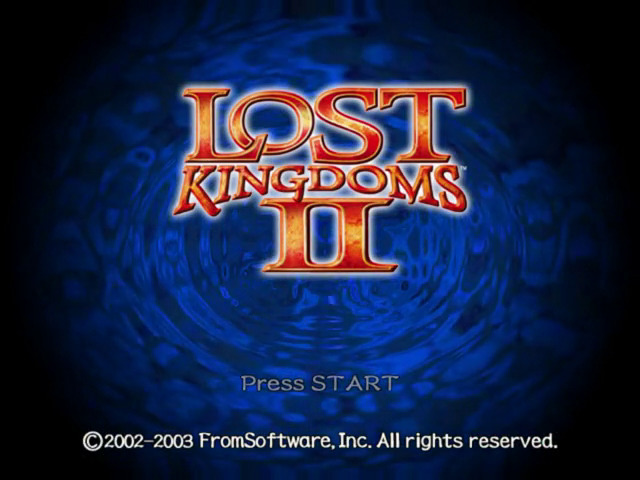
Insert the Lost Kingdoms II Game Disc into the NINTENDO GAMECUBE system, close the Disc Cover, and push the POWER Button. When the Title Screen appears, press START on the NINTENDO GAMECUBE Controller. Please refer to the NINTENDO GAMECUBE instruction booklet for directions on how to format and erase Memory Card files. Main Menu Options
•
New Game: Start a game from the beginning.
•
Load Game: Start playing from where you left off during a previous session. Requires a NINTENDO GAMECUBE Memory Card with previously saved game data on it. •
Two Player: Play head-to-head against a friend using the character that you created in Story Mode. Requires a second Controller. Refer to the section on VS Mode for more information.
•
Options: Configure the sound, Rumble Feature, Controller setups, etc.
Saving Your Game
Saving your game requires a Memory Card with at least three free blocks. Refer to the section on Saving & Loading.
When copying game data from one Memory Card to another using the Memory Card Screen, the destination Memory Card must have an empty file at the same position as the data file you're copying from, or the copy will fail. In that situation, copy the game data from within the game. Load the game data to be copied, select Save Game, and specify the second Memory Card as the save destination.
GAME BASICS
Advancing the Story
Collect cards as you clear the stages. Your deck will become more powerful as the story unfolds.
After clearing a stage, go to the card shop to buy, sell, upgrade or copy cards in your deck (see page 29). You can also collect fairies as you clear levels and trade these to Jarvi for additional cards (see page 30). You can also edit your deck to suit your combat tastes (see page 23)!
THE GAME SCREEN
In Game and Battle Mode
•
Hit Point (HP) Gauge: Displays your current health status.
•
Magic Point Gauge: Indicates the number of Magic Points you have. Using cards reduces the number of Magic Points. Collecting Magic Stones restores Magic Points. As you advance in the levels, you'll have a higher capacity for Magic Points.
•
Card Preview: Shows the next card you will receive in your hand. As soon as one of the cards in your hand is used up, this card will automatically move to your hand.
•
Active Cards (Hand): Shows the cards currently available for use. The position of the cards corresponds to the buttons on your Controller. Cards are coloured according to their attributes.
•
Enemy Monsters: Each enemy has its own status display. The icon on the left is the creature Attribute. The gauge is the creature's hit points.
About the Camera
Camera settings can be changed at any time while you are in a stage.
•
Move the C Stick UP and DOWN to zoom in and out. Two levels of zoom are available.
•
Moving the C Stick to the RIGHT and LEFT rotates the camera.
•
When a Lupian Butterfly* is on the screen, pressing UP (or DOWN) enters Lock-On mode.
•
When you are in Lock-On Mode, LEFT and RIGHT changes the selected target.
•
Pressing UP (or DOWN) again, exits Lock-On Mode.
•
Pressing the L Button returns the camera to a default position behind the character.
*What is a Lupian Butterfly? This wondrous butterfly appears to point out danger when enemies are near. This is also the mark of the Band of the Scorpion.
GAME CONTROLS
Controller Settings for Set 1
•
Control Stick or + Control Pad: Moves character in direction corresponding to screen orientation.
•
C Stick: Camera Angle, Zoom and Lock-on Mode.
•
A B X Y Buttons: Uses the card whose on-screen location corresponds to button position.
•
Whenever there is a ! on screen: A Button: Investigate /Converse
•
When on the Map or Menu screen: A Button: Confirm/Execute, B Button: Cancel
•
While playing in a stage: Z-Effect/Combos
•
While pressing the Z Button, press a corresponding card button (A, B, X, Y Buttons) in order to activate the Z-Effect for that card.
•
In order to deactivate the Z-Effect, press the Z Button again along with the corresponding card button.
•
You can also use this to do Combos.
•
While on Menu screens: Displays the Z Help Cursor
•
R Button: Press and hold the A, B, X, or Y Button to discard a card.
•
L Button: Return the camera behind the character.
Note: The default Controller set is Set 1.
Soft Reset
During game play, you can return to the Title Screen by pressing and holding the B and X Buttons and START/PAUSE. This executes a soft reset.
60Hz mode
This game can be set to a clearer display and better quality on TVs that support 60Hz mode. When you connect NINTENDO GAMECUBE RGB Cable to a TV which has RGB terminal and PAL60 function, you can enjoy smoother game screen with less flickers. To activate 60Hz mode, press and hold the B Button while the NINTENDO GAMECUBE logo is being displayed until the message "Would you like to display in 60 Hz mode?" appears .png)


_2.png)
_3.png)
.png)

.png)
_1.png)