Top View
Starting the Game
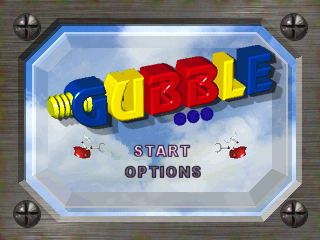
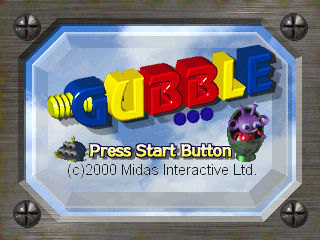
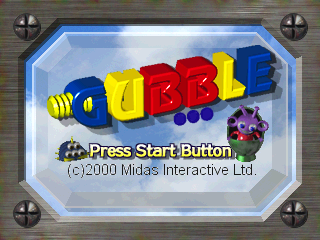
Set up your PlayStation® game console according to the instructions in its Instruction Manual. Make sure the power is OFF before inserting or removing a disc. It is advised that you do not insert or remove peripherals or Memory cards once the power is turned on. Insert the Gubble disc and close the Disc Cover. Insert game controllers and turn on the PlayStation game console. At the Game Title screen press the START button. This will display the Mode Select screen. Select New Game to play a game from the beginning.
Title Screen
New Game Options
Select this the first time you play a game. You can only select the difficulty level when beginning in New Game mode. In Difficulty Level mode you can choose from two options: Novice and Expert. Novice is for Beginners; in this mode you can only play to the third map.
Difficulty Level Screen
Select the difficulty level of the game you want to play with the buttons.
Game Options
The Options screen will appear if you select Options at the Mode Select screen. From here you will be able to change game settings. You will be able to set the following: Sound, Vibration, BGM and Speech (Gubbleese).
Use the buttons to select the item, and then confirm. Use the buttons to select an item and the buttons to change it. For BGM and SE use the buttons to select a BGM number, and then confirm.
Operation Method
•
buttons: Play BGM and Gubbleese
•
buttons: Stop BGM and Gubbleese
•
R1 R2 buttons: Display High Score.
Sound
Change game sound to stereo or mono.
BGM
Try out the BGM (music) that will be played during the game. To try it out, use the buttons to select a BGM number, and then confirm.
Gubbleese
Try out the Gubbleese (special effect sound) that will be played during the game. To try it out, use the buttons to select a Gubbleese number, and then confirm.
Vibration
When using a DUALSHOCK® analog controller, you can toggle Vibration On/Off.
Viewing the Screens
Two screens will appear during a game: City Map and Game. At the City Map you select the map, which contains a zymbot, at which you want to play. As soon as you confirm, you will be able to play at the Game screen.
City Map Screen
Obstructions
When you clear a zymbot, these will be removed and you will be able to advance.
My Character
Move your character with the Directional buttons to select the map you want to play.
Bonus Stars
These appear around the City Map. Each star gives you a bonus of 5000 points.
Zymbot
If you climb on top you will be able to see the map layout. Confirm with the button or the button.
About Tools
There are many types of tools and you must use the correct ones to release a zymbot. There are tools for such things as bringing screws up out of the sand and moving obstructions out of the way.
Bonus Zymbot
During the game if you can get on the Magic Ring and confirm, the Bonus Zymbot screen will appear. Get as many tools as you can during a fixed time.
Time Remaining, Items
Get as many tools as you can during a fixed time. If you succeed in getting more than a certain number of tools within the time limit, a 5-point coin will appear.
Special Zymbot Screen
During the game if you can get on the Special and confirm, the Special Zymbot screen will appear. If you clear this, Special will change from red to blue.
Time Remaining, Items
Here too, the object is to remove screws and release a zymbot. This one will be somewhat more difficult than a normal one.
Items
Numerous Items that can help Gubble will appear during the game. All he has to do is pass over one to receive its benefit. However, after a certain time this benefit goes away.
Speed Up
For a certain period of time moving speed increases.
Health Up
This will restore a damaged health meter by a fixed amount.
Freeze
By freezing the ground around you, you can temporarily stop enemies from moving. Gubble will be able to move as usual.
.png)