STARTING THE GAME
1. Set up your PlayStation game console according to the instructions in its Instruction Manual. Make sure the power is OFF before inserting or removing a compact disc. 2. Insert the NBA Live 2001 disc and close the Disc Cover. 3. Insert game controllers and turn ON the PlayStation game console. When using the MultiTap, a controller must be inserted into controller port 1-A of the multitap.
4. At the NBA Live 2001 title screen, press START to advance to the Main menu. 5. To skip the opening video and go directly to the Main menu, press START at any time during the video.
COMMAND REFERENCE
DUALSHOCK™ analog controller
•
Directional Button (D-Button)
MENU CONTROLS
•
Highlight menu item: D-Button
•
Change highlighted menu item: D-Button →→
•
Cycle secondary menu items: L1/R1 or L2/R2
•
Activate highlighted option/go to screen: *
•
Open Help screen(s) to view menu controls: ▲
•
Activate Quick Menu overlay: SELECT
•
Return to previous screen (Cancel changes):
•
Advance to next screen (Accept changes): START
QUICK MENU
The Quick menu is your link to customizing NBA Live 2001 the way you like it. Adjust options and rules, create players, check out team stats and more. To access the Quick menu, press SELECT.
•
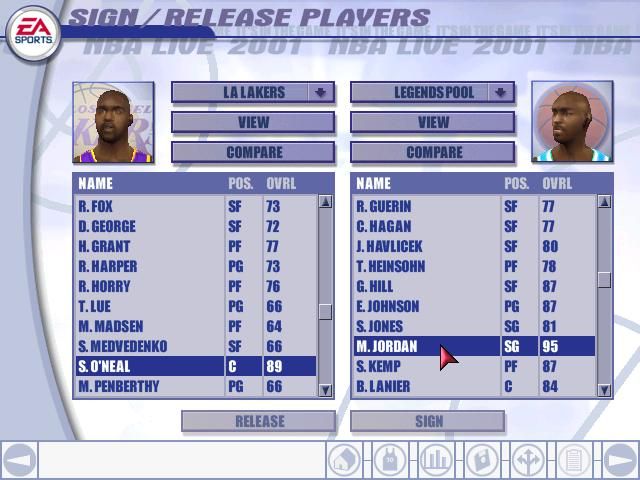
Trade players or reorder your Rosters
Press the D-Button to access MEMORY CARD functions, check out Live 2001 Music, and view Credits.
PLAYING AN EXHIBITION GAME
Take your team onto the hardwood and see if you can dominate the NBA's best.
To start an Exhibition game:
1. From the Main menu, choose EXHIBITION. The Exhibition Game Setup screen appears.
2. To select criteria to be changed, press the D-Button and then press the D-Button to scroll through your choices for that option.
3. After adjusting all your game settings (quarter length, game style, skill level, and teams), press START to advance to the User Setup screen.
4. To change users, press the D-Button.
To create a new user, press * after scrolling to NEW USER. The User box appears with a flashing letter A in it.
To change the blinking letter, press the D-Button. To advance to the next letter, press the D-Button. To enter a name after you've spelled it, press *.
5. To advance to the court, press START.
ON THE COURT
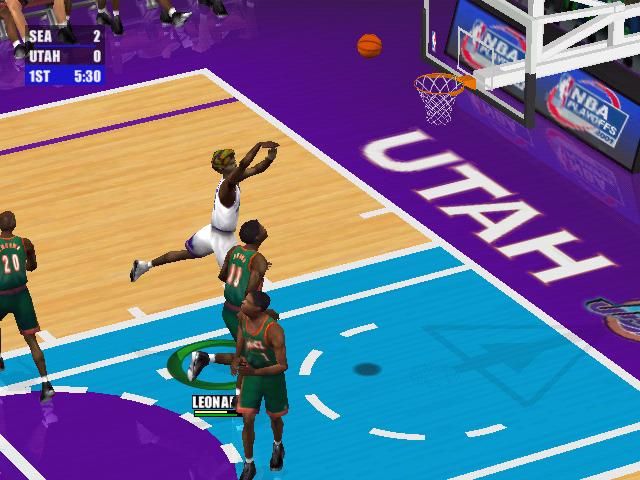
The Pre-game Introduction displays the teams and home court, followed by the Starting Matchups screen. Change your starting lineup if needed.
To substitute a player, press the D-Button to highlight the player and then press the D-Button to select the substitute.
To exclusively control the highlighted player (Player Lock), press *.
When you're ready to get to the court, press START.
PAUSE MENU
You can access the Pause menu during any game mode and adjust your settings. Default options are listed in bold in this manual.
•
INSTANT REPLAY: Relive the last play, or check up on a suspect call.
•
TIME OUT (6): Call one of six time outs. The number in the parentheses reflects how many time outs remaining.
•
SUBSTITUTIONS: Sub in a fresh player to relieve your fatigued starter.
•
STAT CENTRAL: View player, team, and user stats.
•
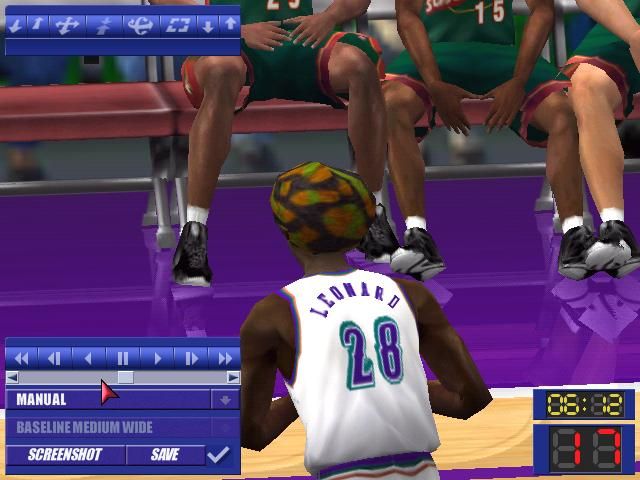
CAMERA OPTIONS: Adjust camera view and replay options.
•
PLAY OPTIONS: Access various option screens including rules, options, user setup, and controller configuration.
•
SHOT CONTROL-MANUAL/AUTO: Shot control is found on the Controller Config menu. Choose Manual to control the chance of making a shot. In Auto mode, the NBA player's stats automatically determine the probability of sinking a basket regardless of the user's timing.
•
QUIT GAME: Exit game and return to Game menu.
SEASON
Take a team from the first game to the championship for up to 10 consecutive seasons. During a season, players can get injured and experience hot and cold streaks. Detailed stats update you on player performance.
To start a Season:
1. From the Main menu, choose SEASON. The Season Settings screen appears.
2. Adjust the settings and press START to go to the Season Team Select screen.
3. To choose a team, press the D-Button ↔.
•
To toggle USER/CPU control for the current team, press ✖.
4. To continue to the Season Schedule 1st Season screen, press START.
5. To play the next game, press START and select which team to control in the User Setup screen.
•
To simulate a game or part of a season, cycle the dates forward by pressing the D-Button. Then press ✖.
.png)