PlayStation Setup and Game Startup
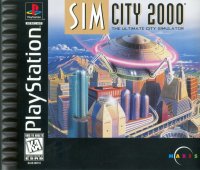
Set up your PlayStation game console according to its Instruction Manual. Ensure the power is off before inserting or removing a compact disc. Insert the SimCity 2000 disc and close the CD door. Insert the game Controller(s) and turn on the PlayStation game console. Follow the on-screen instructions to start a game. You'll see the PlayStation title screen, followed by the Maxis title screens and SimCity 2000 animation. Press the Start or X buttons to access SimCity 2000's main menu and bypass these screens. When the title screens have been dismissed, you'll see a menu of choices to begin your city-building adventure. PlayStation Game Console
Top View
Front View
Choose Button
•
In the city: Use it to affect the part of the city in the active area in some way, depending on the active toolbar tool.
•
In the toolbar: Use it to select a tool or tool option.
Before You Play
Thank you very much for purchasing this PlayStation game console version of SimCity 2000. Please be sure to read this before beginning play. •
You need a separately sold memory card to save games.
SimCity 2000 requires a separately sold memory card to save your games. A well-developed game's data can take up considerable storage. If you want to save a great number of large games, you may need many memory cards.
•
You can operate SimCity 2000 with a separately sold mouse.
A mouse also can be used to control the program. Use of the mouse to control the game pointer is somewhat easier than using the Controller, particularly for people who are accustomed to using a mouse on personal computers.
You can obtain both the extra memory cards and the mouse through the retailer where you purchased your PlayStation game console. Some Interface Intrigues
The Configuration Screen
One of the beauties of this version of SimCity 2000 is the ease with which you can customize the way you work within the program. You can choose from a number of predefined Controller configurations to best suit your button-pressing style.
You can open the Configuration screen through the Settings button in the View tools, or by pressing the Menus button at any time within the game. In this manual, we're going to use the default button mappings, but use this screen to make the Controller your own.
Throughout the manual, we'll refer to using the Choose button, the Zoom buttons, and others in a general way—their placement on the Controller is your own business.
Choose the configuration that's most comfortable by using the Next button to cycle through the four Controller choices. Click on the OK button after you've made your decision.
The Persistent Toolbar
Another pleasing advanced interface feature is the use of the Persistence buttons on each toolbar and the game title bar. Below is how a city will open at the default screen view.
Each of the four toolbars has a Persistence button in its left corner. If you click with the Choose button on the Persistence button and move the cursor off the bar, the toolbar will apparently disappear, giving you a clear view of the terrain underneath. However, if you bring your cursor within the range of any of the toolbar's buttons, they will reappear, with their drop-down tools, for your use.
Default Tools View with Open Toolbar
You can move the bars to whatever part of the screen is comfortable to you. Grab and move any of the toolbars by scrolling to the top (or side) of the toolbar, pressing and holding down the Choose button on the white drag bar, and then scrolling with the Directional buttons.
Whenever you next open a map or scenario, the bars will be positioned as you assigned them. You can do the same with the game map title bar. Take care when repositioning the toolbars that you don't place them so their sub-menus will not open. Also, positioning bars on top of each other can result in your being unable to access the bottom bar.
Welcome to SimCity 2000!
Congratulations! You are hereby proclaimed Mayor of a million cities and ruler of a billion simulated lives (your Sims).
As Mayor, you may take over and run any of the included cities and scenarios, or build your own cities from the ground up. You're in charge. You choose whether to build small, rural towns, or huge, bustling megalopolises.
As you design and build your cities, simulated citizens—Sims—move in and build their homes, stores and workplaces, raise their families and invite their friends. If your city is a nice place to live, your population will increase. If it's not, your Sims will leave town. And be assured that they'll let you know what they think about you and your policies.
SimCity 2000 is primarily a "building" game, where the challenge is to create and grow your cities. Of course, there are also plenty of opportunities to destroy, from bulldozers to earthquakes to air crashes. But, you'll soon learn that it's a lot more challenging to build than to destroy. And remember, the lives, hopes and dreams of millions of Sims are in your hands.
Once the SimCity 2000 fly-through animation begins (
.png)



_1.png)

.png)
.png)




_1.png)