the balls if the cue ball is hit with exact force shown.
Overhead View
This will move the camera to the Overhead View until it is moved by the player or the game auto-lines up for the next shot.
Load Game/Position
This option allows you to load a previously saved game or load one of the trick shots that come with Virtual Pool. Loading trick shots is only available in practice mode.
Save Game
If you set up a really cool trick shot and want to save it, select this option. You will be able to save all of the balls positions, the tracking force, and everything else necessary to pull off your shot again and again.
This will also allow you to save your game if you are in the middle of a long game against another player.
Change Player 1's Name
Use this option to change the name for Player One.
Change Player 2's Name
Use this option to change the name for Player Two. Only available when Opponent is set to Another Player.
Show Ball Status
This will bring up windows showing which balls are pocketed and which remain on the table.
Spot Balls
This option allows you to put pocketed balls back on the table.
Move the cursor to the ball you want back on the table and push X.
Pocket Balls
This will allow you to remove balls from the table.
Move the cursor to the ball to be pocketed and push X.
Pick Computer Player
Use this option to select a different Computer Opponent. Only available when playing against a Computer Opponent.
Quit Match
Select this option to quit the current match.
Change Turn
If you want to play 'push out' rules, let your opponent try again, or want to switch turns for some other reason, select this option and play will switch over to the other player.
This change will take place following the movement of all the balls and without assessing fouls.
Suggest Shot
This option will tell the computer to figure out its best shot. Tracking lines will turn on automatically so you can see what the computer has planned.
Only available when Opponent is set to Another Player.
Miscall
Virtual Pool uses the honor system for calling shots. If you pocket the wrong ball or a ball in the wrong pocket, you can declare a miscall by using this option. Play then proceeds to the next player and in some games, pocketed balls may come back onto the table.
End Game in Draw
This option ends the current game in a draw, re-racks the balls, and starts a new game.
Resign Game
This ends the current game and assigns the win to your opponent.
Rack For...
In practice mode options to rack for each type of game will be available to set up the next table.
PREFERENCES
This menu contains all of the options you can use to set up your game to your liking.
Graphics Detail
•
Background (on/off): This option will turn the pool room in the background on and off.
•
Table Color: Choose from green, cyan and tan.
Auto Line Up
•
Aim To Next Ball (on/off): If you are playing a game such as 9-Ball, and you have this option on, the game will automatically point you in the direction of the next ball you are supposed to hit.
•
Restore Distance (on/off): This option will return the cue to a preset distance from the cue ball after every hit.
Sound
•
Music (on/off): This allows you to adjust the volume level of the music in the game.
•
Effects (on/off): Allows you to turn sound effects on and off.
•
Volume Control: This option will take you to a sub-menu which allows you to independently adjust the volumes of your left and right sound effects channels and the XA Audio music.
Input Sensitivity
This allows you to adjust the sensitivity of the Sony Mouse (if you are using one) or your PlayStation Controller. The normal setting is 1.0, but you increase the sensitivity to 2 1/2 times this (2.5) or lower it to 1/4 of this (0.25).
BUTTON ASSIGNMENT
This menu allows you to re-map the buttons on your controller.
To change a button, highlight the function you want to re-map, and then press the button you want to use. The buttons will automatically be swapped for you.
MUSIC PLAYER
This will bring up a small menu allowing you to stop, play, pause, skip to the next track, or skip back to the previous track.
MOVIE PLAYER
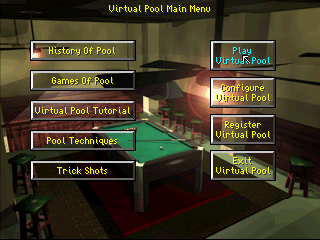
This will take you to a movie player sub-menu with the following options:
•
History of Pool: This starts the "Animated History of Pool" movie.
•
Pool Techniques: This will bring up a sub-menu of movies that will teach you some of the basic fundamentals of pool.
•
Trick Shots: This will take you to a set of menus from which you can watch the different trick shot movies included on your CD.
DEMO
Selecting this option will start up a demo mode. This demo will show two computer opponents playing out a game of pool.
EXIT
This will take you back into the game of pool.
USING THE SONY MOUSE
If you have the Sony Mouse, you may find it will increase your play control in Virtual Pool. To use the Sony Mouse, plug your standard PlayStation controller into Port 1 and .png)

.png)
