OPTIONS
To display the options menu, select options in the Main Menu or press the START button during the game. Use the directional buttons to move around the menu and confirm your choice with the button.
•
effects volume: adjust the SFX volume.
•
music volume: adjust the music volume.
•
dialogue volume: adjust the dialogue volume.
•
screen adjustment: Use the directional buttons to center the picture on your screen.
•
Language selection: Choose a language.
•
adjust brightness: set up your TV screen according to the instructions.
•
stereo I/R: Choose the sound output.
•
vibration function: activate or disable vibration function.
•
controller configuration: Customize the configuration from the three available options.
PAUSE MENU
To access this menu during the game, press the START button, except during cinematic sequences. In this mode the game is "frozen". Select an option with the directional buttons and validate with the button.
•
resume game: to quit the pause menu and return to the game.
•
Quit game: to return to the Main Menu without rebooting the Console.
•
options: to call up the options menu (center the screen, adjust sound volume, etc.).
ADDITIONAL ACTIONS
Use Flashlight
Press the button to turn your flashlight on and off.
When your flashlight is on, use the left analog stick to switch to "freelook mode" and point your flashlight in any direction.
Note: "freelook mode" only functions when the player is stationary.
Use Weapon
With the weapon in your hand, hold down the II button to switch to "target mode" and press the button to fire.
When you are in "target mode", your life indicator appears on the screen. In this mode, your weapon automatically points at the nearest target.
Note: In "target mode" you can still move, but you cannot run.
By holding down the II and the I buttons simultaneously, you can switch to "aiming mode". Use the left stick to point your weapon in any direction and press the button to fire.
Note: "aiming mode" only functions when the player is stationary.
Run
To run, hold down the button and use the directional buttons.
Push an Object
It is possible to push certain objects (crates, furniture, etc.). Place yourself in front of the object you want to push and hold down the button. If the object cannot be moved, the character will not adopt the pushing position.
Climb onto an Object
It is possible to climb onto certain objects or elements of the environment. Position yourself in front of the object onto which you wish to climb, then press the action button. To jump down from an object, position yourself at the edge of the object and press the action button. If the character cannot climb onto the object, they will not react.
Scale Walls
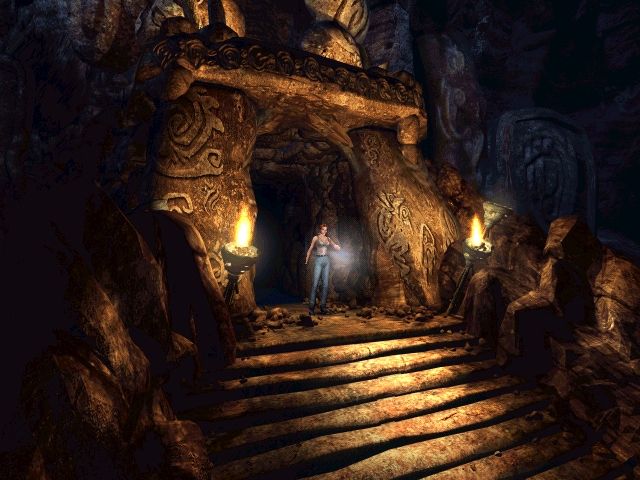
Alina can scale certain objects in the environment to reach new areas to explore. To scale walls, position yourself in front of the wall and press the action button. To jump down from a wall, position yourself on the edge of the drop and press the action button. If Alina cannot scale a wall, she will not react.
Examine a Document
The environments contain numerous documents providing useful information to help you through the adventure. You may have written text or visual documents (such as photographs or paintings) to consult. To examine a document, position yourself in front of it and press the action button and then view the document in full-screen. •
written documents: Scroll through the pages using the right and left directional buttons.
EQUIPMENT
Map
To view the map, press the L2 button.
Use this screen to view the map of the site you are visiting. If extra maps are available, use the L1 and R1 buttons to display them. Use the directional buttons to scroll through the map and the and buttons to zoom in and out. Use the button to centre the map around the character's current position.
Radio
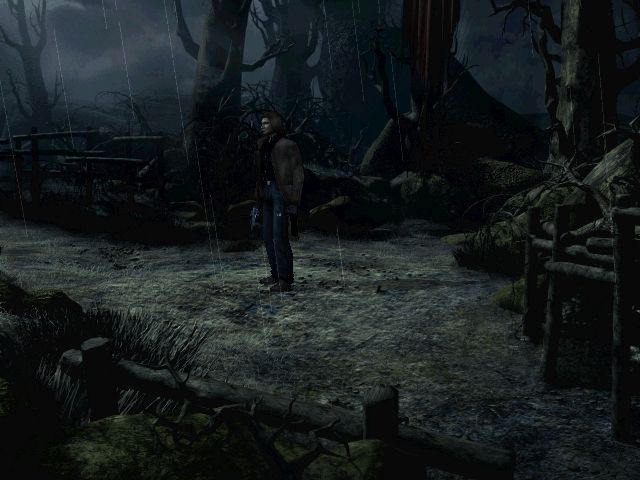
The two heroes each have a walkie-talkie so they are in constant contact.
To call up the other character by radio, press the L2 button and if your partner is within receiving range, they will respond with the relevant advice or information.
INVENTORY
To access the inventory, press the button.
Character's Status
The inventory screen permanently displays the face and life bar of your character.
Main Inventory Menu
The inventory lists all the objects in your possession, divided into several categories. To use an object, select the relevant category with the directional buttons and press the action button. Whatever branch of the inventory menu you may be in, you can return step-by-step to the main inventory menu by pressing the button. Pressing the button several times allows you to quit the inventory and return to the game.
Note: Use the directional buttons to select an object and press the action button, a sub-menu will then appear indicating the possible actions for which the selected object can be used. Use Object
Select the object you wish to use and press the action button and select Use from the menu which will appear. Equip Object
Select the object you want to equip and press the action button and select equip from the menu which will appear. If you select a weapon, your character is then equipped with it. If your character was in possession of a weapon, then this one will automatically return to the inventory.
Reload
If the object you select is a weapon, you can use the reload
.png)

.png)


_1.png)


_1.png)

.png)
.png)

.png)