Setting Up
Set up your PlayStation®2 computer entertainment system according to the instructions in its Instruction Manual. Make sure the MAIN POWER switch (located on the back of the console) is turned ON.
Press the RESET button. When the power indicator lights up, press the OPEN button and the disc tray will open. Place the SIREN disc on the disc tray with the label side facing up. Press the OPEN button again and the disc tray will close.
Attach game controllers and other peripherals, as appropriate. Follow on-screen instructions and refer to this manual for information on using the software.
Memory Card (8MB) (For PlayStation®2)
To save game settings and progress, insert a memory card into MEMORY CARD slot 1 of your system. You can load saved game data from the same memory card or any memory card containing previously saved games.
Getting Started
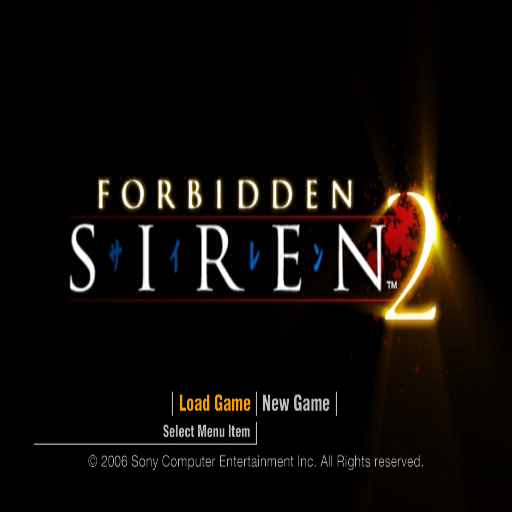
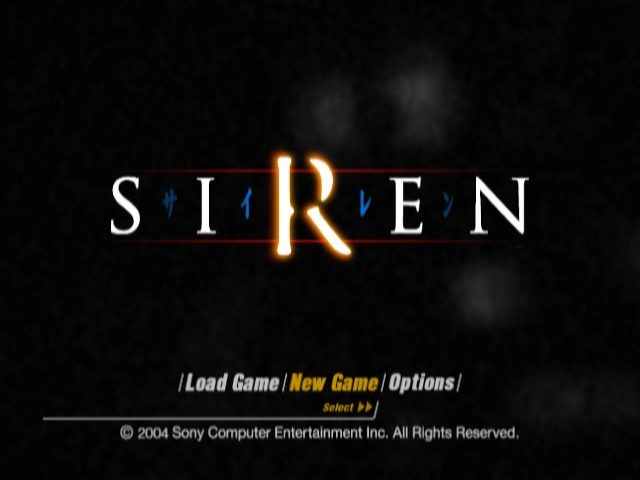
Main Menu
Press the or to select one of the following options, then press to confirm:
Load Game
To load a game previously saved to a Memory Card. Press the ↑, ↓, or ➡ to select a previously saved game from the four available files and press to confirm.
Next, press the or and select 'Continue' to carry on playing from that particular save point or select 'Archive' to view the item data archive at that save point.
New Game
Select New Game to start SIREN from the beginning.
Options
Press the ↑, or to highlight an option on the Options Menu and then press to change settings.
Configuration
Change the control function assigned to each button on the DUALSHOCK 2 analog controller. Move the cursor to highlight an action and then press the corresponding button that you would like to assign that action to. Press START to confirm or SELECT to return to the default settings.
Note
Occasional on-screen hints or suggestions may instruct you to 'Press to open the List Menu'; if you have changed the button assignment for the 'Open Menu' function, you will have to press that button instead.
Changes made on the Button Configuration Screen apply to in-game controls only. When using menu screens, you will always need to press to confirm and press to cancel/return to the previous menu screen.
Control Reverse
•
Normal: Push the ↑ to make your character look up and ↓ to look down.
•
Reverse: Push the ↓ to make your character look up and ↑ to look down.
Vibration
Toggle the vibration function of the DUALSHOCK®2 analog controller On/Off.
Screen
Alert Effect
Select the special effect to be used when you have been spotted by one of the shibito:
•
None - No special effect.
•
Red - Screen flashes red.
•
Sightjacked - The shibito's viewpoint temporarily flashes on screen.
Screen Adjust
Adjust the screen position by pressing the ↑, ↓, ← or →. Adjust the brightness by pressing L1 and R1.
Sound
Output
Select Stereo or Mono sound output.
3D Sound
Select Headphone or Speaker 3D sound modes.
Restore Defaults
Restore all options to their original settings.
Playing the Game
In SIREN, a series of interlinked events unfold with each episode, or 'stage', seen through the eyes of a particular set of characters during a specific point in time. Only one primary character is controlled during each stage, although players can also direct the actions of secondary characters by issuing commands to them.
When a stage is cleared, the next one becomes accessible. At a certain point in the game, players will unlock a "Stage Select" screen, allowing them to choose their next stages in any order. The more stages that are completed, the larger the number of available stages becomes.
Stages will not necessarily be played in chronological order. The individual stages are organically interconnected, however, and events occurring in an 'earlier' stage will sometimes affect what happens in a 'later' stage.
A flowchart of the stages played so far, and how they relate to each other, can be viewed at any time using the 'scenario link navigator' that is accessible from the Pause Menu.
Note
Further information on the 'scenario link navigator' can be found in the Pause Menu section of this manual.
Game Flow
Stage Flow
Each stage proceeds in the order shown below.
1. Stage Title Screen
The main character, the particular setting, and the current date and time are displayed.
2. Stage Intro Movie
A short cinematic sequence introduces the events that took place immediately before this stage. If you prefer, you may press START to skip the movie.
3. Mission Objective(s)
Next, the primary objective for the stage will be displayed. If you have unlocked the secondary mission objective, it will also be displayed. Once either mission objective has been completed, the stage will end.
If you complete the primary objective first, you will have to retry the stage to complete the secondary objective. If the controlled character or a companion in the stage is killed, the mission will be failed. Select 'Try Again' to restart the stage.
4. Start Play
Mission objectives are achieved by completing a series of tasks. As the stage begins, and during the mission, information relating to the proper actions to take will be


_2.png)


_1.png)



_1.png)

.png)
.png)



_1.png)

_1.png)