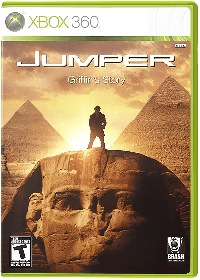
GETTING STARTED
Set up your PlayStation® 2 computer entertainment system according to the instructions in its Instruction Manual. Make sure the MAIN POWER switch (located on the back of the console) is turned ON.
Press the RESET button. When the power indicator lights up, press the OPEN button and the disc tray will open. Place the Jumper: Griffin's Story disc on the disc tray with the label side facing up. Press the OPEN button again and the disc tray will close.
Attach game controllers and other peripherals, as appropriate. Follow on-screen instructions and refer to this manual for information on using the software.
TITLE SCREEN
JUMPER
Griffin's Story
START
This is the Title Screen. Press Start to enter the game for the first time, or be taken to the Profile Select screen if one has been saved previously.
CHOOSE A PROFILE
If a Profile has been saved previously, you will be shown the Profile Select screen after pressing Start and before entering the game. From this screen you can start a new game, load a previous game, or delete a game. There are three separate profiles available.
To save a profile, you must have a memory card (8MB) (for Playstation®2). Jumper saves game progress to the selected profile by using Autosave.
THE LAIR
After selecting a profile, you will enter into Griffin's secret Lair. The Lair serves as Griffin's central hub. Here you will find the Menu Room and Griffin's Trophy Room.
THE MENU ROOM
When first entering the Lair, Griffin will start out in the Menu Room. There are interactive objects in this room which can be selected to continue the current game, set options, view unlocked cut scenes, replay a chapter, or jump to the Trophy Room.
Simply walk up to a Menu Item and press X (button icon) to access that Menu Item.
OPTIONS MENU
Set options such as sound volume, vibration, or camera rotate preferences. Use the D-Pad to cycle through and make changes to the various Options settings, and press the X button to save the settings and return to the Menu Room.
To cancel any changes made, just press the Triangle button to back out. The Options Menu is also available through the in-game Pause Menu.
CUTSCENE VIEWER
Unlocked Cutscenes can be viewed by selecting this menu icon.
REPLAY CHAPTER
Here you can replay any level in the game that you have already completed. There are many Hidden Items, Weapons, and Secret Rooms to find. Try to find them all!
TROPHY ROOM
In the Trophy Room you can examine all the collectables that you have found in the game so far. Collectables include Hidden Items and Weapons that can be found throughout the levels, or in Hidden Rooms.
Weapons that you have acquired will be found on the Weapon Rack. Here you can choose one unlocked weapon for each of the 5 weapon classes to bring into the game. Walk up to the Weapon that you would like to equip and press the Triangle button.
CONTINUE GAME
This selection will enter Griffin into the game where he last left off.
JUMPING
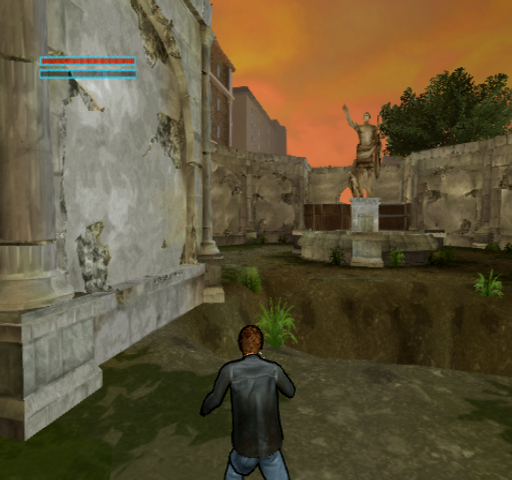
Griffin can use his unique ability as a Jumper to jump away from dangerous situations, sneak up on enemies, or navigate through certain obstacles. Press and hold the R1 button, and you will see the Jump Marker appear on screen. Use the Right Analog Stick to steer the Jump Marker, then release the R1 button to jump Griffin to that point.
JUMPER COMBAT
Griffin integrates his Jumping ability into every facet of combat. He can freely jump to and attack an opponent from any angle. Press the Left Analog stick in any direction while attacking an enemy to jump to and attack him from that angle.
There are five classes of weapons in the game: Griffin can carry one unlocked weapon from each of the 5 weapon classes at any time. Use the (Triangle) button to switch between weapon classes. Here are the weapons and the weapon classes that they belong to:
Each weapon has two basic attacks:
•
Light Attack (X icon) button
•
Heavy Attack (SQUARE icon) button
You can chain and create combos with these two attacks.
TARGETING AND ATTACKING
Green indicator arrow appears above the currently targeted enemy.
JUMP ATTACKS
As you fight, you will charge up the Jump Meter. It has three segments. When one or more segments are filled, hitting the (CIRCLE ICON) button will release very powerful Jump Attacks. If all three levels are filled, the Jump Attack will inflict damage onto multiple enemies.
PAUSE MENU
During the game, pressing the START button will bring up the pause screen. Here you can enter the options screen, look at your current statistics, view the controller layout, return to the game, or quit and return to the Lair.
STATS SCREEN
The Stats screen shows your progress in acquiring the Hidden Items per level. You can also see which weapon class Griffin has been using most often, as well as view stats such as total number of kills, kills per weapon, and kills per Jump Attack.
.png)



.png)



_1.png)


.png)

.png)
.png)