Getting Started
Set up your PlayStation®2 computer entertainment system according to the instructions supplied with your system. Check that the system is turned on (the on/standby indicator is green).
Console Controls
Loading the Game
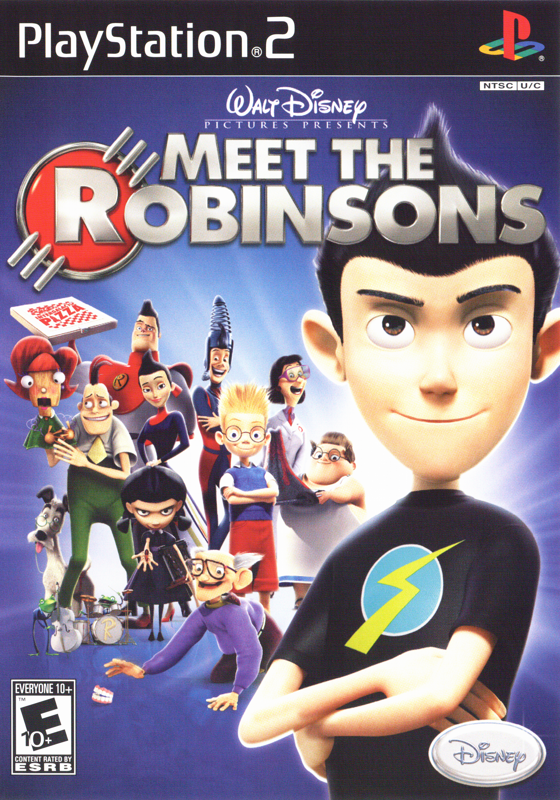
Press the OPEN button to open the disc cover. Place the Walt Disney Pictures Presents Meet the Robinsons disc with the label side facing up in the disc holder, and then close the disc cover. Attach game controllers and other peripherals as appropriate. Follow the on-screen instructions and refer to this manual for information on using the software.
Memory Card (8MB) (for PlayStation®2)
To save game settings and progress, insert a memory card (8MB) (for PlayStation®2) into MEMORY CARD slot 1 of your PlayStation®2 system. You can load saved game data from the same memory card or any memory card (8MB) (for PlayStation®2) containing previously saved games.
You can have up to three different saves:
•
Three saves takes up 111KB
The Adventure Begins!
To begin your adventures, you can either select New Game or Load a Saved Game. Selecting either option will take you to the next screen, where you will see a three empty slots menu.
If you chose New Game, your choices will be Start Game, Mini Games, Cheats, Extras and Credits. If you chose to Load a Saved Game, it will give you the same screen but now "Continue Game" will replace "Begin Game".
Use the button to accept your choice. Use the Directional buttons on the left of the controller to move between selections.
Main Menu Options
•
BEGIN GAME: Starts the new game.
•
MINI GAMES: Start the Chargeball Mini-Game from here.
•
CHEATS: Accesses the cheat codes and helpful hints.
•
CREDITS: Shows you who worked on the game.
Modes of Play
Test your skill with four distinct modes of play:
•
Adventure Mode: Venture through time battling the forces of evil as Wilbur Robinson.
•
Protectosphere: Test your reflexes as you roll along in the Protectosphere energy bubble.
•
Puzzles: Avoid falling boulders and enemies as you dig for an exit with your Havoc Gloves, a set of energized gloves that allow you to burrow through earth and rock.
•
Chargeball: Play the sport of the future! Score goals against A.I.-controlled opponents and rise to the pinnacle of athletic success.
In-Game Menu
•
OPTIONS: Changes settings such as action settings, vibration, sounds and more. •
Map: Displays a map of the current level and maps of completed levels.
•
Save Game: Saves your current game.
•
Quit Game: Leaves your current game and returns to the Main Menu.
Assigning Gadgets to Buttons
The gadgets can be mapped to the ,, or buttons. This can be done in two ways:
The Gadget Screen in the Family Album
Press the START button to bring up the Family Album and select the Gadget screen. Press the button to go to the Assignment screen. Press either the or button to assign the gadget.
Quick Swap
Press and hold the R2 button to bring up the Quick Swap menu. While the menu is up, use the directional buttons to move the selection cursor to the gadget you want to assign. While the gadget is selected, press the button you wish to assign it to.
Using the Gadgets
Want to destroy your opponents with ease? Then use this helpful guide for proper Robinson gadget use.
•
Disassembler: To disassemble objects, tap the assigned button. For a longer shot, press and hold the L2 button, then press and hold the assigned button. Release the button to fire.
•
Scanner: Use the Scanner by tapping the assigned button to scan the surrounding area to interact with different objects. Targeting and holding the button allows you to scan objects and enemies to see weakness and what they release when disassembled.
•
Chargeball Gloves: Throw charges of electricity by tapping the assigned button. To lock onto multiple objects, press the L2 button, then press and hold the assigned button. Sweep the cursor across targets using the Left analog stick and then release the button to fire.
•
Havoc Gloves: To clap the gloves together and create a shockwave, tap the assigned button. To burrow under the ground, press the L2 button, then press and hold the assigned the button. Release button to resurface.
•
Levitation Ray: To levitate and flip enemies, tap the assigned button. Note: Not all items can be levitated.
The Robinson Aid Station
Low on energy? Visit The Robinson Aid Station. This station is found on all levels and will heal you by replenishing your health and energy supply. To use it, approach the Aid Station and press the button.
Transmogrifier
Whenever you discover or earn a new blueprint, you can create a new item with the Robinson Transmogrifier. This workbench creates items using the Base Components you collect on your travels. Accessing the device pops up all the blueprints you have collected. Each .png)


.png)








 (En,Fr,De,Es,It,Nl).png)


_1.png)