STARTING THE GAME
PLAYSTATION®2 COMPUTER ENTERTAINMENT SYSTEM
1. Set up your PlayStation®2 computer entertainment system according to the instructions in its Instruction Manual.
2. Make sure the MAIN POWER switch (located at the back of the console) is turned on.
3. Press the RESET button. When the power indicator lights up, press the open button and the disc tray will open.
4. Place the NBA LIVE 2002 disc on the disc tray with the label side facing up. Press the open button again and the disc tray will close.
5. Attach game controllers and other peripherals, as appropriate.
6. Follow on-screen instructions and refer to this manual for information on using the software.
SETTING UP THE GAME
Whether you like playing streetball where anything goes or playing by the rules, you can set yourself up for the perfect NBA Live 2002 experience by adjusting the settings and choosing your favorite type of game. MAIN MENU
From the Main menu, you can launch right into a game with Play Now, choose from several other GAME MODES, set your Options, and take a look INSIDE EA SPORTS. •
PLAY NOW: Hit the court for some all-out hoops.
•
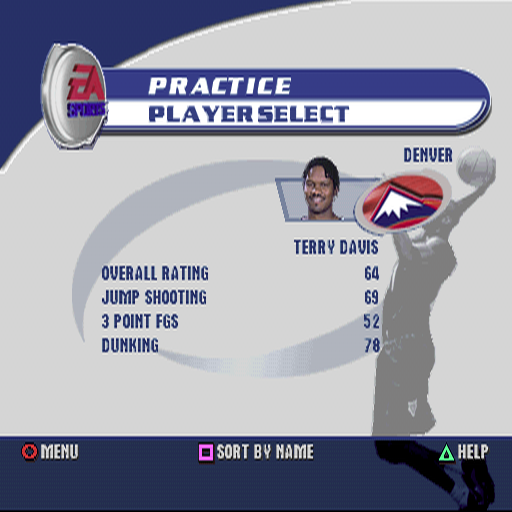
GAME MODES: Play through a Season, jump straight into the heat of the Playoffs, build a Franchise, go 1 on 1, or drill your player in a Practice.
•
OPTIONS: Manage your rosters, check out the numbers in Stats Central, or save and load files from a Memory Card (8MB) (for PlayStation®2).
•
INSIDE EA SPORTS: Check out what's new from EA SPORTS or view the game credits. SETTINGS
Find out in this section how to make up the rules as you go along. You can also adjust preferences and game settings.
NOTE: Default options are listed in bold in this manual.
RULES
NBA Live 2002 lets you determine which violations are called. When set to Simulation style, violations are called as they would be in an NBA game. In Arcade mode, the rules are much looser. •
GAME STYLE: SIMULATION/ARCADE.
•
DEFENSIVE FOULS: Adjust the frequency of defensive fouls called.
•
OFFENSIVE FOULS: Adjust the frequency of offensive fouls called.
•
FOUL OUT: Adjust the number of fouls allowed before a player fouls out of a game.
•
SHOT CLOCK: Toggle the shot clock ON/OFF.
•
OUT OF BOUNDS: Toggle auto out of bounds calls ON/OFF.
•
BACKCOURT VIOLATION: Toggle backcourt violation calls ON/OFF.
•
TRAVELING: Toggle traveling violation calls ON/OFF.
•
GOALTENDING: Toggle goaltending violation calls ON/OFF.
•
DEFENSIVE 3 SECONDS: Toggle the defensive 3 seconds violation calls ON/OFF.
•
3 IN THE KEY: Toggle 3 in the key violation calls ON/OFF.
•
5 SECOND INBOUNDING: When ON, you must inbound the ball within five seconds.
•
8 SECOND HALF COURT: When ON, you have eight seconds to advance the ball over the half court after inbounding in the backcourt.
•
FATIGUE: When ON, players tire and you must substitute accordingly.
•
INJURIES: When ON, players can become injured and must be substituted accordingly.
PREFERENCES
Adjust the preferences to suit your mood or game style.
•
MENU MUSIC, IN GAME MUSIC VOLUME: Set the volume of the music that plays at menu screens and during the game.
•
COMMENTARY, ARENA ANNOUNCER, SOUND F/X, COURTSIDE VOLUME: Set volume levels for commentary, the arena announcer, sound effects, and courtside sound.
•
AUTOMATIC REPLAYS: Set the frequency at which highlight plays are shown after made baskets.
•
PLAYER CUT SEQUENCES: Determine the amount of non-interactive cut scenes.
•
SCORE OVERLAY: Toggle continuous score display during gameplay ON/OFF.
•
PLAYER INDICATORS: Select player indicators from NAME, POSITION, NUMBER, POSITION NO., USER NAME, or NONE.
•
INDICATOR DISPLAY: Set indicator display to ACTIVE PLAYER, ALL PLAYERS, or all players on the ACTIVE TEAM.
•
CPU ASSISTANCE: When ON, the abilities of the team that's behind are increased.
•
SHOT CONTROL: Set shot control to USER or CPU.
GAME SETTINGS
•
GAME STYLE: Choose SIMULATION or ARCADE style. An Arcade style game has a quicker pace. Simulation style plays more like a real NBA game.
•
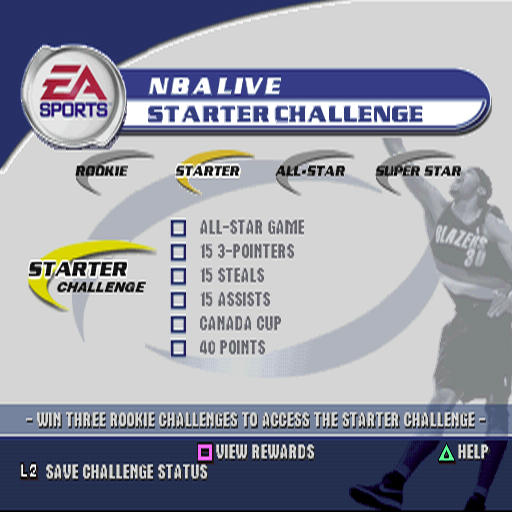
SKILL LEVEL: Set your skill level to ROOKIE/STARTER/ALL-STAR/SUPERSTAR. The difficulty level increases with each category.
•
QUARTER LENGTH: Set the quarter length from 2-12 minutes. Default is 3 minutes.
USER PROFILES
Set up a user profile to keep track of your stats, save settings, and more.
USER PROFILES SCREEN
To create a User Profile:
1. From the Select Controller screen or
.png)

.png)
