Quick Menu
From the Quick menu, you can adjust options and rules, create players, check out team stats, and more.
To access the Quick menu, press the D-Button.
•
Trade players or reorder your Rosters
•
Access memory card functions
•
Check out live 2002 Music
Playing an Exhibition Game
Play a single game with no repercussions on the standings. The pressure's off in Exhibition mode—you're only playing for pride.
To start an Exhibition game:
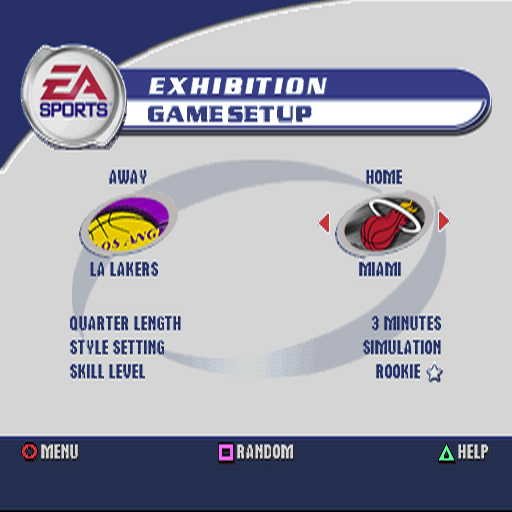
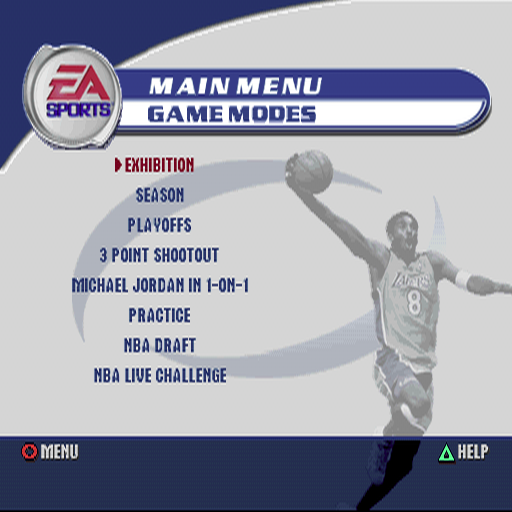
1. From the Main menu, choose EXHIBITION. The Exhibition Game Setup screen appears.
2. To select criteria to be changed, press the D-Button and then press the D-Button to scroll through your choices for that option.
3. After adjusting all your game settings (quarter length, game style, skill level, and teams), press the START button to advance to the User Setup screen.
4. To change users, press the D-Button.
5. To create a new user, press the button after scrolling to NEW USER. The User box appears with a flashing letter A in it.
6. To change the blinking letter, press the D-Button. To advance to the next letter, press the D-Button.
7. When you are done entering letters, press the button.
8. To advance to the court, press the START button.
On the Court
The teams are warmed up, the stands are packed. After the pre-game introduction, the Starting Matchups screen appears. Size up your opponent and make any adjustments to your starting lineup. It's game time!
Pre-Game Moves
•
To substitute a player, press the D-Button to highlight the player and then press the D-Button to select the substitute.
•
To control only the highlighted player throughout the game (Player Lock), press the button.
•
When you're ready to get to the court, press the START button.
Game Screen
Pause Menu
The Pause menu is a great place to visit if you need to adjust your game settings or just take a break from the action.
To access the Pause menu, press the START button.
NOTE: Default options are listed in bold in this manual.
•
Instant Replay: Check out that foul or sweet dunk.
•
Time Out (6): Call one of six time outs. The number in the parentheses tells you how many time outs remaining.
•
Substitutions: When your starters get tired, bring in some fresh legs.
•
Stat Central: View player, team, and user stats.
•
Team Strategy: Set your different strategies for Offense and Defense as well as your Defensive Matchups and settings for Box Out, Crash Boards, Auto Subs, Play Notify, and Auto Sub Notify.
•
Shot Display: Check out shot stats and locations of all made and missed shots during the game.
•
Camera Options: Change your camera view and replay options.
•
Play Options: Access various option screens including Rules, Options, User Setup and Controller Config.
•
Shot Control: Found on the Controller Config menu. When set to MANUAL, the closer you release the ball to the highest point of your jump, the better your chances of making the shot. In Auto mode, the NBA player's stats automatically determine the probability of sinking a basket.
•
Keep Scores Close: When set to on, the losing user controlled team gets a slight boost to rebounding, blocking, steals, and shooting percentage.
•
Quit Game: Exit the game and return to Main menu.
Season
See if you're up to the physical and mental punishment of a full season. Remember to pace yourself—it's a long way to the playoffs. To really test your endurance, play up to 10 consecutive seasons.
To start a Season:
1. From the Main menu, choose SEASON. The Season Settings screen appears.
2. Adjust the settings and press the START button to go to the Season Team Select screen.
3. To choose a team, press the D-Button.
4. To toggle USER/CPU control for the current team, press the button.
5. To continue to the Season Schedule 1st Season screen, press the START button.
6. To play the next game, press the START button and select which team to control in the User Setup screen.
7. To simulate a game or part of a season, cycle the dates forward using the D-button. Then press the button.
8. Use the Quick menu from the Season Schedule screen to review multi-season performance, Team History, and other functions in Season mode.
Season Settings Screen
Customize your season to make it as cushy or challenging as you want it to be.
•
Season Type: Choose NBA to include all 29 NBA teams. Or choose CUSTOM to adjust the League Size on the following lines. For Custom leagues, you select the teams in the next screen.
•
League Size: In Custom Leagues, you can select 4, 8, 12, 16, 20, 24, or 24 teams.
•
Enable CPU Trading: When YES, the computer proposes trades with other teams.
•
CPU Trades with User: When YES, the computer prompts you and other users with trade offers.
.png)

.png)




.png)
.png)