Attack/Defense Gauge Settings
•
Manual: Manually change the attack level during a match.
•
Defensive (auto): The AI places the indicator in defense only.
•
Balanced (auto): The AI controls both attack and defense.
•
Attack-minded (auto): The AI adjusts the gauge towards attack only.
•
Recommended (full auto): The AI assumes complete control of the Attack/Defense gauge.
Mark Settings
Select "Mark Key Player" to have an appropriate team member man-mark the opposition's most dangerous player.
Select "Disengage marking" to undo this change.
Set Piece Taker
Choose players to take corners, free kicks, and penalties. If you select "Auto Settings," the AI will automatically pick these for you.
Select Captain
Use this to award the captain's armband to a member of your first eleven.
Change Settings
The two options in this menu enable you to assign responsibility for player substitutions and positional changes to the AI.
Individual Player Instructions
Use this option to give each player specific instructions for the forthcoming match.
•
Attack: Assign up to two directional arrows to indicate runs a player should make while your team is in possession. This could be used to instruct a full-back to provide greater support during attacks along his touchline, or for a central midfielder to make runs into the penalty area.
•
Defense: Adjust how actively the player will track back to defend. This can be set to "High," "Normal," or "Low".
•
Mark Settings: By default, all players in your team are assigned to zonal marking. Use this option to instruct a player to man-mark a specific member of the opposing team. Use the "Normal" or "Aggressive" settings to determine how closely your player should mark his opponent. Select "Disengage marking" to return to zonal marking. Sweepers cannot be given man-marking duties.
•
Edit Position: Change a player's position on the pitch.
•
Select Role: Pick a player's specific role—for example, should a midfielder play as a DMF or CMF?
Data Management
Use this menu to store, save and load formation settings for future use.
•
Copy Formation: Copy formation data from one location to another.
•
Delete All Stock Data: Delete all formations temporarily saved in Stock Data.
•
Save Stock Data: Save the data held in Stock Data.
•
Load Stock Data: Load formation data stored on a memory Card (8MB) (for PlayStation®2).
•
Copy Opponent Stock Data: Copy opponent's Stock Data into your own stock.
•
Exchange Stock Data: Exchange your own team's Stock Data with that of your opponent.
Match Screens
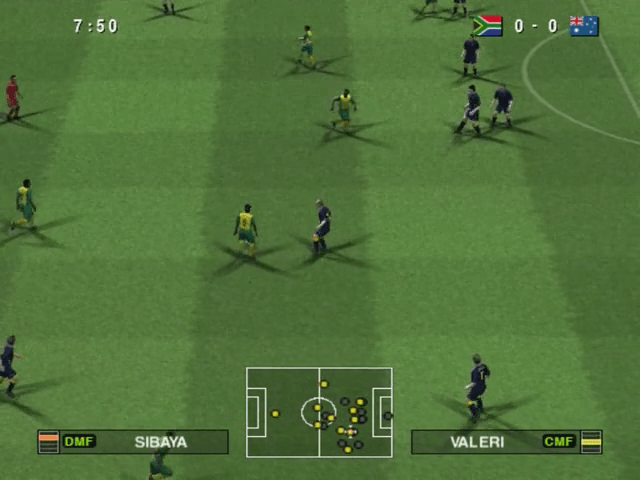
This section explains the various features and functions of screens you will encounter during a match.
Match Display
•
Cursor (Players on a yellow card are indicated by a yellow cursor)
•
Player Name and Position
Attack/Defense Mindedness
This gauge indicates your team's current mentality. The redder the bar is, the more offensive the team will be; conversely, a blue bar indicates that a team is pulling back to defend.
Strategy Mark
Button symbols representing Manual Strategies appear in this area when active.
Stamina Gauge
Displays a player's current stamina. The gauge will turn red when stamina is dangerously low, indicating a drop in that player's performance.
Note: The Stamina Gauge defaults to off. In order to display it, you must switch it on from the Pause Menu.
Event Icons
The following symbols will appear in the top left-hand corner of the screen during matches.
•
Blue - Returning to the Match (No Injury): A player is returning to the pitch with a clean bill of health.
•
Yellow - Returning to the Match (Slight Injury): A player is returning to the pitch, but is carrying an injury that will have an impact on his performance.
•
Red - Not Returning to the Match (Due to Injury): An injured player cannot return to the pitch, and must be substituted (if possible).
•
Gray - Indirect Free Kick: An indirect free kick has been awarded.
•
Red - Stoppage Time: This indicates the game minutes of stoppage time that will be played.
Play Modes
Match Mode
Use this mode to play individual matches against the CPU or a human competitor. This is the quickest way to get onto the pitch!
•
Exhibition: Play a one-off match against AI or human competitors.
•
P1 Quick Start & P2 Quick Start: Use these options to bypass settings screens. Choose P1 Quick Start to play against the AI, and P2 Quick Start to play a friend.
•
Penalties: Play a penalty kicks competition.
UEFA Champions League
Pit your club against the elite of European soccer with the exclusive UEFA Champions League mode.
UEFA Champions League Preparations
Select either "Exhibition" or "Competition", then choose "Game Settings". Either select "New Game" or "Load Data". Select a team registered to the UEFA Champions League to play a single match.
The Competition Format
32 teams will first take part in a group stage where they are divided into eight groups of four. The winners and the runners-up in each group advance to the Knockout Stage.
•
1 Group Stage: Four teams in each group comprise the Group stage, playing each other twice in a home
.png)

.png)
.png)

.png)


.png)
.png)


