Getting Started
Set up your PlayStation®2 computer entertainment system according to its Instruction Manual. Ensure the MAIN POWER switch (located on the back of the console) is turned on.
Press the RESET button. When the power indicator lights up, press the open button to open the disc tray.
Place the Rogue Ops disc on the disc tray with the label side facing up. Press the open button again to close the disc tray.
Attach game controllers and other peripherals as appropriate. Follow on-screen instructions and refer to this manual for information on using the software.
Console Ports
Memory Card (8MB) (for PlayStation®2)
Rogue Ops™ allows you to save your progress and game settings onto a memory card (8MB) (for PlayStation®2) and resume play from previously saved games. When play is resumed, it is done so from the last passed checkpoint.
A memory card (8MB) (for PlayStation®2) is required. Insert a memory card (8MB) (for PlayStation®2) into MEMORY CARD slot 1 on the PlayStation®2 game console BEFORE starting play.
Important
Do not switch off the MAIN POWER switch or remove or insert a memory card (8MB) (for PlayStation®2) or Controllers while saving or loading games. Doing so could damage the game data.
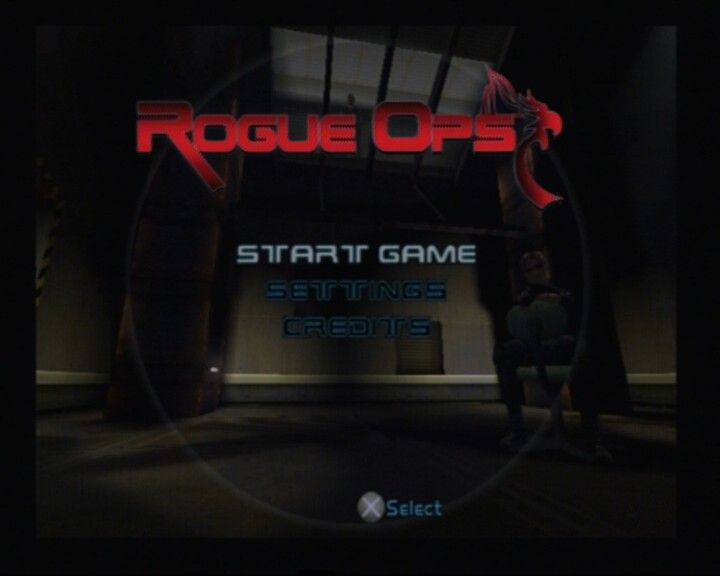
Main Menu
Start Game
Start a new game or resume a previous one.
Settings
This screen allows you to adjust sound options (music, voice and SFX volume) and video options (brightness and subtitles).
Credits
This screen allows you to view a list of the people who took part in the creation of this game.
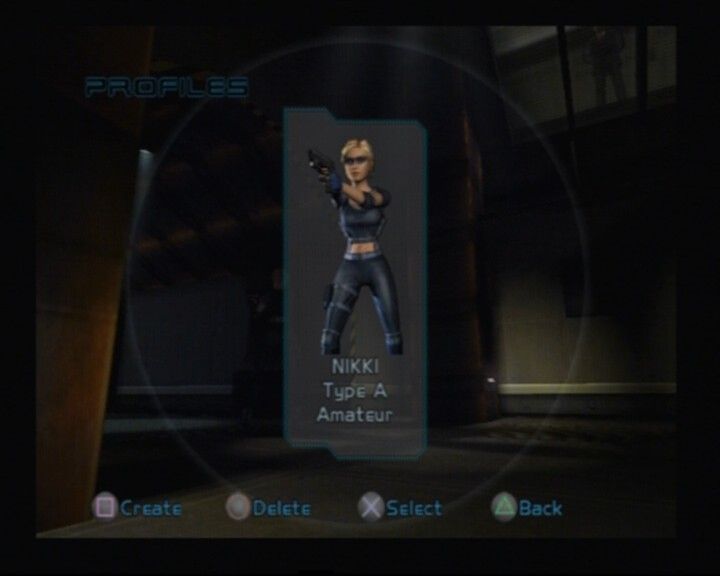
Profile Screen
When you select START GAME from the main menu, the PROFILES screen is displayed. Press the button to create a new profile. This will display the Create Profile screen.
Once you have created your new player profile, select it and press the X button (action) to start a new game. Create Profile Screen
•
NAME: Choose your player name (maximum of eight characters).
•
CONTROLLER: Change your controller configuration.
•
DIFFICULTY: Choose a difficulty level.
•
SAVE: Save your new player profile. This will return you to the Profile Screen.
Load Profile Content
Select your player profile and press the X button (action) to confirm selection. Then select an available mission or the last saved checkpoint from the Load Game screen. In-Game Display
•
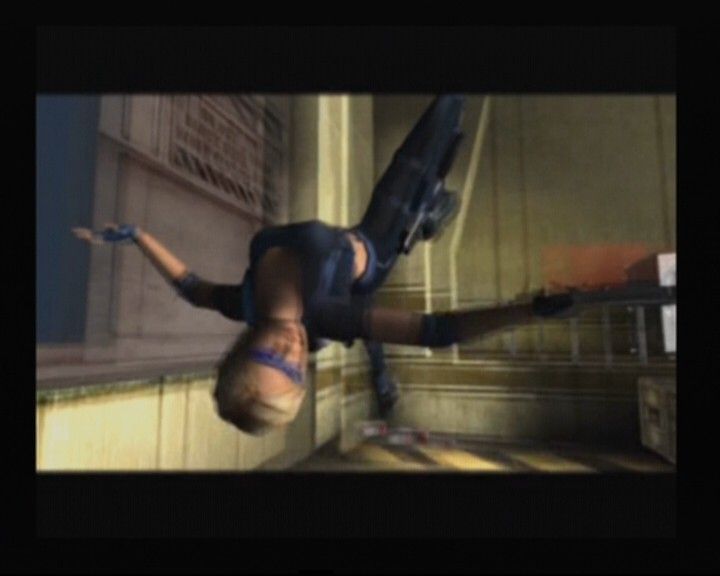
7. COMMUNICATIONS BOX: Appears when Nikki receives a communication from a Phoenix team member.
•
8. ALERT STATUS INFORMATION: Displays the current alert status of enemies.
•
9. CHECKPOINT FLAG: You will see this flag whenever Nikki reaches a checkpoint.
Nikki's Movements
Analog Movement
Pushing the stick harder means Nikki will move quicker. For example, when she is walking, push the left analog stick all the way forward and she will run at full speed. Pushing forward gently will make her move more slowly.
This is important to remember. An enemy is more likely to hear Nikki if she is running. Moving slowly will maintain her element of surprise.
Activation Icons
Many of Nikki's moves are triggered by pressing X button (action) when an Activation Icon appears. An Orange Icon means you can interact with an object but are too far away. When it turns Green you are close enough and pressing X button (action) will make Nikki interact with it. Basic Moves
Strafe
To strafe Nikki left or right simply move the left analog stick left or right.
Climb
To climb a pipe or ladder simply approach the object and when the Activation Icon turns green press X button (action) to climb. Hang/Climb
To grab hold and hang from ledges press X button (action) when the Activate Icon turns green. Nikki can then move left and right along the ledge. To pull her up, push up or drop off by pulling down. Crouch
Pressing L2 button (crouch) allows Nikki to pass under low objects. Movement is slower but Nikki is also less visible.
Searching Objects
When the Activation Icon turns green press button (action). Nikki will then search the object and when the Search Timer bar reaches zero, her search will be complete. Any items found will be added to her inventory. Hiding in Objects
Certain objects and places within the environment can be used to hide from enemies. To use a hiding place press X button (action) when the Activation Icon turns green. Nikki will then hide herself within the object. Press button (action) again to make her leave. Hiding in Shadows
When Nikki enters a shadow hiding area a timer bar graphic appears. Once the bar is complete Nikki is hidden from all NPC's and cameras. Moving slowly will keep Nikki hidden but if she moves too fast then she can be seen.
Fly Cam
To guide the Fly Cam use the left analog stick to accelerate forward, back, and side to side. Push forward on the right analog stick and the Fly Cam will go down nose first. Pull back on the right analog stick and the Fly Cam head up towards the ceiling.
Use both the left and right analog stick simultaneously to guide the Fly Cam through small
.png)

.png)


_1.png)






 (Beta 2).png)






 (Beta).png)