WELCOME TO SINGSTAR® LEGENDS
Whether you've got perfect pitch or your singing skills are reserved for the shower only, everyone enjoys singing. Now there's no excuse for keeping that voice to yourself; step up to the mic, and into the spotlight!
Playing SingStar® Legends is so easy anyone can join in. You can sing along to some of your favorite tracks and score points as you perform—it doesn't even matter how well you sing; when you take that microphone, YOU are the star, and that's all that counts.
So let's get moving—round up your friends, plug in those mics and be the star you really are!
SETTING UP
Set up your PlayStation®2 computer entertainment system according to the instructions in its instruction manual. Make sure the MAIN POWER switch (located on the back of the system) is turned off.
Attach game controllers/other accessories as appropriate, BEFORE you switch your system on. It is advised that you do not insert or remove accessories once the power is turned on.
Now turn the system ON at the MAIN POWER switch and press the / button. When the indicator lights up green, press the button and the disc tray will open. Place the SingStar® Legends disc on the disc tray with the label side facing up. Press the button again and the disc tray will close. Finally, press the / button again before commencing play.
SETTING UP THE MICROPHONES
•
Plug the SingStar® USB converter into one of the USB connectors on the front of the PlayStation®2 system.
•
Plug the microphones into the red and blue sockets on the front of the SingStar® USB converter. A 'click' sound will confirm that each connector is inserted correctly.
•
Once the game has loaded, a bright blue light on the top of the SingStar® USB converter will indicate that it is inserted correctly and working.
•
When singing, hold the microphone approximately 1 - 2 inches from your mouth. Sing directly into the top of the microphone.
•
Keep some distance between yourself and the TV. If the microphone gets too close to the TV, you will get a loud, high-pitched audio feedback.
NOTE: MICROPHONE COMPATIBILITY
Only the official SingStar® red and blue microphones can be used to play SingStar® Legends. Ordinary microphones cannot be inserted properly into the SingStar® USB converter and will therefore not be picked up by the game.
If the SingStar® USB converter is connected, but with incompatible microphones inserted, the game will still appear to run, but players' singing will not be detected, nor will their voice be drawn on screen.
GETTING STARTED
Following the start-up sequence, the Title Screen will be displayed. Press the button to access the Choose Mode Screen.
CHOOSE MODE SCREEN
•
single player: sing a song or part of a duet
Press or to highlight an icon and press the button to confirm. Choose from Sing Solo for a quick song, Party for a multiplayer or two player game, Freestyle, or Game Options to change game settings.
NOTE: GAME MODES
Details on each of the individual SingStar® Legends game modes can be found later in this manual.
PLAYING THE GAME
To play SingStar® Legends, all you have to do is pick a game mode, hold the mic and... SING!
The different modes each have various set-up options to help you configure the game you are about to play. These options include things like choosing a song, organizing teams in Party Mode, or selecting whether to perform a full song or a short version, and are made by following a screen-by-screen series of simple instructions.
When the game begins and you start to sing into one of the microphones, the SingStar® technology recognizes your pitch, tone and rhythm and is therefore able to give you a score depending on how well you perform. With rapping, you are given a score based on timing and recognition of the words that you are saying.
Player 1 always uses the blue microphone and their vocal performance is drawn in blue on screen. In multiplayer games, Player 2 uses the red microphone and their vocal performance is drawn in red on screen.
NOTE: PASS THE MIC
In a Pass the Mic game, the Red Team might sometimes use the blue mic and the Blue Team might use the red mic, for example, in a Duet.
YOUR PERFORMANCE
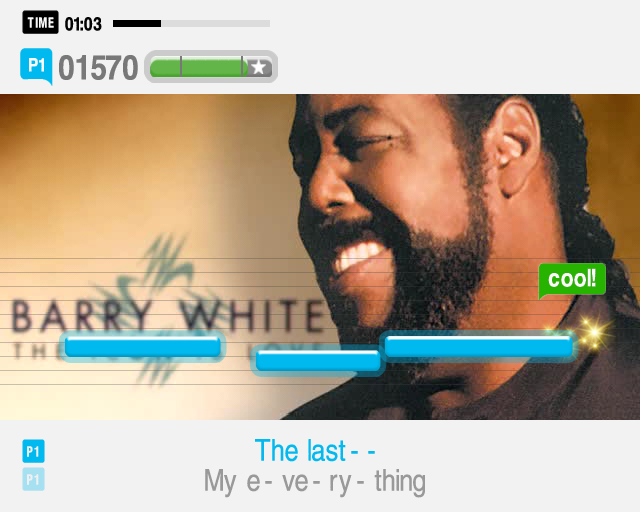
As you progress through a song, the notes that you sing will be displayed in relation to the notes you should be singing. Your vocal performance is color-coded and the bars that are displayed on-screen will be either blue or red, depending on the game mode, number of players and microphone you are using.
By comparing your performance with the pitch and timing indicators, you can quickly tell if you are singing flat or sharp, are out of time or are simply not holding onto the notes for long enough. If you are singing well, the notes you sing will be drawn over the pitch and timing indicators, fitting perfectly over the top, and you will begin to rack up points.
LYRICS
In each game mode, the lyrics for the current song will appear on-screen just before you are required to sing them into the microphone—sing in time by watching the words and singing as they fill up with color.
PERFORMANCE METER
The performance meter is an indicator of how well you are doing overall at any point in the song. Keep your meter in the bonus zone to get extra bonus points for a consistently good performance.
PHRASE RANKING
At the


.png)