GETTING STARTED
•
I.LINK (IEEE1394) connector
DUALSHOCK®2 ANALOG CONTROLLER CONFIGURATIONS
•
R3 button when pushed down
•
L3 button when pushed down
Note
Illustration may not match all PlayStation®2 console types. For owners of SCPH-70000 series PlayStation®2 systems, refer to the setup instructions supplied with your system.
Setting Up Your PlayStation®2
Set up your PlayStation®2 computer entertainment system according to the instructions in its Instruction Manual. Make sure the MAIN POWER switch (located on the back of the console) is turned ON.
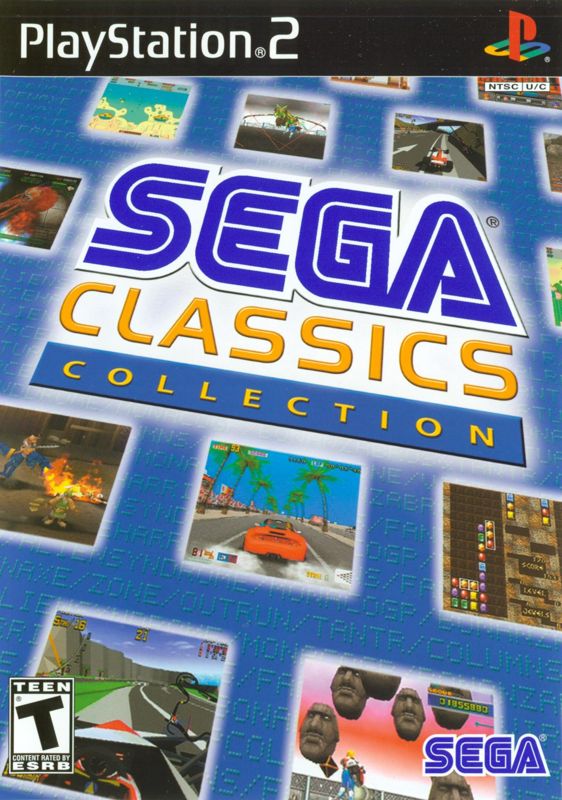
Press the /RESET button. When the indicator lights up, press the button and the disc tray will open. Place the SEGA® Classics Collection disc on the disc tray with the label side facing up. Press the button again and the disc tray will close.
Attach game controllers and other accessories, as appropriate. Follow on-screen instructions and refer to this manual for information on using the software.
MEMORY CARD (8MB) (FOR PLAYSTATION 2)
SEGA® Classics Collection is a Memory Card (8MB) (for PlayStation®2) compatible game. Please insert the Memory Card (8MB) (for PlayStation®2) into MEMORY CARD slot 1 before you turn on the game. 82KB is required to save Game Data.
When you start a game, if there is no Memory Card (8MB) (for PlayStation®2) inserted, the game will warn you and ask if you would like to retry (insert the Memory Card (8MB) (for PlayStation®2) first) or continue without saving. If the Memory Card (8MB) (for PlayStation®2) does not contain Game Data, the game will ask you either to continue without loading (create new file), or to retry. Follow the on-screen instructions to start the game.
When Game Data is being saved, manually or automatically, a message will be displayed to notify that such action is taking place. Do not switch the power OFF or remove the Memory Card (8MB) (for PlayStation®2) while Game Data is being saved or loaded.
Controller Usage
Although some of the games compiled in this game disc can be played with more than one player, please use the Analog Controller (DUALSHOCK®2) connected to controller port 1 for 1-player games, and when starting up multi-player games (unless indicated otherwise).
MULTITAP CONNECTOR (FOR PLAYSTATION®2)
Some of the games compiled in this game disc allow gameplay with up to 4 players using a Multitap Connector (for PlayStation®2). Connect the Multitap Connector (for PlayStation®2) to the controller port 2, and connect the analog controllers in order from controller port A to C.
•
controller port 2-A (Player 2)
•
controller port 2-B (player 3)
•
controller port 2-D (not used)
•
controller port 2-C (Player 4)
STARTING UP
MAIN MENU
When you start up the game disc, the Main Menu Screen will be displayed. Use the directional buttons to select the title, and press the X button to start.
RETURNING TO THE MAIN MENU
Press the SELECT button while the title logo is displayed to exit the current game title and return to the Main Menu Screen.
NUMBER OF PLAYERS
Here is a quick reference to the number of players that can participate in each game. The Multitap (for PlayStation®2) is compatible only with 4-player games.
•
COLUMNS: 1 player (2 players in Versus Mode)
•
GOLDEN AXE: 1 to 2 players (1 player in Time Attack/Survival Modes)
•
MONACO GP: 1 player (up to 4 players in Versus Mode)
•
TANT R: 1 to 2 players (up to 4 players in Free Mode 4P)
•
BONANZA BROS.: 1 to 2 players
•
VIRTUA RACING: 1 player (2 players in Versus Mode)
IMPORTANT
Please use the appropriate Multitap (for PlayStation®2) for your PlayStation®2 computer entertainment system.
Please do not use the Multitap (for PlayStation®2) with the games that can only be played up to 2 players. Multitap (for PlayStation®2) is not compatible with those games, and will not be recognized.
Please note: the digital controller is not supported within this title.
The following games are compatible with the Multitap (for PlayStation®2):
•
Tant R (Bonanza Bros. Is not compatible)
When playing with
.png)

.png)



.png)
_1.png)
.png)


.png)
.png)
.png)
.png)







_1.jpg)