Setting Up
Set up your PlayStation®2 computer entertainment system according to its Instruction Manual. Ensure the MAIN POWER switch (on the back of the console) is turned on.
•
When the power indicator lights up, press the open button to open the disc tray.
•
Place the SONIC HEROES™ disc on the disc tray with the label side facing up.
•
Press the open button again to close the disc tray.
•
Attach game controllers and other peripherals as appropriate.
Memory Card (8MB) (for PlayStation®2)
Sonic Heroes™ supports MEMORY CARD slot 1 only. At least 110KB or more of free space is required to save Game Data. Insertion or removal of the memory card after switching on the console may cause data to be overwritten or lost.
Using Dolby Surround PRO LOGIC II
In "5.1 channel Dolby Digital" mode, audio from the PlayStation 2's AV MULTI OUT may be disabled. Sound may only come from the unit's DIGITAL OUT (OPTICAL) when this mode is activated. The PS2's DIGITAL OUT (OPTICAL) should be connected to the "digital optical in" of a receiver with Dolby Digital decoding. This game uses both Dolby Digital and PCM audio. Some receivers switch automatically between formats, others do not. Refer to your receiver's instruction manual to determine if an "auto-detect" feature needs to be activated.
•
Dolby, Pro Logic, and the double-D symbol are registered trademarks of Dolby Laboratories.
Controller
Sonic Heroes™ is a one to two player game, compatible with the DUALSHOCK®2 analog controller. •
For 1P games, connect the controller to controller port 1.
•
For 2P games, connect the second player's controller to controller port 2.
DUALSHOCK®2 Analog Controller Configuration
•
left analog stick (L3 button when pushed down)
•
right analog stick (R3 button when pushed down)
Controls are set in ANALOG mode (mode indicator: ON) and cannot be switched to digital using the ANALOG mode button. This game supports the vibration function of the DUALSHOCK®2 analog controller, which can be set ON/OFF from the OPTIONS menu.
Basic Actions
Sonic Heroes™ introduces the Team Action control system. Teams of characters are controlled together in Formation. Each team has 3 members representing Speed, Fly, and Power. The character leading the team determines the Formation type, allowing unique maneuvers. Move
•
Move the team leader freely; teammates follow. Increasing the angle of the left analog stick makes characters run faster.
Jump
•
Press while running or standing still to jump. Special jump maneuvers can also be performed.
Change Formation
•
Press or to change the leader and rotate between Speed, Fly, and Power Formations. Special maneuvers can be performed depending on the Formation type.
Team Blast
•
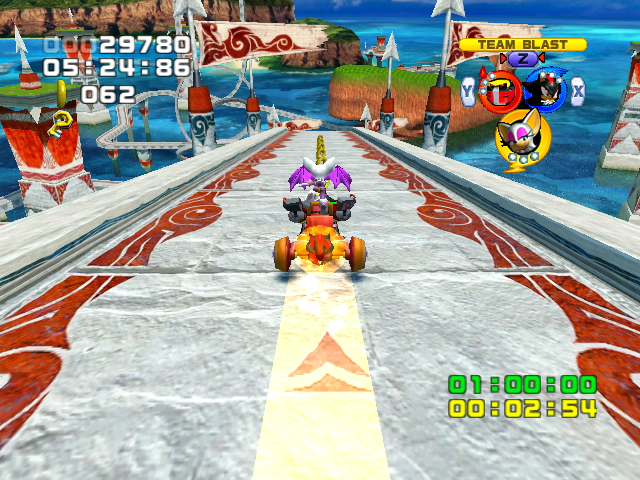
When the Team Blast Gauge is full, press R1 to perform the Team Blast move. This knock-out technique is ideal for widespread destruction. The Team Blast Gauge takes time to charge, so use with caution.
Special Actions
SPEED FORMATION MANEUVERS
Spin
•
Roll like a ball to increase speed and attack enemies.
Rocket Accel
•
Hold button team-mates gather release
•
Teammates push the leader, propelling them forwards at high speed. Can also be used to attack enemies straight ahead. Solo Attacks
•
Hold button release (without team-mates)
•
The leader performs a special attack unique to that team. Sonic and Shadow attack forwards with a flying Kick, Amy flattens her surroundings with a Swinging Hammer Attack, and Espio throws Shuriken stars. Homing Attacks
•
Targeted dash directly towards enemies. When teammates follow through, attack power is tripled.
Starting the Game
Press START at the Title Screen to access the Main Menu. Use the left analog stick or directional buttons ↑↓←→ to choose an option and press the ● / ✖ button to select.
Main Menu Options
•
1P PLAY: Displays the menu for Single Player Games.
•
2P PLAY: Displays the menu for Two Player Games.
•
EXTRAS: Displays the menu for bonus features.
•
OPTIONS: Change various game settings.
Game Data Select
The Game Data Select Screen is displayed before the Main Menu. Select a file on the memory card (8MB) (for PlayStation®2) to create or read Game Data.
•
Use the left analog stick ←→ to choose a data slot and press the ● / ✖ button to select.
•
Follow on-screen instructions to create or open a Game Data file.
1P PLAY MODE
From the 1P PLAY Menu, use the left analog stick or directional buttons ↑↓ to choose an option and press the ● / ✖ button to select.
1P PLAY Menu Options
•
STORY: Play the game to reveal the story.
•
CHALLENGE: Re-attempt Missions in previously cleared Stages.
•
TUTORIAL: Tutorial on Basic Team Actions.
STORY MODE
.png)


.png)


_1.png)


.png)
.png)
_1.jpg)

_1.png)