LOAD
From this menu, you can load previously saved games from a memory card (8MB) [For PlayStation®2] inserted in MEMORY CARD slot 1.
A total of eight distinct games can be saved on a single memory card (8MB) [For PlayStation®2]. Cycle through the eight Files using the left and right directional buttons to select the game you want to load.
If a File contains a saved game, then information such as the next mission, date when saved, available ships, current rank and earned medals, will be displayed. Upon a successful load, the Auto Save Feature will be activated and will automatically save your progress to the same file after the successful completion of any mission.
SAVE
From this menu, you can save your progress to a memory card (8MB) [For PlayStation®2] inserted in MEMORY CARD slot 1.
A total of eight distinct games can be saved on a single memory card (8MB) [For PlayStation®2]. Cycle through the eight files using the left and right directional buttons to select the file that will be used to save the current game.
Upon a successful save, the Auto Save Feature will be activated and will automatically save your progress to the same file after a successful completion of any mission.
OPTIONS
The options menu allows you to modify the default settings of Star Trek Shattered Universe to your preference. Set Difficulty Level
You can change the game's difficulty level at any point using this menu. Select from the three available choices: Easy, Normal and Hard.
Press the button to exit and accept the new settings, or press the button to exit and discard the changes.
Audio Settings
Use the left and right directional buttons to cycle through the three volume channels and use the up and down directional buttons to alter the volume setting. You can also select between Stereo or Mono output by pressing the button.
•
Music Volume: Adjust the volume of the music that plays during the game, the menus and movies.
•
Speech Volume: Adjust the volume of the speech you hear throughout the game.
•
Sound Effects Volume: Adjust the volume of the sound effects in the game.
Press the button to exit and accept the new settings, or press the button to exit and discard the changes.
Controller Configuration
Select from one of three different controller layouts, using the left and right directional buttons to cycle through the choices. You can also enable or disable the controller vibration function via the button.
When vibration is On, the controller will vibrate in response to game events. Press the button to exit and accept the new settings, or press the button to exit and discard the changes.
View Starfleet Career
You can view your current rank and any medals that you may have earned during play.
View Movies
You can play back all movies that you have viewed so far (movies are unlocked as you progress through the game).
Ship Viewer
You can take a close look at all the fighters and capital ships in the game from this menu. Cycle through the ships using the left and right directional buttons and while viewing a ship, you can adjust its orientation by using the right analog stick.
Exit Game
You can end the current game and exit to the startup menu. Make sure your progress has been saved before exiting!
Credits
This is a [long] list of all the folks that have worked on Star Trek Shattered Universe. Sit through it once; it'll make us feel better! FIGHTER SELECTION
Pressing left or right on the directional buttons will cycle through the currently available Fighters. There are a total of six user controlled fighters with each Fighter having up to three different configurations (the Fighters and their configurations are unlocked as you progress in the game).
If available, the button can be used to select between different configurations of the currently selected Fighter. Pressing the button will confirm your current selection and launch the mission. You can return to the Star Map by pressing the button.
PLAYING THE GAME
Upon launching, you will be free to fly around and explore, but be careful as the Mirror Universe is a dangerous place. Pay close attention to the commands that come through the Heads-Up-Display (HUD) as well as your objectives for this mission (shown during the loading sequence and accessed through the Pause menu) to know what to do next!
Controlling a ship in space can sometimes be a disorienting task, that's why it's important to pay attention to the radar and the various other visual aids available through the HUD.
THE HUD (HEADS UP DISPLAY)
•
PLAYER SHIP SHIELD STRENGTH
•
PLAYER SHIP HULL STRENGTH
THE HUD (HEADS-UP-DISPLAY)
The HUD at the top of the screen shows the status of both your ship and the ship you have targeted. It also provides a radar scope, a mission timer, and can transform into a communications receiver. Although the HUD design is specific to the Fighter's planet of origin, the position of all the instruments remains the same.
Communication Center (Center HUD)
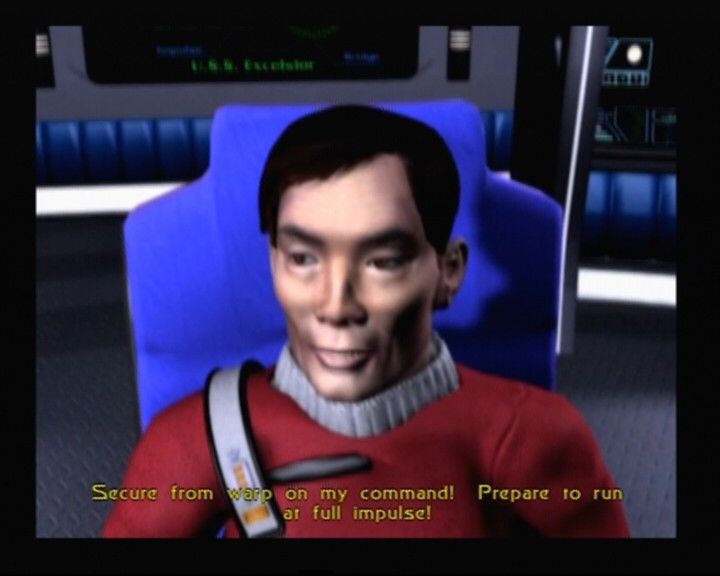
When you receive orders or advisories from the Excelsior, the HUD will briefly transform and display a message box.
Targeted Ship (Left HUD)
The left side of the HUD is designed to give you all the necessary information about the currently targeted ship. An icon representing the type of ship that is targeted displays the actual orientation of the targeted ship.
A color coded "
.png)

.png)
.png)
.png)
