Getting Started
1. Set up your PlayStation®2 computer entertainment system according to its instruction manual.
2. Do not insert or remove any accessories or controllers while the power is turned on.
3. Make sure there is enough free space on your memory card (8MB) (for PlayStation®2) before commencing play. This title only supports MEMORY CARD slot 1.
4. Make sure that the main power switch located at the rear of the console is turned ON.
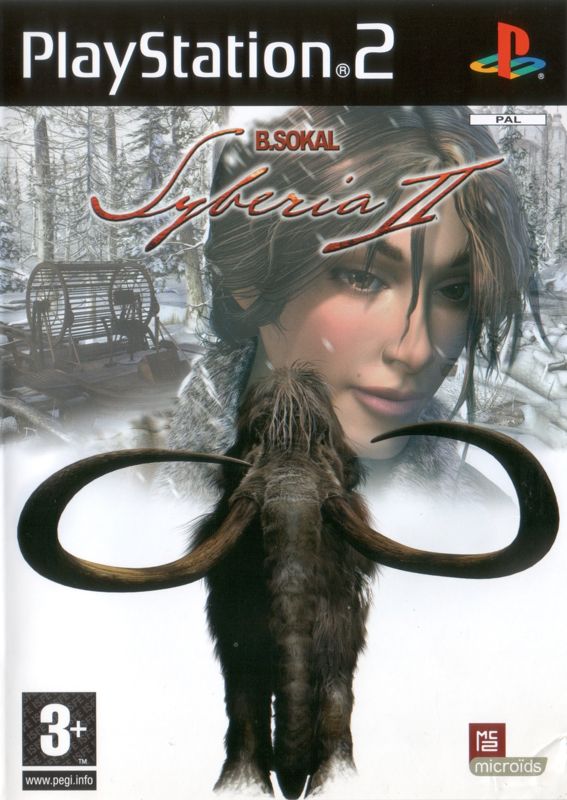
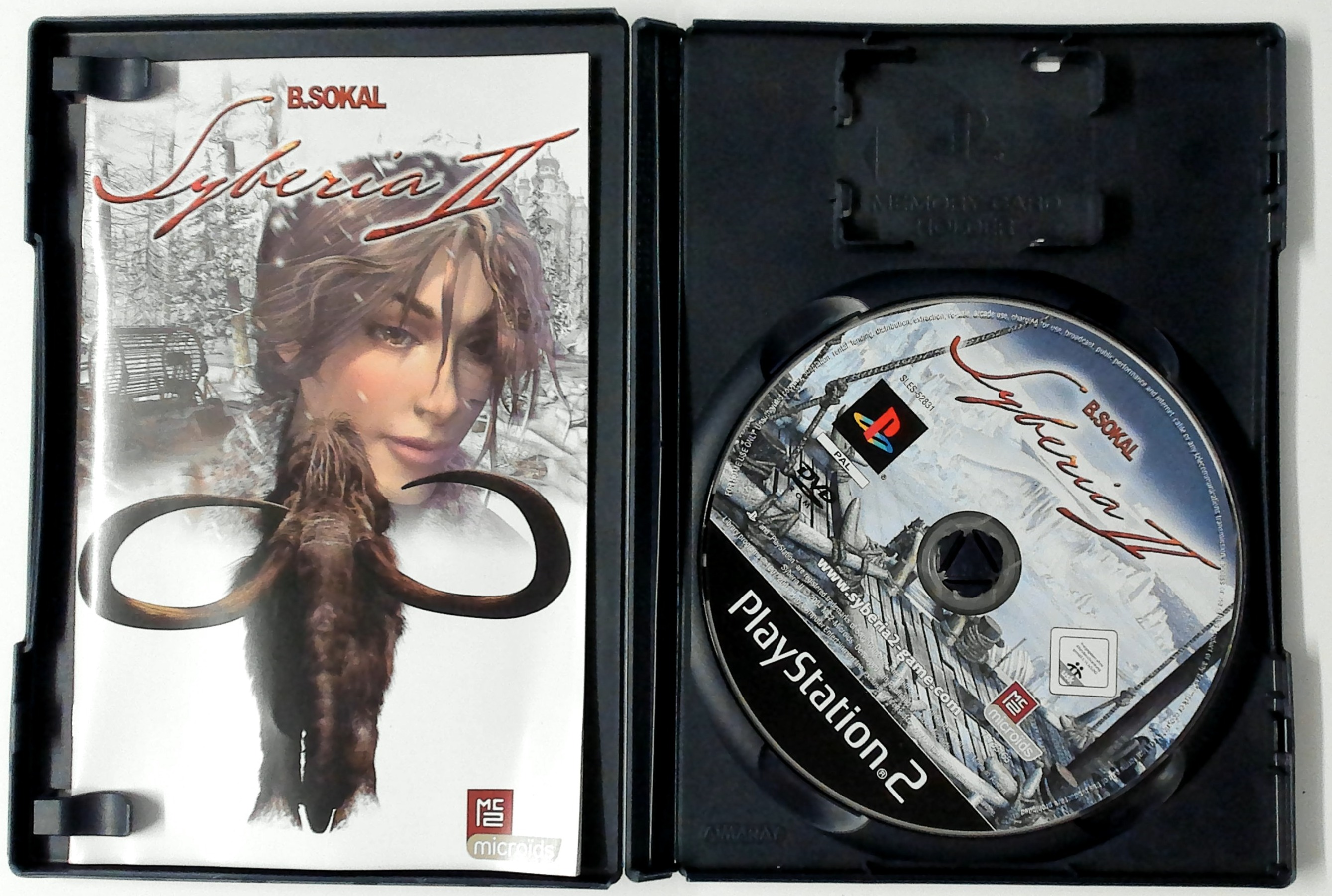
5. Press on the / RESET button. When the indicator turns green, press on the button that opens the disc tray. Place the SYBERIA II disc on the disc tray with the logo side up.
6. Press on the button again in order to close the disc tray.
7. Follow the instructions displayed on screen and in this software manual for any information regarding the use of the game.
PlayStation®2 Front Panel
Selecting the Game Language
Select your preferred language from the console's internal system configuration. Syberia II supports English, French, German, Italian and Spanish languages.
Main Menu
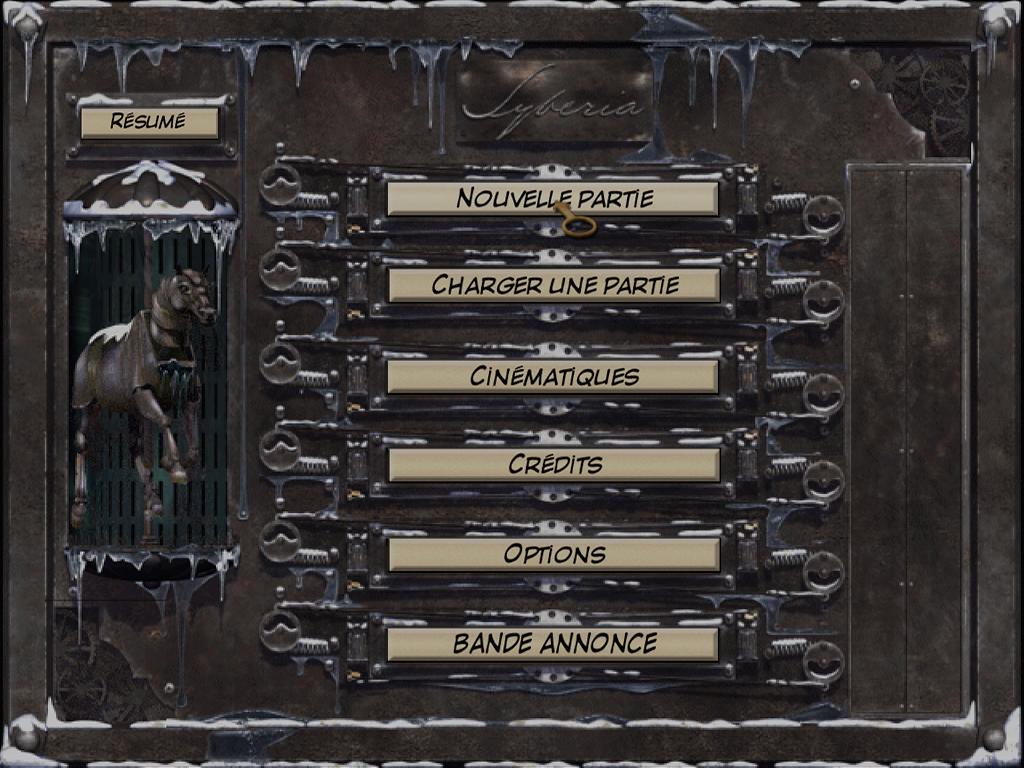
At the start of Syberia II you have several options:
The first time you play the game, an introductory cinematic is launched explaining the situation at the start of the adventure. Each saved game is represented by an image, and displays the date and time of the save. To load a saved game, select the corresponding image.
Watch the cinematic sequences you unlocked during gameplay.
See the people involved in making Syberia 2.
Adjust the various graphic and sound options in the following submenus.
•
Subtitles (Yes / No): Toggle the subtitles at the bottom of the screen on and off.
•
Sound volume: Adjust the volume of the sound effects and voices.
•
Music volume: Adjust the volume of the background music.
Watch the Syberia 2 trailer in its original version (English).
A cinematic résumé of Kate Walker's adventures in the first episode of Syberia.
The Game Icons
Game Menus
Principles of Navigation
To navigate the menus, move the cursor using the directional buttons or the left analog stick.
To confirm your selection, press the button.
To cancel your selection or return to the previous screen, press the button.
Pause Menu
This menu appears when you pause a game with the SELECT button, START button, or you select Menu from the Inventory Menu. The Pause Menu offers the following options:
•
Back to game: to return to the current game.
•
Load a game: enables you to resume a previously saved game.
•
Save game: to save the game at the current point. Before saving your game, make sure your memory card (8 MB) (for PlayStation®2) is correctly inserted in MEMORY CARD slot 1. You can save up to 8 games depending on the free space remaining on your memory card (8 MB) (for PlayStation®2).
•
Options: adjust the sound and graphics options of the game.
•
Return to Main Menu: exit the Pause Menu and return to the Main Menu.
Documents Submenu
•
View next page in a document
•
View the previous page in a document
Phone Controls
The Clear button erases the number you have dialed or selected from memory.
When you have finished your call and do not wish to make any others, select the Off button on the upper right of the phone or press the button. To cut short a dialogue during a phone conversation, press the button.
Documents
To consult or use a document, select the Documents icon in your inventory with the cursor. The Documents Submenu will open - it contains two icons and all the documents collected during the game.
To view a document, select the View icon, and confirm. Then select the document you wish to see. Press the R2 button to turn to the next page. To come back to the previous page, press the L2 button. To zoom in on the opened document, press the R1 button; to zoom out, press the L1 button. Use the directional buttons or the left analog stick to move the document around the screen (if, for example, you are zoomed in). To end your consultation, press the button.
To use a document, select the Use document icon, and confirm. Then select the document you want to use with the directional buttons or the left analog stick. The Inventory Menu will close, and the selected object will appear in the lower left of your screen. Press the button in the action zone you want to use the document.
If the selected document cannot be used in that action zone, the No action possible icon will appear.
Dialogs
If you meet a character and the Talk to character icon appears, you can speak to them. To begin the conversation, press the button. Certain characters are more talkative than others.
You can structure your conversations using the Dialogue Notebook that is brought up automatically.





_1.png)