GETTING STARTED
Set up your PlayStation®2 computer entertainment system according to the instructions supplied with your system. Check that the system is turned on (the on/standby indicator is green). Insert the TAITO LEGENDS 2 disc in the system with the label side facing up.
Attach game controllers and other peripherals as appropriate. Follow the on-screen instructions and refer to this manual for information on using the software.
Memory Card (8MB)(for PlayStation®2)
To save game settings and progress, insert a memory card (8MB)(for PlayStation®2) into MEMORY CARD slot 1 of your PlayStation®2 system. You can load saved game data from the same memory card or any memory card (8MB)(for PlayStation®2) containing previously saved games.
NAVIGATING THE MENUS
All menus within TAITO LEGENDS 2 are navigated in the same way. Use the up or down directional buttons or the left analog stick to highlight a menu item and press the X button to select an option. Press the C button to return to the previous menu screen.
Use the left or right directional buttons or the left analog stick to cycle through choices or move sliders.
PLAYING A GAME
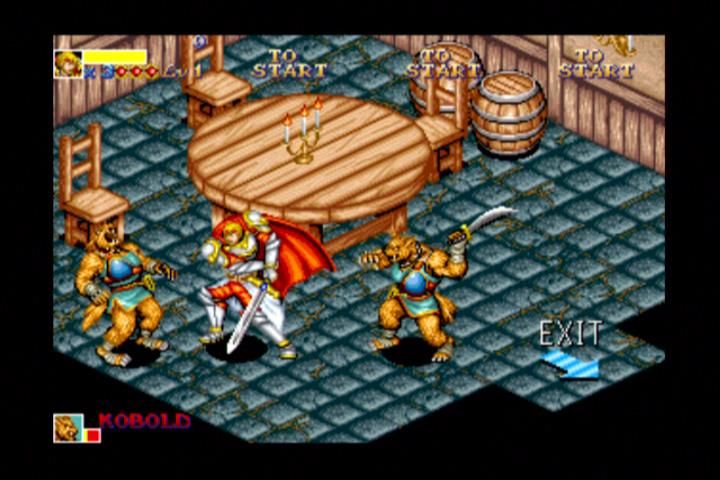
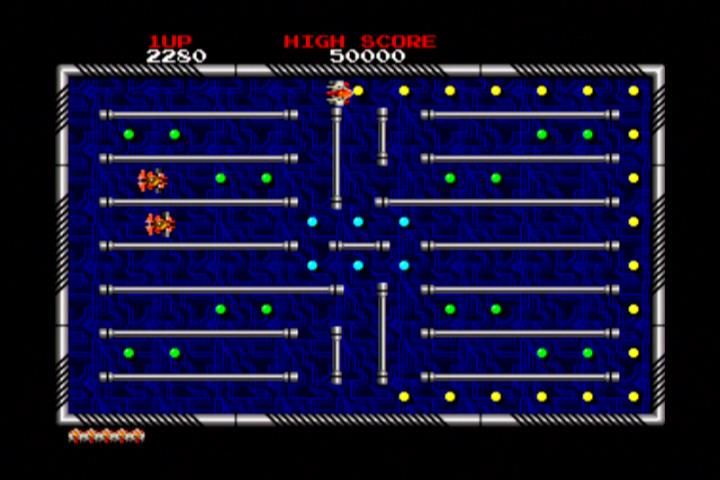
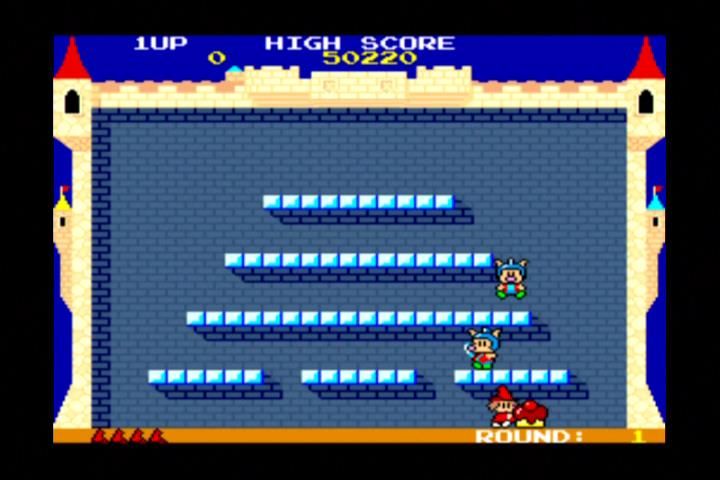
On the Game Select Screen, select a game using the directional buttons or left analog stick and press the X button. Pressing the L1 button or R1 button on the Game Select Screen lets you change the method of sorting the game list. The order can be chronological, alphabetical or your favorites list.
Once you have selected a game, you will see the Game Description Screen. Here you can customize the game difficulty levels, number of lives and button settings.
The options for customizing the game depend on the game itself; the options will vary between games. To change a game option, highlight it using the up and down directional buttons and then change the action with the left and right directional buttons.
Some games have an option to set the difficulty separately for each stage (e.g. Ray Storm). Highlight this option and press the X button. To change the difficulty, use the left and right directional buttons. Press the X button again to return to the Game Description Screen.
Options colored blue are the same for every game and cannot be changed.
Game Description Screen Options
Start the game.
Display more detailed instructions and tips on the game.
Return the game settings to their default values (for this game only).
OPTIONS
Select OPTIONS from the Main Title Screen to open the Options Screen. Here you can change the following options:
Select Stereo or Mono sound.
Adjust the game sound effects volume. This affects all games.
Adjust the game music volume. This affects all games.
Select ON to enable the auto save feature. This will save the high scores and game options each time you exit a game.
Save the high scores and game options manually.
Load the high scores and game options manually.
•
REGISTER TO FAVORITE LIST
Add or remove games to your Favorites List.
Exit the Option Screen and go back to the Main Title Screen.
Displays the total time you have played Taito Legends 2. REGISTERING TO FAVORITE LIST
The Favorite List can be accessed from the Game Select Screen. The Favorite List lets you quickly find a game you frequently play. To add or remove games to your Favorites List, select the Register To Favorite option in the Options menu.
HOW TO ADD AN ENTRY
•
In the left window, select an empty game slot and press the X button.
•
In the right window, select a title to add to the Favorite List and press X button to add the title to the list.
•
To delete a game from the list, select the title and press the button.
PAUSE MENU
During a game, press the START button to open the Pause Menu.
Close the Pause Menu and resume the game.
Opens the Game Description Screen. You can change the button settings here.
You can adjust the screen position.
End the current game and restart the same game.
You can change the menu language from here (the language of the games cannot be changed).
•
RETURN TO MAIN TITLE SCREEN
End the current game and return to the Main Title Screen. If you have enabled the auto save feature in the Option Screen, all the game data is saved at this point.
.png)

.png)



_1.png)



_Front_Cover.jpg)