PlayStation 2 Setup
Set up your PlayStation®2 computer entertainment system according to its Instruction Manual. Ensure the MAIN POWER switch (on the back of the console) is turned on.
Press the RESET button. When the power indicator lights up, press the OPEN button to open the disc tray. Place the Warriors of Might and Magic™ disc with the label side facing up. Press the OPEN button again to close the disc tray.
Attach game controllers and other peripherals as appropriate. Follow on-screen instructions and refer to this manual for software usage information.
Memory Card (8 MB) (for PlayStation®2)
It is strongly recommended that you play Warriors of Might and Magic with a memory card (8 MB) (for PlayStation®2). Without a valid memory card, you will not be able to save your progress.
A memory card (8 MB) (for PlayStation®2) is used to save game progress and configuration. Before turning on the PlayStation 2 console, insert a memory card (8 MB) (for PlayStation®2) with at least 500 KB of available save space into MEMORY CARD Slot 1. MEMORY CARD Slot 2 is not used. It is advised that you do not insert or remove peripherals or memory cards (for PlayStation®2) once the power has been turned on.
To save your game progress
You can save your game at any point. If you do not have 500 KB free, you may be able to save a game by overwriting a previously saved Warriors of Might and Magic game. Once a game has been overwritten, you cannot return to that saved game.
•
Press the START button to enter the In-Game Pause Menu.
•
Use the directional buttons or left analog stick to highlight the Save Game feature.
•
Press the button to select it.
•
You will be given the option to save to an empty game slot or overwrite an existing saved game.
•
If you choose to overwrite an existing saved game, you will be asked if you are sure you want to overwrite the saved game.
Free Memory to Save
If your memory card (8 MB) (for PlayStation®2) does not have at least 500 KB of available save space, you will receive a message saying "Not enough free memory to save."
You must then either insert a new memory card (8 MB) (for PlayStation®2) with at least 500 KB of available save space, remove the Warriors of Might and Magic DVD and use the browser to free space on your memory card (8 MB) (for PlayStation®2), or decide to play without the option of saving your progress.
Starting Play
Use the and directional buttons or up and down on the left analog stick to select menu options, then press the button to select. If the option works like a toggle, cycle through two or three options using either the or directional buttons.
Starting Menu
New Game
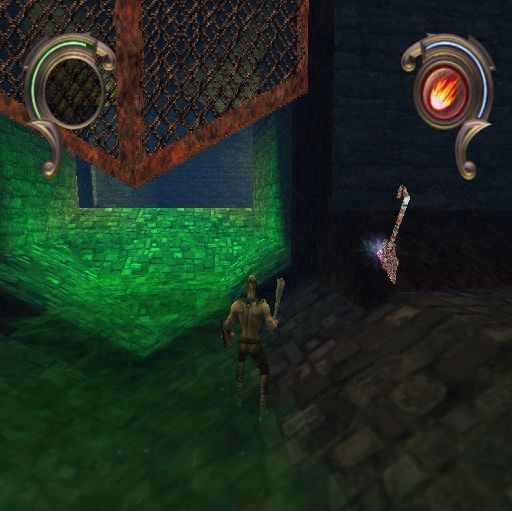
Start the game from the very beginning, where you view the first storyline movie, survive the fall down into the Pit of the Accused and pick up your first weapon.
Load Game
When you load a game, you can restart from any of your previous saved games.
Controls
Takes you to the Controller Menu that allows you to choose between three different controller configurations.
Settings
Takes you to the Settings Menu, which allows you to control Sound Effect and Music volumes. You may also turn Audible Footsteps and Vibration on or off in this screen.
Previews
View upcoming 3DO titles. Credits
View game credits.
New Game Menu
Before starting a new game, you are presented with 3 options:
Difficulty
You may choose between Easy, Medium and Hard difficulty settings. To do this, select the difficulty settings option. Then use the or ▷ Directional buttons or left analog stick to select the difficulty setting you desire.
Vibration
Toggles vibration on and off for your DUALSHOCK 2™ analog controller. When the gold ball is visible, you will feel vibrations throughout the game.
Start Game
Starts a new game with the settings showing in the options on the screen.
Settings Menu
Sound Effects Volume
Controls the sounds of action and dialog inside the game. Use the or directional buttons to control the volume. Left gives less volume, right gives more.
Music Volume
Controls the volume of background music. Use the or directional buttons to control the volume. Left gives less volume, right gives more.
Audible Footsteps
Press the button to toggle your footsteps on or off. When the gold ball is visible, you can hear the sound of your steps.
Vibration
See above.
Settings Screen
•
PRESS TO SELECT. TO BACK UP
Load Game Menu
You will be presented with any saved games you have on your inserted memory card (for PlayStation®2). Selecting a specific file and pressing the button loads that saved game.
To load a game in progress
•
Insert your memory card (for PlayStation®2) before turning on the PlayStation 2 console. •
Select Load Game from the Starting Menu or from the In-Game Pause Menu.
•
You will be given a selection of previously saved games. Select the one you wish
.png)

.png)


_1.png)


.png)



_1.png)

.png)
.png)
.png)
.png)