Controller Settings
Each controller can be switched between 1-button and 4-button methods. This can be done via the Advanced Options screen or Choose Controllers menu prior to gameplay, or via the Game Options menu during a match.
Navigation
•
Press the directional buttons to highlight items.
•
Press the button to confirm a highlighted choice.
•
To return to the previous screen, press the button or select the large yellow arrow in the bottom-left corner.
•
To progress to the next screen, select the large yellow arrow in the bottom-right corner.
•
Many screens have a tree house icon to return to the Clubhouse.
The Clubhouse
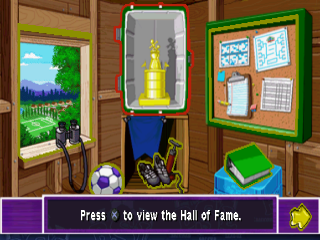
Welcome to the Backyard Soccer Clubhouse! Use the directional buttons to select any of the following items:
•
A. Window: Start a single game.
•
B. Trophy: View Hall of Fame.
•
C. Corkboard: Start or continue a season game.
•
D. Notebook: Meet the Backyard Kids.
•
E. Ball: Watch a demo game.
•
F. Shoes & Pump: Change game options.
•
G. Yellow Arrow: Quick Start a match.
Highlight your choice and press the button to continue.
Single Game
Game Type
Use the directional buttons to highlight the type of game you wish to play: Single, Mini League, Penalties, or Beach Tournament. Press the button to confirm your selection.
•
Single: A single match between two teams. Up to four players can play in any combination. A separate controller is required for each player.
•
Mini League: Up to four players can play in a mini-tournament featuring four teams. Only two controllers are required for human multiplayer Mini League games.
•
Penalties: Practice penalty kicks or blocking them. This can be played by one or two players, each using a separate controller.
•
Beach Tournament: Compete for the Beach Tournament Cup! This is a one-player game only, a 3-round beach knockout championship.
Difficulty Level
Use the directional buttons and the button to select Easy, Medium, or Hard.
Game Field
The game field is shown in the preview window. You can choose another field by using the directional buttons to select the small arrows next to the field name, then pressing the button. The preview picture and field name will change.
When satisfied with your settings, highlight the yellow arrow in the bottom right of the screen and press the button.
Load Game
To load a game, highlight the Save/Load icon at the top right corner of a screen and press the button. This will take you to the Load Game screen.
From this screen, you can load a previously saved Beach Tournament or Mini League game. Single Games cannot be saved. Press the up and down directional buttons to highlight different games on the list. Press the button to show information for the highlighted game on the right of the screen. Press the button again to load the highlighted game, or press the button to exit the screen.
Choose Number of Players
If you chose a game that allows more than one player, this screen lets you choose the number of human players. It also lets you choose whether to pick your own players or let the computer pick them (Quick Start).
•
In a Single or Mini-League game, there may be one to four human players.
•
In a Penalties game, there may be one or two human players.
•
Beach Tournament is a one-player game only.
If you choose less than the maximum number of human players, the remaining players will be computer-controlled at the skill level you previously selected. You cannot choose more human players than the number of controllers you have plugged in.
•
To play with randomly assigned teams and players, highlight Quick Start and press the button. You will be taken immediately to the Team Photo screen after choosing your Controller setup.
•
To create a unique team, highlight Choose Teams and press the button.
When done, highlight the yellow arrow in the bottom right of the screen and press the button.
Choose Controllers
This screen allows you to choose your Controller method (1- or 4-button) and whether to play as the Home or Away team. In a single-player game, you must always use the controller in Controller port 1.
For each controller being used, select Home or Away team using the left and right directional buttons. Next, choose 1- or 4-button control mode using the up and down directional buttons, then press the button to confirm your choice.
Choose Team
Here you can create a unique identity for your team.
•
Scroll through the first name by selecting the arrows on either side of the blue name in the upper right of the screen and then pressing the button. The new name will also show up on the left side of the screen.
•
Choose the team's second name (nickname) by selecting a team badge/icon from the ten shown in the center of the screen and then pressing the button. Each badge has an associated name, which will also show up on the left side of the screen.
•
Select your team's uniform colors by choosing them from each of the two color swatch rows. A small uniform in the lower left corner of the screen shows your current team "look."
When you're done, highlight the yellow arrow in the bottom right of the screen and then press the button.
Choose Players
At the player bench, Backyard Kids are waiting to be picked. Who picks first is up to the luck of the draw.
•
To view information about a player, highlight the player and then press the button.
.png)

.png)
.png)

.png)


.png)

.png)