Introduction
Now everyone in the family can enjoy playing Scrabble at a whole new level of fun. Choose your tiles and shuffle your rack — the brain teasing is about to begin! The ultimate board game is now the ultimate interactive experience for you and up to three other players. Or, you can sharpen your Scrabble skills against the computer! From the real-time 3-D graphics of the game board to special visual and audio effects, you've never played Scrabble like this! The Main Menu
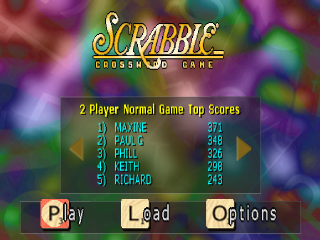
This is where you start games, load previously saved games, set gameplay options and view high scores.
•
To navigate through the screens, simply use the directional buttons.
•
To make a selection, press the button.
•
To "back up" at any time, press the button.
Play
Select "Play" to begin a new game and then choose the type of game you wish to play - Normal, Solitaire, or Tournament.
You will be prompted to enter information for the next player. Using the up and down directional buttons and the button, select "Human Player" or "Maven - The Computer Opponent."
If you select Maven - The Computer Opponent, you will be prompted to enter a difficulty level. If you select Human Player, you will again be prompted to enter a player name. Next you will be prompted with "Add Players" or "Let's Play!" Continue to add up to a total of four human or computer players. When you've added all of the players you desire, select "Let's Play!"
Entering Player Names
When prompted, you will have the choice of entering a new player name or using the default name of Player 1 (or Player 2, or Player 3, or Player 4, depending on the game). The name you enter will be used to record scoring and save game information.
New Player Names
•
Use the directional buttons to scroll the letter picker through the letter grid.
•
Press the button to select a letter.
•
If you make a mistake and want to erase a letter, select the tile and then press the button.
•
If you want to clear the whole word and start over, select the "Clear All" tile and then press the button.
•
To insert a space, select the blank tile and then press the button.
•
When completed, select the "Done" tile and then press the button.
Normal
In Normal play, you compete against other players or computer players to score as many points as you can. Select this item to start a "normal" game with up to 4 human or computer players.
Note: Every game must have at least one human player. Press the button to enter a human player. You will be prompted to enter a player name. You will then be prompted to enter information for the next player.
Maven Difficulty Levels
Use the directional buttons to select how smart you want your Maven opponent to be. Press the button to select a level.
Solitaire
Select this item to start a single-player Solitaire game. See Entering Player Names for details on how to enter your name.
In a Solitaire game, your ultimate challenge is to attain a high score by playing through all of the tiles. Play takes place on the regular gameboard, with you placing words as you would in a Normal game. Scoring also remains consistent with a Normal game. However, after you place a word, you receive new tiles and immediately place another word on the board.
Important! You do not play against other human or computer players in this mode. Play continues until you cannot place any more words or you have used all of the tiles.
Note: You are allowed one tile exchange (either a selective tile exchange or your entire letter rack). If you pass on a turn, it is assumed that you cannot place a word and the game is over. If you attain a good score, it will be posted on the High Score charts.
Tournament
Select this item to start a Tournament game. See Entering Player Names on how to enter your name.
In a Tournament game, 2, 3 or 4 players compete in a round of three games. The player with the highest cumulative score is the tournament winner. Gameplay is the same as in a Normal game.
Load
Select this item to load a previously saved game.
Note: You will be informed if your memory card is not inserted or does not contain valid saved game data. Using the directional buttons, select the desired game and then press the button to load the game and resume playing.
Options
Select this item to set gameplay options. Use the up and down directional buttons to move through the different options. Choose "Back" to save your settings and return to the previous menu.
Set Screen Position
This allows adjustment of the viewing window on screen to compensate for monitors that are slightly offset. Use the directional buttons to move the visible area of the game on the television monitor. Press the button to save the screen position and return to the previous menu. Press the button to return to the previous menu without saving changes.
Sound
This allows the level of the sound effects and music to be adjusted. Use the up and down directional buttons to select either music or effects. Use the left and right directional buttons to change the levels of the two settings respectively. Using the up and down directional buttons, select "Accept" and then press the button to save the levels. Press the button to return to the previous menu without saving changes.
Controls
If multiple controllers are connected, players can select which controller they would like to use and the button configuration for that controller. Use the up and directional buttons to
.png)





.png)

.png)






.png)