Special Token Animation
Pause Menu
•
START button - Pause the game and display the Pause menu.
Property Management Window
•
SELECT button - Display Title Deed when property is highlighted.
Navigating Menus
Many actions require navigating menus and making choices.
•
Use up and down directional buttons to move between menu options.
•
Scroll between some options using left and right directional buttons.
•
Press the button to select a menu item.
•
During any menu operation, press the button to cancel actions and return to the previous menu.
Memory Card Selection
If you have more than one memory card (8MB) (for Playstation 2) in your Playstation 2 console when choosing a memory card-related option, you will be brought to the Memory Card Selection menu. •
Use the directional buttons to move between memory cards.
•
Press the button to select the highlighted memory card and continue to the next screen (Load Game, Save Game, View Profiles, etc.).
Saving and Loading
You can save your progress from the Pause menu, provided you have a memory card with sufficient free space.
You can save in Classic mode at any point. In Party mode, you can only save at the end of a turn.
To Save a File
•
Choose a slot using the up and down directional buttons and press the button.
•
If you choose a slot not labeled "Empty," you will overwrite any saved data.
•
To delete a saved game, highlight it and press the button.
To Load a Saved Game
•
Select Load Game from the Main menu.
•
You must have a memory card with a saved game on it.
•
In the Load Game menu, use the up and down directional buttons to highlight a saved game.
•
The information box will show the details of the highlighted game.
•
Press the button to load the highlighted game and proceed to the Controller Setup menu.
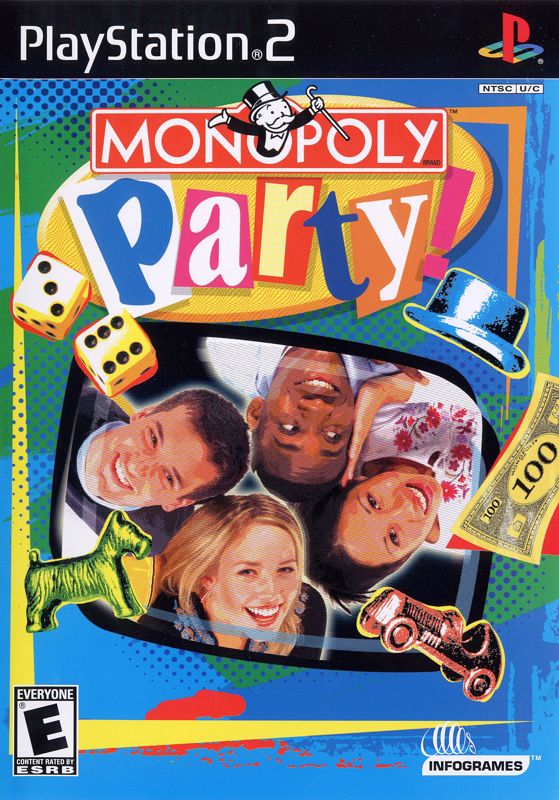
Welcome to MONOPOLY Party Game!
MONOPOLY Party is a game of buying, trading, and deal-making where every player moves at once. It's always your turn!
See how quickly you can buy properties, build houses, and amass a mighty real estate empire.
How to Play
There are two ways to play MONOPOLY Party: Classic mode and Party mode. Your opponents can be human or AI. Up to four players can play each game type, depending on the number of game controllers you have.
Party Mode
This is an all-new MONOPOLY game type where all players "roll the dice" and move simultaneously. While most traditional MONOPOLY rules apply, Party mode results in much faster games.
Auctions and trades are fast and furious, and the competition is fierce. You can play against up to three AI players, with up to three friends, or with a mixture of human and AI opponents.
•
Note: Party mode requires that each human player have his or her own controller.
Classic Mode
Classic mode is based on the traditional MONOPOLY game, where players take turns rolling the dice, moving, buying properties, building, collecting rents, and paying fees. You can play against up to three AI players, with up to three friends, or with a mixture of human and AI opponents.
•
Note: Players can share a controller in Classic mode, passing it from player to player each turn.
Themes
In addition to the time-honored MONOPOLY board (in five languages), you can play MONOPOLY Party using four alternative theme boards. Each board comes with its own special animated tokens and custom house and hotel styles.
Custom Rules
You can customize a number of rules in MONOPOLY Party, including Free Parking jackpots, dealing properties at the start of the game, granting Futures and Immunities on properties, and more.
Gameplay Setup Sequence
Before you can begin play, you must first set up your game.
Step 1: Select the Type of Game You Want to Play
•
Play a New MONOPOLY Party Mode Game: Select New Game. MONOPOLY Party is the default game type in the New Game menu.
•
Play a New MONOPOLY Classic Mode Game: Select New Game. Use the left and right directional buttons to select MONOPOLY Classic as the game type in the New Game menu.
•
Load Saved Game: Select this to continue playing a previously saved game. This will take you to the Load Game screen. From there, select the game you wish to load. You will be taken to the Controller Setup screen, after which the game will be loaded and play will begin at the point where the game was last saved.
Step 2: Select a Theme
•
Select Theme from the New Game menu.
•
Scroll through the theme types using the left and right directional buttons.
•
If you choose the Classic theme, select the country to use for Property Names.
•
Next, choose the currency you wish to use, then select Accept to return to the New Game menu.
Step 3: Customize the Rules
•
Scroll through the rule options using the up and down directional buttons.
•
Alter rules using the left and right directional buttons.
•
Select Accept to return to the New Game menu, then select Continue to go to the Player Selection screen.
Step 4: Assign Player Profiles
•
Move between the four player slots using the up and down directional buttons.
•
Press the left or right directional buttons to scroll through the various options available.
•
You can choose New Player, a saved Player Profile, an AI (computer-controlled) player or Not Playing.
.png)

_2.png)
_3.png)
.png)
.png)
.png)



.png)
.png)

.png)

.png)