GETTING STARTED
Do not insert or remove Controllers or MEMORY CARDS once the power to your PlayStation® is turned on. Motocross Mania™ requires 1 free block of space to save. Make sure there are enough free blocks on your MEMORY CARD before commencing play. Motocross Mania only supports MEMORY CARD slot 1. If you have a MEMORY CARD inserted upon boot-up, any previously saved Motocross Mania game data will be automatically loaded. The most recently saved game data will be loaded. Set up your PlayStation® Game console according to the instructions in its instruction manual. Make sure the power is off before inserting or removing a disc. •
Insert a Controller or Controllers into the Controller ports.
•
Insert a MEMORY CARD with at least 1 free block of space into MEMORY CARD slot 1 (if you wish to save).
The intro movie will play. You can bypass the movie by pressing the X button or the START button at any time. The Main Menu will appear. Follow the on-screen instructions to start racing. PlayStation® Console Views
PlayStation® Console Components
REVVING UP
The default controls are listed below. You can choose from among several preset configurations, or create a configuration of your very own in the Controller section of the Options screen.
To create your own configuration, scroll the Configuration option left or right to Custom, and then follow the on-screen instructions.
Game Controls
•
Accelerate: X button or right stick up.
•
Steering: Left and right directional buttons or left stick left/right.
•
Lean Forward (while airborne): Up directional button or left stick up.
•
Tilt Back (while airborne): Down directional button or left stick down.
•
Brake / Power Slide: ☐ button or right stick down. Power sliding is braking while cornering.
•
Perform Stunt: See Stunts Section for more details.
•
R2 button + directional button or left stick.
•
L2 button + directional button or left stick.
•
R2 button + L2 button + directional button + left stick.
•
Change Camera View: O button.
•
Stunt Cam: R1 button to look from the right, L1 button to look from the left.
•
R1 button + L2 button simultaneously for a very cool camera view.
•
Pause / Unpause Game: START button.
When using an Analog Controller, to use the left and right sticks to accelerate, brake and steer, the ANALOG mode switch must be on (lit up red). Press the ANALOG mode switch to enable ANALOG mode.
MAIN MENU
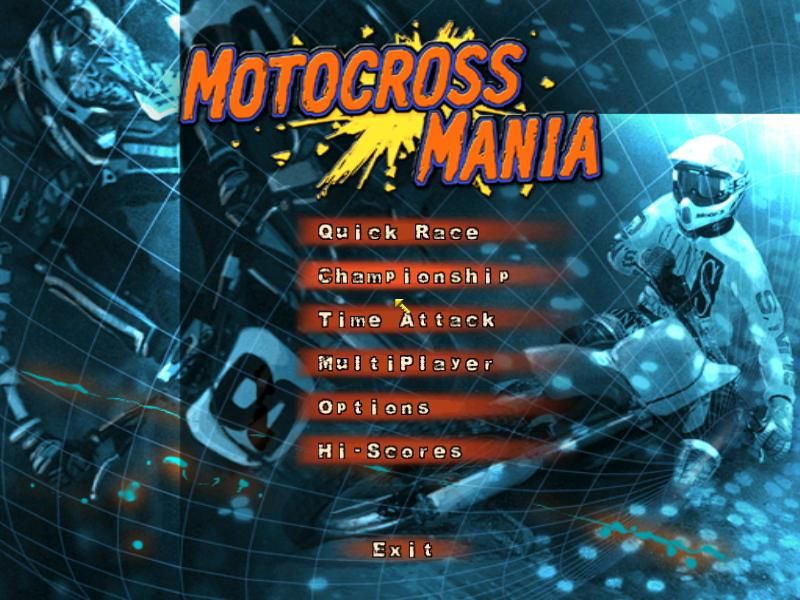
The Main Menu is where you can choose game modes and access the Options screen.
•
Quick Race: Selects any track at random for immediate action. Motocross or Supercross. Change the number of opponents and length in Options, in the Game section.
•
Single Event: Choose a track to play on in Motocross, Supercross or Freestyle, then select a game mode - Practice, Race or Time Attack.
•
Championship: Choose to compete in a Motocross or Supercross Championship at one of three difficulty levels.
•
Versus: Race against a friend in 2-player competition.
•
Options: Configure the options to suit your needs.
•
Hi Scores: View all your best lap times and highest stunt scores.
•
Credits: See all the wonderful people who worked very hard to bring you Motocross Mania. OPTIONS
•
Audio/Video: Set the volume for music and sound effects. Adjust the screen display position to suit your TV, if needed.
•
Game: Set the number of laps, number of opponents, Freestyle time limit, bike class, and choose between free roaming or enclosed tracks.
•
Controller: Choose between a set of predefined controller setups or choose your own button configuration.
•
Garage: This is where you can fine-tune your bike to suit different tracks and your own riding style.
•
Upgrades: Upgrade parts of your bike with money won from competing in Championships.
•
Stunts: Check which stunts are available to you and how to perform them.
•
Profile: Set your name and select your bike and rider. The money you have won in Championships, and the total number of stunt points you have earned, will be listed here. Check for new bikes and riders as you progress through Championship mode!
•
Save: Save your profile (Championship progress, best lap times, hi scores).
•
Load: Load a previously saved profile (See the Saving/Loading section for details).
GAME OPTIONS
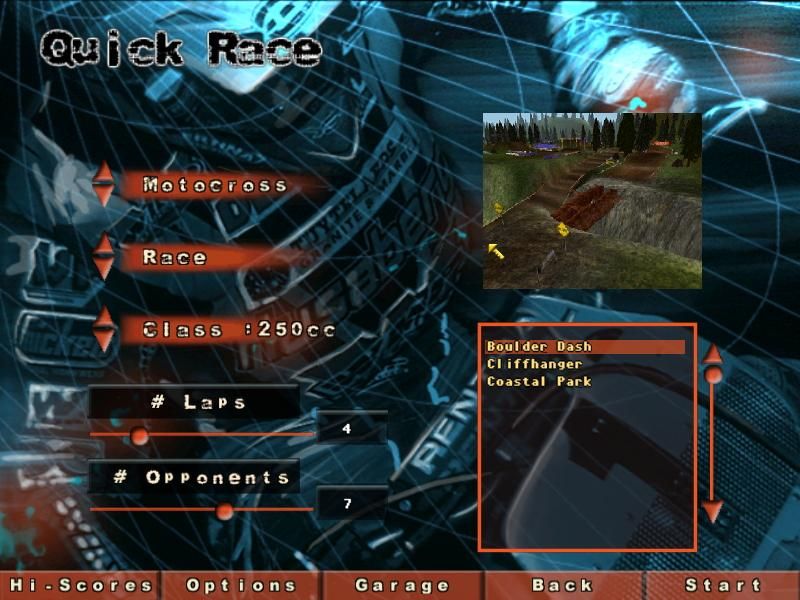
In a Single Event Race you will have the following options (you cannot change Number of Laps or Opponents in Championship Mode):
•
Laps: Choose between 1-20. 4 is the default value.
•
Opponents: Choose between 0-6. 3 is the default value.
•
Freestyle Time Limit: Choose between 2:30, 5:00, and 10:00. 2:30 is
.png)

.png)
