Top View
Console Controls
Starting the Game
•
Set up your PlayStation® game console according to the instructions in the Instruction Manual. •
Make sure the power is OFF before inserting or removing a disc.
•
Insert the All Star Racing 2 disc and close the Disc Cover.
•
Insert game controllers and turn on the PlayStation game console. It is advised that you do not insert or remove peripherals or Memory Card(s) once the power is turned on. Make sure that there are enough free blocks on your Memory Card before commencing play.
If a Memory Card containing game data is inserted into MEMORY CARD slot 1, the game data will be automatically loaded at the game start-up.
Note
•
All Star Racing 2 only supports MEMORY CARD slot 1.
Playing All Star Racing 2
Once the game has loaded you will be presented with the Main Menu. You have the choice of either entering the game or adjusting the game settings by using the directional buttons and press button to confirm your selection.
•
START - This will take you to the game mode screen.
•
OPTIONS – From here the player can customize the options for the game.
•
Difficulty - Choose the level of your opponents from EASY to HARD.
•
Laps - Choose the length of the race. The number of laps ranges from a sprint of 3 laps to an endurance race of 15 laps.
•
Music Volume - Here you can alter the volume of music that is played during the game. This can be set anywhere between 0 - 10 using the directional buttons.
•
SFX Volume - Here you can alter the Effects Volume of the game. This can be set anywhere between 0 - 10 using the directional buttons.
•
Center Screen - This screen allows you to center the display using the directional buttons.
•
Vibration - This allows you to toggle the vibration of the DUALSHOCK® analog controller ON/OFF using the directional buttons.
Starting the Game
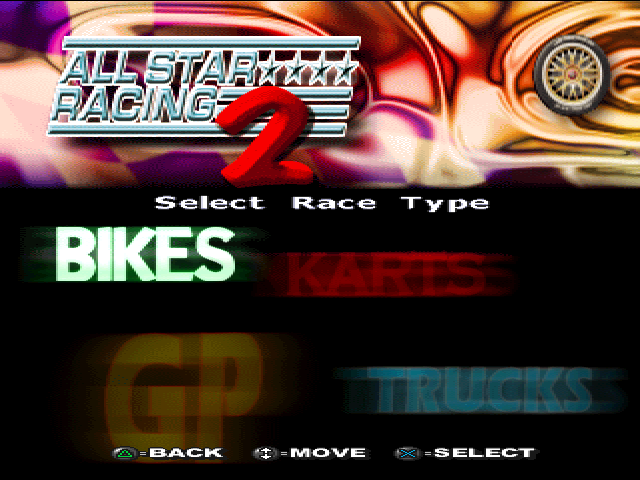
There are four game modes in All Star Racing 2: Motorbikes, Karts, Grand Prix cars, and Trucks. Select the game mode you wish to enter by using the directional buttons and press the button to confirm your selection.
After you have selected the game mode you will need to enter your name. This will be recorded with any lap records that you achieve when playing the game.
To enter your name use the directional buttons to highlight the letter you require and press the button. You can erase letters by selecting 'DEL' and pressing the button. When you have finished inputting your name highlight the button and press the button.
After you entered your name you will be taken to the track selection screen. Here you will be able to choose from five tracks to race on. Use the directional buttons to select the track you wish to race, press the button to confirm your selection.
After the track selection you will need to decide which team to ride/drive for. Use the directional buttons to move through the teams and press the button to confirm you choice.
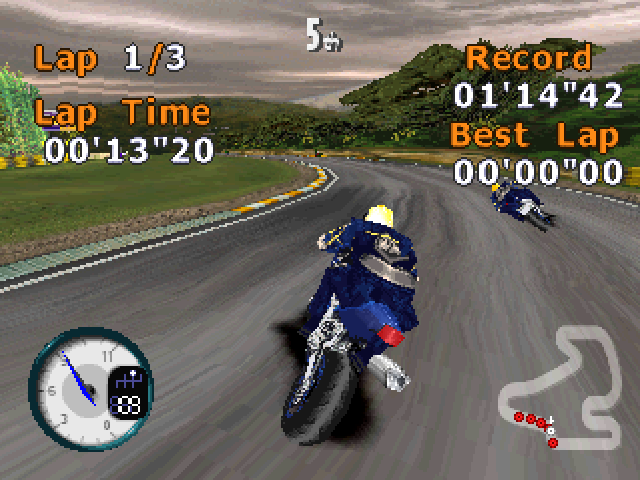
The game will now enter you into the race on the track of your choice. Once the track has loaded you will start at the back of the grid against five other competitors. Your aim is to finish in 1st place.
Once the race is finished your position will be shown on the results screen. If all the other competitors cross the line before you do then control will be taken away from your vehicle and the results screen will be displayed. Pressing the START button will skip the results screen. After the results screen you will be taken back to the track selection screen to enter another race.


_1.png)