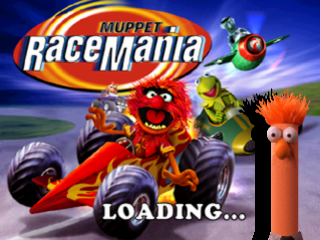
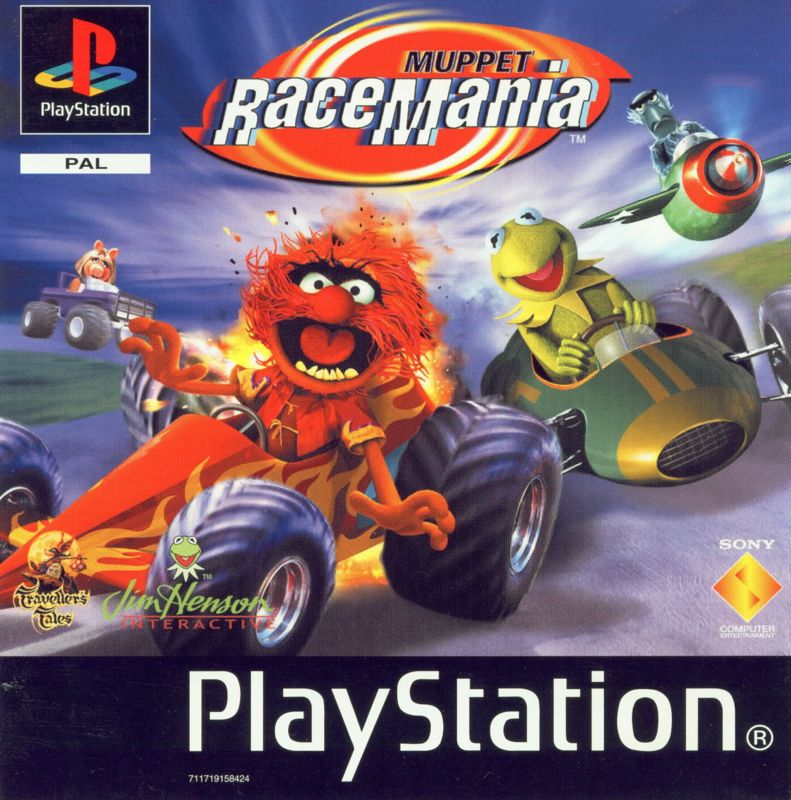
Welcome to Muppet RaceMania
Thank you for choosing this game. We hope you enjoy playing it as much as we enjoyed making it.
Setting Up Your Console
First, set up your Console according to its Instruction Manual.
Insert the Muppet RaceMania™ disc and close the disc cover. Turn the Console ON at the POWER button.
Important Notes
Do not insert or remove peripherals or MEMORY CARDS once the power is turned on.
Make sure there are enough free blocks on your MEMORY CARD before commencing play. Muppet RaceMania™ supports MEMORY CARDS in MEMORY CARD slot 1 only.
All screenshots for this manual have been taken from the English version of this game. Some screenshots may have been taken from pre-completion screens that differ slightly from those in the finished game.
Starting the Game
The Title Screen will be displayed. Press the START button to access the Main Menu.
Navigating Menus
Use the directional buttons to highlight an option. Press the X button to confirm.
To return to a previous menu screen, press the A button.
Main Menu Options
•
MEET THE MUPPETS: Go to the Meet the Muppets Menu.
•
SELECT COURSE: Go to the Select Course Menu.
•
TOURNAMENT: Go to the Tournament Menu.
•
GAME STATUS: Go to the Game Status Menu.
•
OPTIONS: Go to the Options Menu.
Meet the Muppets Menu
This menu shows you which Muppets are available for play. You can also take them for a spin in the Test Drive Zone.
Use the directional buttons to scroll around the Muppet Show arches to find the character you want.
Press the X button to go training in the Test Drive Zone. This is ideal for learning how each of the twenty-five vehicles handles.
Press the START button to toggle through the available vehicles. You can also learn how to collect fruit and pickups in the Test Drive Zone.
Characters in silhouette are Muppets that you have yet to unlock. To access them, you must complete other sections of the game, for example, finishing first on all tracks.
Select Course Menu
Use the up and down directional buttons to select the movie you wish to race in. Choices include: The Muppet Movie, The Great Muppet Caper, The Muppets Take Manhattan, The Muppet Christmas Carol, Muppet Treasure Island or Muppets From Space.
Press the O button to hear an audio track from the respective course. Press the X button to launch a short movie clip and access the Pre-Game Menu.
You only get to view the movie the first time you visit the course. To view it again, you must collect the Clapperboard in Adventure Mode. You can then view the relevant movie from the Select Course Menu by pressing the button.
Pre-Game Menu
First, use the directional buttons to choose your event, then press the X button to confirm.
The Character Selection Screen will then be displayed, where you can choose your favorite Muppet character from those available. Then choose a vehicle from those available and press the X button to get the racing mania under way.
Tournament Menu
Use the left and right directional buttons to toggle between 1 or 2 player tournament action, then press the X button to confirm.
Use the up and down directional buttons to select a League. Use the left and right directional buttons to alter the number of race tournament laps.
Game Status Menu
Use the directional buttons to view your progress and see which parts of the game you have yet to unlock (illustrated by a blue question mark).
You need to get a check on each of the 24 main courses to complete the game by winning each course and completing the various adventure mode tasks listed.
To show off and unlock EVERYTHING, you need to get a gold star on each course by completing all the adventure mode tasks and getting stars on each league by winning them well (30 points for Race Leagues and 20 points for Battle League).
There is more than one ending to this Muppet RaceMania™ debacle.
Options Menu
•
ADJUST SOUND: Use the up and down directional buttons to select either MUSIC VOLUME or SOUND VOLUME. Use the left and right directional buttons to alter the volume setting. Press the X button to confirm.
•
SET CONTROLLERS: Use the left and right directional buttons to alter the Controller configuration. You can also adjust the Vibration Function of your DUALSHOCK™ analog controller here.
•
ADJUST SCREEN: Use the directional buttons to adjust the screen to your satisfaction. When happy, press the X button to confirm.
Memory Cards
Memory Cards are ideal for saving and loading games.
Load Game
To load a previously saved game, make sure you have a MEMORY CARD inserted in MEMORY CARD slot 1 that contains Muppet RaceMania™ data.
Use the ☐ button to select LOAD. Use the left and right directional buttons to highlight a Muppet RaceMania™ saved game. Press the X button to load the file, finally press the X button to confirm the load.
Save Game
To save your progress, make sure you have a MEMORY CARD inserted in MEMORY CARD slot 1 that contains at least one free block.
Use the X button to select SAVE. Use the left and right directional buttons to select the empty MEMORY CARD block you wish to save to and press the X button to save. Finally press the X button to confirm the save.
Should you want to save your progress to a full block, use the left and right directional buttons to select the MEMORY CARD block you wish to overwrite and press the
.png)

.png)
.png)