Kicking
To kick a punt or field goal, select the appropriate offensive formation from the Play Calling screen by choosing SP TEAMS. Press /➡ from this formation to choose a kicking play.
Passing Icons
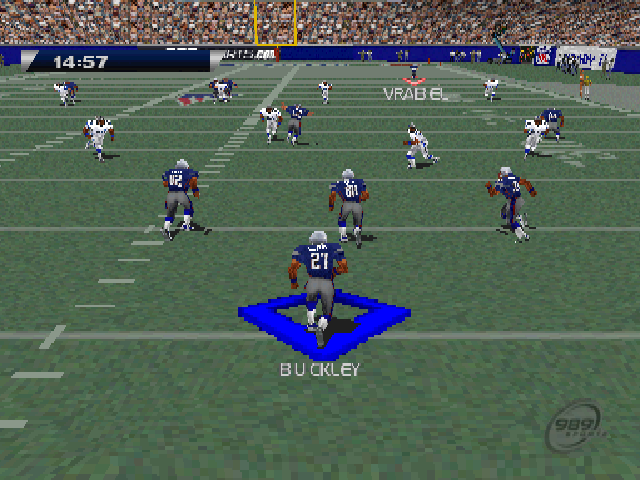
Passing icons are shown on the field to help locate your receivers. They are identical to and correspond with the button symbols on your controller. When the ball is snapped and the quarterback drops back to throw, button symbols will appear above each receiver.
As your receivers run their routes, you will be able to see those that are open or breaking away from defensive coverage. Before the play starts, locate the passing icons by pressing L1/R1 to draw back the camera and view the entire field. Each eligible receiver will be shown with a passing icon, including running backs that are often used as eligible receivers.
Max Pass Protection
For pass plays, using Max Pass Protection will force running backs designated for pass routes to stay in the backfield and block for the quarterback. Adding an additional blocker to the play will give your quarterback more time to find an open receiver.
•
Before the ball is snapped, press R2 to activate Max Pass Protection.
Play as Any Skill Receiver
In a 1-player game, to take control of any skill receiver, you must select the player before the ball is snapped.
•
At the line, press to scroll through the eligible receiver icons.
•
Once you select a receiver, his icon will blink indicating that you will have control of that player.
•
After the snap, because you control the player, you can run any route.
•
When your quarterback passes the ball, it will be thrown to the skill receiver.
Defensive Placement
On defense, get set by reading the offense's formation and making on-the-fly adjustments at the line.
•
If you want to make a change to create better matchups, press L2 + to shift your defensive line.
•
Press L2 + to play in Bump & Run coverage.
Quick Timeout
•
Press SELECT to use Quick Timeouts and stop the clock in hurry-up situations or to make last second play calls.
Memory Card
The MEMORY CARD option is used to save game settings and progress. Before attempting a save, make sure a MEMORY CARD is inserted into one of the MEMORY CARD slots of your PlayStation game console. At the start of an NFL GameDay 2005 game, you can load saved game data from a MEMORY CARD containing previously saved files. Files saved to a MEMORY CARD can be renamed or deleted at any time after the initial save. •
Five blocks of memory must be available on your MEMORY CARD to save game data.
•
Fifteen blocks are needed for General Manager data.
•
One block is needed for Game Options, User Records or Playbooks.
Saving a File
•
Press ⬆ / ⬇ to the SAVE option.
•
Press ⬅ / ➡ to select the game data to save, then press ✖.
•
Enter a name for the file, then press ✖ to accept the name.
•
When prompted, press ⬅ / ➡ to select YES, then press ✖ to delete the file.
Loading a File
•
Press ⬆ / ⬇ to the LOAD option.
•
Press ⬅ / ➡ to select the game data to load, then press ✖.
•
Press ⬆ / ⬇ to select a file, then press ✖ to load the file.
Deleting a File
•
Press ⬆ / ⬇ to DELETE FILES, then press ✖.
•
Press ⬆ / ⬇ to select a file to delete, then press ✖.
•
When prompted, press ⬅ / ➡ to select YES, then press ✖ to delete the file.
Renaming a File
•
Press ⬆ / ⬇ to RENAME FILES, then press ✖.
•
Press ⬆ / ⬇ to select a file, then press ✖.
•
Press ⬅ / ➡ to choose a character to modify, then press ⬆ / ⬇ to change the character.
•
Press ✖ to accept the file name.
User Records
User records are a fun way to track the stats of players that you control on the field. User names are automatically assigned to each controller and as you play each game your players' stats (e.g., sacks, touchdowns, etc.) will be tracked and attached to your user name.
At the completion of games, records can be viewed from the View Records menu item of the User Record Menu. Stats will be kept for each controller.
User Names
The User Names option allows you to customize up to eight user names. These user names are assigned to the eight possible controllers that can be used for the game. A Multitap will enable you to play a game with up to eight users. Any controller not used will generate records for the CPU.
To Customize User Names
•
Press from the User Names menu item.
•
Press ↑/ to select a user name, then press.
•
Edit the name using the alphanumeric chart, highlight END, then press to accept the new user name.
•
Continue this process to create up to eight user names.
•
Press when you are finished to exit the User Record Names screen.
Main Menu Mode
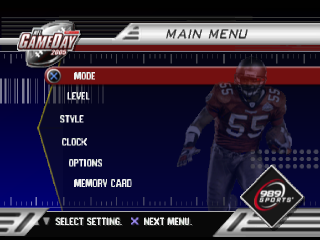
Before selecting a game mode, set the level, style and clock attributes for the game.
Level
The four different player levels to choose from are Rookie, Veteran, All-Pro and Hall of Fame.
Style
The style of the game is dictated by choosing Simulation for ultra-realistic gameplay or

.png)
.png)

.png)


.png)

.png)





.png)