CONSOLE
Top View
Front View
Important!
Do not insert or remove peripherals or memory cards once power is turned on. You will need a memory card in MEMORY CARD slot 1 to save your games.
Getting Started
1. Set up your PlayStation® game console according to the instructions in its Instruction Manual. 2. Make sure the power is OFF before inserting or removing a compact disc.
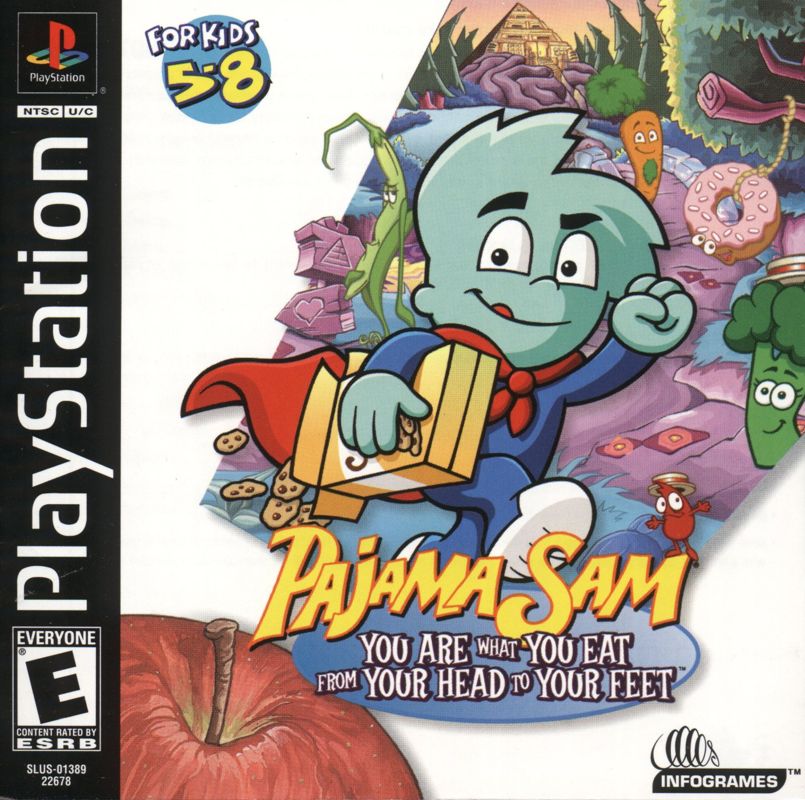
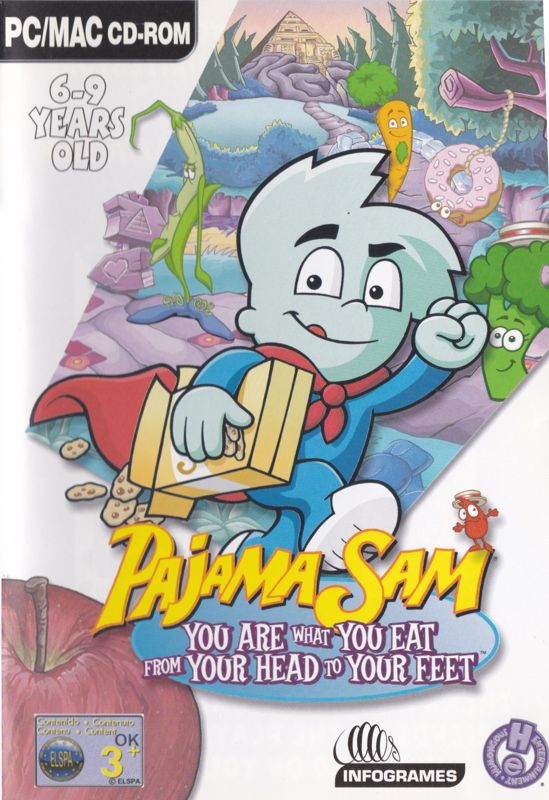
3. Insert the Pajama Sam: You Are What You Eat From Your Head To Your Feet disc and close the disc cover.
4. Insert the game controller in controller port 1 (and insert a memory card, if you have one, into MEMORY CARD slot 1).
5. Turn ON the PlayStation® game console. The introductory sequence will begin. To skip this sequence and go directly to the Main Menu, press the START button. Note on Saving
You will not be able to save your progress or game information if you don't use a memory card. Make sure there is at least one free block on your memory card before beginning your game in order to save the status of your game. You should not swap memory cards during play and you must leave the memory card in MEMORY CARD slot 1.
MAIN MENU
After the introductory screens, you will be presented with the Main Menu title screen. Navigate the menu by pressing the up and down directional buttons, and then pressing the button to make your choice.
Menu Choices
Start Game
Choose this option to select Game Options and start a brand new game. Delegate locations and puzzle options will be randomized. The mini-games included will be chosen at random, unless otherwise specified in Game Setup.
Load Game
Choose this option to load a previously saved game. Simply follow the on-screen instructions. Loading can only be done from this menu.
Game Options
Choose this option to access the Game Options screen. See the Game Options section for more details on how to configure the game the way you want it.
Customize
Choose this option to reach the Game Setup screen. See the Game Setup section for more details.
Game Credits
After 30 seconds of inactivity on the Main Menu, the game credits will be shown. Press any button to interrupt the credits and return to the Main Menu.
PLAYING THE GAME
Throughout gameplay, Sam and the other characters will talk, giving you important clues. Listen very carefully to what they say so you can figure out what to do next!
Cursor
The cursor is in the shape of Sam's hand, which changes to indicate something you can do or interact with. The open hand cursor means that you are not currently over an object that can be activated or picked up, or over someone Sam can talk to.
If it changes to a pointing finger, Sam is encouraging you to click on that item. If it changes to a silver arrow, that means there's a path there that Sam can go down.
Actions
Typical actions you can perform when the cursor is a pointing hand are "talk to," "look at" or "pick up." As mentioned, the silver arrow means, "go there." To perform these actions, press the button.
Tooltips
How do you know exactly what pressing the button will do? A Tooltip text bar will appear on the screen when you are highlighting something with which you can interact. You can set the detail level of Tooltips from the Pause Menu.
Control Methods
Pajama Sam has two easy-to-use control methods, which are set from the Game Options screen (see Cursor Type):
•
SNAP - Pajama Sam's hand jumps from one object to another quickly and easily using the directional buttons or left analog stick. This makes navigation around the screen simple and fun for younger children.
•
FREE - Pajama Sam's hand moves around the screen under the direct control of the directional buttons or left analog stick, allowing you to freely explore the entire screen! This is great for older children.
GAME SETUP (CUSTOMIZE)
This screen allows you to choose some of the puzzle paths in the game, in order to customize your gameplay experience. Four of the delegates can be found in one of two different locations, which changes how you find and rescue them.
There are four pairs of squares at the top of the screen, each relating to how one of the delegates is rescued. Highlight your choice of puzzle by selecting a square from each pair and pressing the button to confirm. The square you don't choose will turn dark.
Randomize
This item allows you to let the game choose the delegates' locations. (Selecting Start Game from the Main Menu does the same thing.)
Play
This item tells the game to accept the choices you've made and start the game. You can also press the button to go back to the Main Menu without any of your changes taking place.
PAUSE MENU
Pressing the START button pauses the game action and activates the Pause Menu, with the following options:
Return to Game
Highlighting this option and pressing the button will close the menu, unpause the game and return you to play. This may also be achieved by pressing the START button again.
Save Game
Highlight Save Game and press the button to save your game if you have a memory card. Follow the on-screen instructions






.png)
.png)

.png)

.png)

.png)