Starting the Game
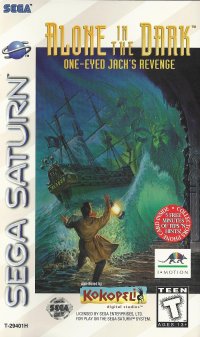
Set up your PlayStation game console according to the instructions in the Instruction Manual. Make sure the PlayStation power is off before inserting or removing a compact disc. Insert the Alone In The Dark: One-Eyed Jack's Revenge disc and close the CD door. Insert game controllers and turn on the PlayStation game console. Follow on-screen instructions to start a game. Warning
CD-ROM disks need the same careful handling and storage as CD audio disks. You will not need to clean your CD-ROM if you handle it only by the edges and if you put it back in its box immediately after use.
To save your games, you must use the Memory cards. One Memory card can contain an average of 3 saved games.
How To Play
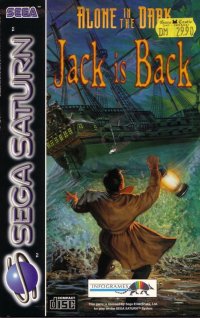
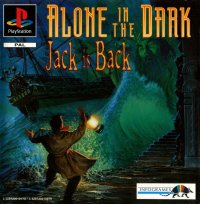
You are the elusive detective, Edward Carnby. A kidnapped child depends on your super sleuthing skills and your astonishing ability to outwit a band of immortal pirates. One-Eyed Jack, their nefarious leader, would give his remaining eye to see you permanently retired.
Nerves of steel and quick thinking are your trademarks, so without hesitation you set out to rescue young Grace Saunders, the missing girl. Your razor sharp instincts lead you to the one place that no one in their right mind would go...One-Eyed Jack's infamous hideout known as Hell's Kitchen, a forbidding mansion that resonates with venomous evil.
Perched high above the unforgiving and twisting sea, Hell's Kitchen glares down at you, daring you to come closer. "One-Eyed Jack is in there", you whisper under your breath. “And that little girl needs my help, if she's going to get out alive..." You begin to scale the sheer cliffs, your fate cast aside as you realize that you are alone, ALONE IN THE DARK!
Main Menu
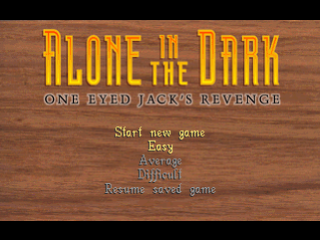
After the opening demo is complete, the Main Menu will appear allowing you to Start a New Game or Resume a Saved Game.
•
The demo can be stopped at any time by pressing the A, X, or O button.
Start a New Game
Choose your desired difficulty level:
Resume Saved Game
This option gives access to a list of saved games.
•
If you have saved games on several Memory Cards, be sure to insert the correct Memory Card before choosing this option.
•
To resume a saved game, use the Directional Buttons to select the game you wish to continue and press the X Button to confirm your selection.
Actions and Using Items
To carry out actions or use any object that you have found during play, you must go to the Selection Screen by pressing the Start Button.
Selection Screen Windows
•
WINDOW 1: The top half of the Selection Screen.
•
WINDOW 2: The bottom left portion of the Selection Screen. Displays a picture of the item selected in Window 1.
•
If ACTIONS is selected, your character will be displayed, along with the number of life points remaining.
•
If a gun is selected, a picture of the gun will be displayed, along with the number of bullets remaining.
•
WINDOW 3: The bottom right portion of the Selection Screen displays the list of actions possible for the selected character or item.
Use the Directional Button Left/Right to move the cursor between the windows.
To Carry Out an Action
•
WINDOW 1: Select ACTIONS with the Directional Buttons Up/Down and press the X Button to confirm your selection.
•
WINDOW 3: Use the Directional Buttons Up/Down to select the action you wish to execute (Push, Fight, etc.) and press the X Button to confirm your selection.
Actions Possible
Hand to Hand Fighting
•
Select ACTIONS from Window 1 and then select FIGHT from Window 3.
•
Press the X Button to confirm your selection. Your character is ready to attack.
•
Press and hold the R1 Button and then press the following Directional Buttons:
•
Be sure to keep both buttons pressed long enough for the blow to be delivered properly.
Fighting with Cutting Weapons
•
Select your weapon from Window 1 and then select USE from Window 3.
•
Press the X Button to confirm your selection. Your character is ready to attack.
•
Press and hold the R1 Button and then press the following Directional Buttons:
•
Left: Thrust from left to right
•
Right: Thrust from right to left
•
Down: Thrust from high to low
•
Be sure to keep both buttons pressed long enough for the blow to be delivered properly.
Fighting with Firearms
•
Select your fire arm from Window 1 and then select USE from Window 3.
•
Press the X Button to confirm your selection. Your character is ready to attack.
•
Press and hold the R1 Button and then press the following Directional Buttons:
Open / Search
•
Move your character as close as possible to the item or piece of furniture that you want to open or search.
•
Be sure to keep this button pressed long enough for your character to do the job!
Push
•
Move your character as close as possible to the large object or piece of furniture that you want to move.
•
Simultaneously press the R1 Button and the Directional Button in the