STARTING UP
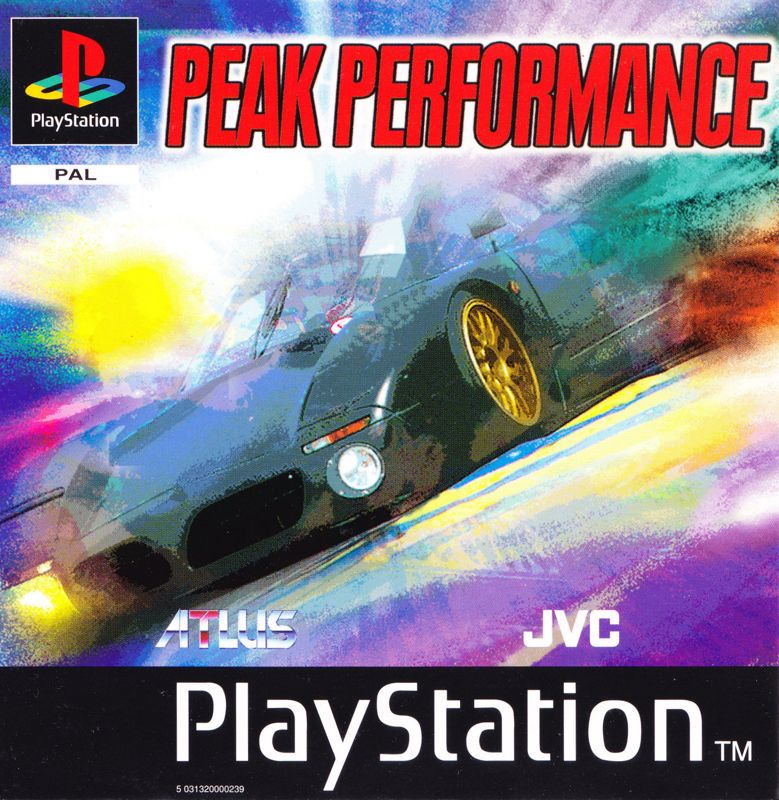
Set up your PlayStation™ game console according to the instructions in its Instruction Manual. Make sure the power is off before inserting or removing a compact disc. Insert the PEAK PERFORMANCE™ disc and close the disc cover. Insert the game controllers and turn on the PlayStation™ game console. Follow on-screen instructions to start a game. Console Top View
Console Front View
QUICK START INSTRUCTIONS
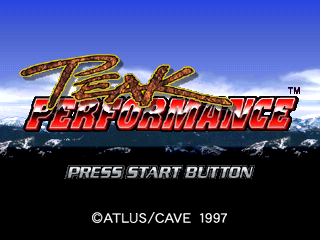
Set the CD-ROM in the PlayStation™ and turn on the unit. The Title screen will be displayed. Move the cursor up and down using directional buttons. Set the cursor on one of the selections. Press the [X] button to confirm your selection.
Main Menu Selections
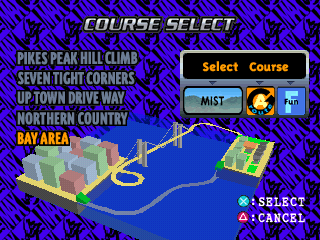
Courses Available (1 or 2 Players)
Courses Available (Time Trial)
Weather Conditions
•
Mist (only available in time trial)
Headlights
•
Use headlights by pressing L2 (Special Button) + Up
Route Selection
Race Mode (Time Trial Only)
•
Time Attack: Race the other cars and the clock to be 1st place!
•
Fun Race: Race the course for fun. No time or placement factors are involved.
Gentlemen, start your engines: It's time to race.
MODES
1 PLAYER RACE
Overcome all of the other cars to become the top racer! 2 PLAYER RACE
Overcome the other player's car to be first!
TIME TRIAL
Race against the clock to get the fastest time.
TUNE
This menu allows you to customize your own car, using a base car from the car selection.
OPTIONS
You may change the various settings of the game here. If you want to save your record of your race or time attack you must do it in this mode. Be sure to save your records before you turn off the power.
Ranking
Displays your race ranking and time trial ranking during the race on every course.
Key Setting
You can modify your controller here.
Game Option
•
Quick Select: You can go directly to "Car Select" without having to go through the screen change. If you turn off this option, the screen will shift/move when you scroll through individual cars.
•
Sound Out: Choose between Monaural and Stereo.
•
TV Mode: Choose between Normal and Wide screen mode.
Car Name Edit
Name your own car to personalize it!
•
Start Button: Selects END
•
△ Button: Delete character
•
□/ L1 Button: Toggles between BS/DEL (on Car Name Edit Screen)
Reset Game
During gameplay, press START to pause the game. Select Exit Race, and press the X button.
REPLAY
You can replay and view your own driving in this mode. After you have finished your run, the menu will be displayed. If you want to save your run, you can choose "Replay Save" from the pause menu. To save the data, you will need more than 1 free block of Memory Card (sold separately).
Saved data can be accessed and seen anytime when you load the data from Replay Mode. You can use this feature to save your favorite run or to study difficult corners in the course.
NOTES
When you save multiple data, make sure you choose a different "Name" for each file.
Camera Views
If the number of MAX is smaller than FREE, try Garbage Collecting. You might be able to save larger data!
DURING REPLAY
•
X or A Button: Choose Camera View
•
L2 Button: Zoom Out (While in Free Camera Mode)
•
Directional Buttons: Move around car (While in Free Camera Mode)
•
Button: Replay controls on/off (While in any Camera View)
•
Start Button: Exit Replay
Replay Menu
NOTES
•
Copy data only uses slot 1.
•
Do not remove the memory card while you are choosing, saving, loading, or having anything to do with the memory card function. You might destroy the data.
Replay Options Explained
•
Change the name on the data.
•
Copy the data from slot 1 to slot 2.
•
Create the data folder for your replay data or Course editor data in your memory card.
•
Repartitions the memory card. Increases the savable space to the same size as Free. Not usable when the amount of Free and Max data space are the same.
COURSE EDITOR
This section informs you how to set up courses using pylons.
**Placing Pylons
.png)


.png)
.png)
_1.png)
.png)
.png)
.png)