Getting Started
Set up your PlayStation® game console according to its Instruction Manual. Make sure the power is off before inserting or removing a compact disc.
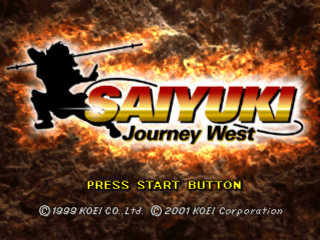
Insert the SAIYUKI: Journey West disc and close the Disc Cover. Insert game controllers and turn on the PlayStation® game console. Follow on-screen instructions to start a game.
•
Insert the SAIYUKI: Journey West CD (label side up) into the system. If you wish to save your game data, insert a memory card (sold separately) into the system.
•
Turn on the PlayStation® game console. Wait several moments and the game's opening sequence will begin playing. Pressing the START button will skip to the Title screen.
•
The Main menu appears if you press the START button while the Title screen is shown.
The Console
Top View
Front View
Main Menu Options
•
Select Character: Select gender of character.
•
Continue: Begin from a previously saved location. Select the Memory Card slot and the saved data.
•
New Game: Begin a new game. Choose the gender of the main character. The main character's name cannot be changed.
•
Load: What data will you load?
•
03 LV 4 Chapter 1 Mt. Darkwind Full Map 1:02
•
Option: Review and alter game settings such as BGM and message speed (see page 7).
•
Diary: Select saved data and review memories from your journey.
Save/Load/Ending a Game
During the game, you can save or load data at the main menu.
Opening the Menu
The menu window will open after pressing the Start button from the following locations:
•
From the main map, before a location is selected
•
In towns, before a shop is selected
•
In battle, after pressing the button when it is your party member's turn.
Save/Load
Select Save or Load from the menu and choose the memory card slot and data block. One saved game requires one block of memory from the memory card.
Saving to a block that already contains game data will overwrite that data.
Quitting a Game
To end the game you are playing, turn off the PlayStation® game console. Be sure to save your game first if you wish to continue it at a later time.
Game Settings
The menu allows you to check and alter game settings.
•
Message: Set text message speed to either fast or slow.
•
Battle Animation: Set whether battle effects are On/shown the 1st time only/Off
•
Battle Labels: Set whether these names are shown on screen during battle.
•
Battlefield Spin: There are two available speeds for viewing battlefield changes.
•
Vibration: On/Off for the DUALSHOCK™ analog controller vibration function
•
Default: Return the settings to their original positions.
Changing Settings
•
Choose Option from the Menu bar.
•
Using the up/down directional buttons, select an option. Alter its setting with left/right directional buttons.
•
After changing the Settings, press the button to exit the options menu.
Basic Character Information
•
Name and Orientation: Character name and Orientation (see page 11).
•
LV: Current level. As experience points increase so does the level and abilities.
•
EXP: Current experience points. Using attacks and spells increases this total.
•
HP: Current HP(stamina)/Maximum HP. If this becomes 0 during battle, the character is forced to retire.
•
MP: Current MP (spell energy)/maximum MP. Using magic and summoning Guardians decrease this figure.
Abilities
•
War: Affects attack strength with weapons, and defense against physical attacks
•
Magic: Affects spell power / effects and defense against magic
•
Speed: Affects turn order and hit accuracy
•
Luck: Affects critical hit rate (max damage)
Movement and Status
•
Movement: The distance a character can move in one turn. It changes depending on the terrain. The icon indicates the method of movement. (see page 26).
•
Status: In battle, the icon brightens for each status change (effect) the character is subjected to. (see page 29).
Character Abilities and Growth
Using Spells
Spells are magic-like abilities accomplished through the power of the will. The spells your companions can perform from the beginning are limited. However, with the aid of scrolls, a variety of spells become available.
Spells Depend on Scrolls
By equipping a scroll, the spell contained in that scroll becomes available. Also, your defense against spell attacks of that scroll's Element increases. Each scroll you equip, raises your defenses a little more. (see page 17)
Equip up to 6 items. Which will you choose, scrolls or accessories?
5 Elements
Each character and most of the spells have an affinity with one of the 5 Elements. The 5 Elements are
.png)

.png)
.png)
.png)




_1.png)
_1.png)
_1.png)