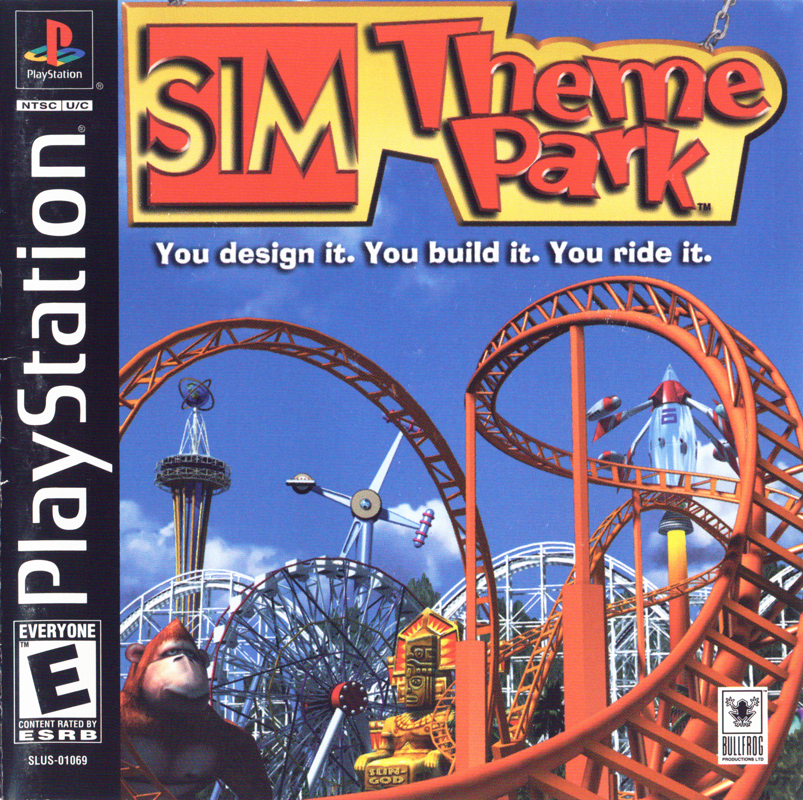
Starting the Game
1. Set up your PlayStation game console according to its Instruction Manual. Make sure the power is OFF before inserting or removing a compact disc. 2. Insert the SimTheme Park™ disc and close the Disc Cover.
3. Insert game controllers and turn ON the PlayStation game console. Multi-Tap Note
When using the Multi-Tap, at least one controller must be connected to port I-A.
Bypassing Intro Videos
If you want to bypass the introductory videos, press the START Button or the ✖ Button to reach the Main menu.
Welcome to SimTheme Park
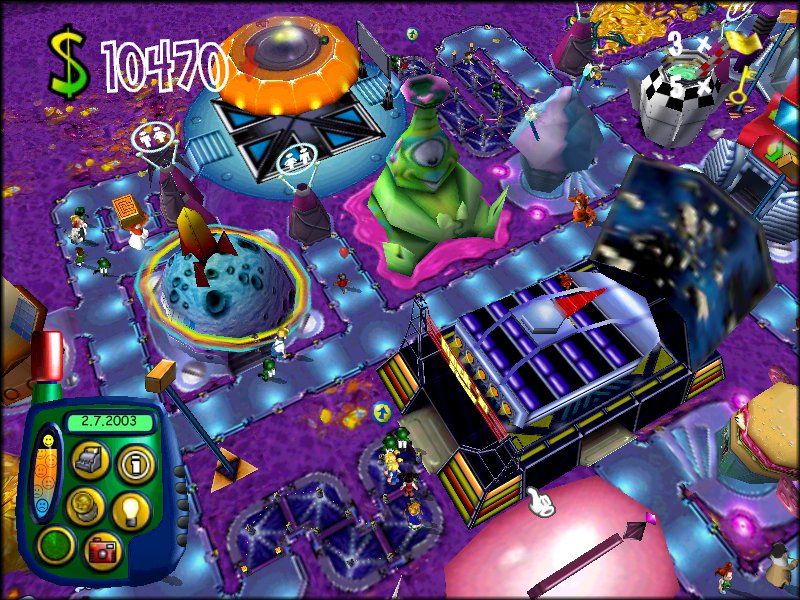
Welcome to SimTheme Park, where you design, build, and manage your own amusement park. You're in charge of every decision, from the design of the roller coaster to the price of refreshments.
Things happen pretty fast at an amusement park, so you have to be on your toes. Whether kids are getting into mischief, snow starts falling, or the roller coaster breaks down, you have to handle the challenges of each day and keep your park a fun place to visit. If you bring the fun, kids bring the money, and everyone ends up with a smile on their face.
Setting Up the Game
It's time to start building your park!
Main Menu
Here, you can choose to play a game and adjust gameplay options.
•
PLAY GAME: Select to play the MAIN GAME or PRACTICE PARK game.
•
OPTIONS: View Main Options menu to adjust various options.
•
LOAD GAME: Load a previously saved game from a Memory Card.
Default Options Note
Default options are listed in bold type.
Quick Start
If you want to quickly get into the fun, select PRACTICE PARK mode. Highlight PLAY GAME and press the ✖ Button. The game begins. Follow the on-screen instructions and listen carefully to the advisor.
Game Modes
Choose between Main Game and Practice Park modes.
Practice Park
Build a park, ride the rides, and watch the money come pouring in! You can build a roller coaster and even ride it!
Main Game
This is the in-depth theme park experience. In addition to the basics covered in Practice Park mode, you can hire and fire staff, change ticket prices, and alter a host of other variables.
Proceeding to Map Screen
Highlight the desired game mode and press ✖ to proceed to the Map Screen.
Practice Park Limitation
There is only one park available in Practice Park mode. If you want to experience the wonder and excitement of seven other theme parks, choose Main Game mode.
The Map Screen
This is where your progress through Sim Theme Park's eight worlds is charted. When you begin, you only have one choice - Lost Kingdom: Prehistoric Park. Later, as you meet your targets and win Gold Tickets, the other park options of Sim Theme Park will become available.
•
Select Enter (✖ Button) to begin game.
•
Use the D-Button to move to other Islands.
Playing the Game
All the basics are outlined in the following section. If you want more information, remember the Advisor is always on hand to offer helpful advice and tips.
Laptop
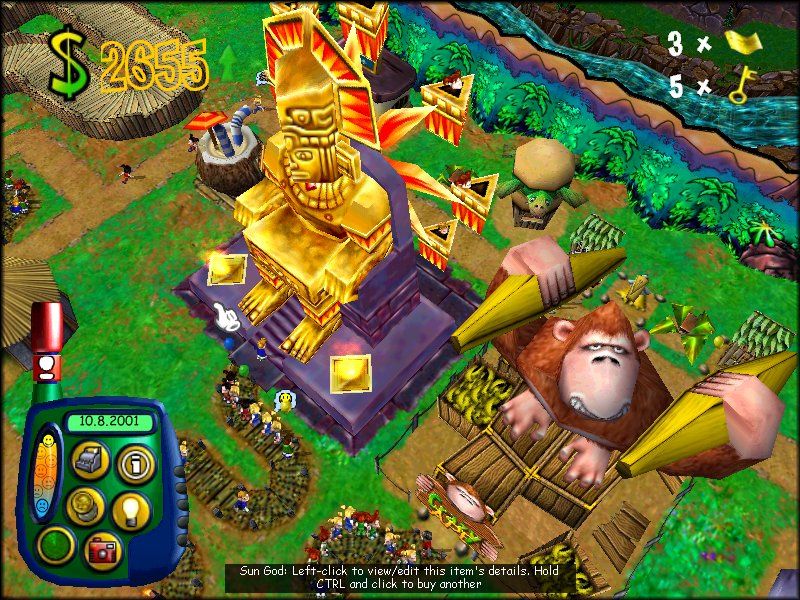
Use the Laptop to access all the information to effectively run your theme park and meet your goals! You can view visitor moods, check up on your finances, and even save your park to a Memory Card.
Laptop Options
•
INFORMATION: View information about your rides, shops, bathrooms and staff.
•
BUILD AND HIRE: Hire staff and build rides, shops, and other features.
•
RESEARCH: Choose research areas and adjust the work rate of your researchers.
•
PARK STATISTICS: View visitor information, overall stats, park finance, and awards won.
•
FINANCIAL INFORMATION: Check your balance sheet or statistics, or take out a loan.
•
GOLD TICKETS: Purchase your camcorder so you can ride the rides with the Gold Tickets you earn.
•
GAME OPTIONS: Adjust Music, SFX, Screen position, save games, toggle Tutorial ON/OFF, and quit game.
•
LEAVE PARK: Return to the Map screen.
Quit Game Note
Quit game returns you to the Main menu.
Laptop Options Expansion Note
As your park increases in size and scope, the Options in your Laptop also increase.
Laying a Path
Without paths in your park, guests cannot get to your attractions, rides, or refreshment areas. Make sure paths are linked to entrances and exits of your attractions. Otherwise, the guests will not be able to ride the rides, and they will become very frustrated and leave the park.
To Lay a Path
1. Select Path (✖ Button) to enter Path-laying mode. The blueprint appears, indicating the area that will become path if you select Place (✖ Button).
2. Select Place (✖ Button) to lock the starting point.
3. Use the D-Button (or Left Analog Stick) to drag out the blueprint.
4. When you are happy with the path blueprint, select Place (✖ Button) to lay the path.
Path Blueprint Color Note
When the blueprint is blue, path can be laid in the selected area. If the blueprint turns red, you can't lay path there.
To Remove A Previously Laid Path
Follow the first three steps of Laying a Path, above. Now, select Delete (✖ Button) to erase any path under the blueprint.
Exiting Path-Laying Mode
There are two ways to get out of Path-laying mode:
.png)

.png)
.png)




_1.png)

_1.png)
_1.jpg)
_1.png)



_1.png)