Precautions During Use
Do not stand too close to the screen. Sit a good distance away from the television screen, as far away as the length of the cable allows. Preferably play the game on a small screen.
Avoid playing if you are tired or have not had much sleep. Make sure that the room in which you are playing is well lit.
Rest for at least 10 to 15 minutes per hour while playing a video game.
Introduction
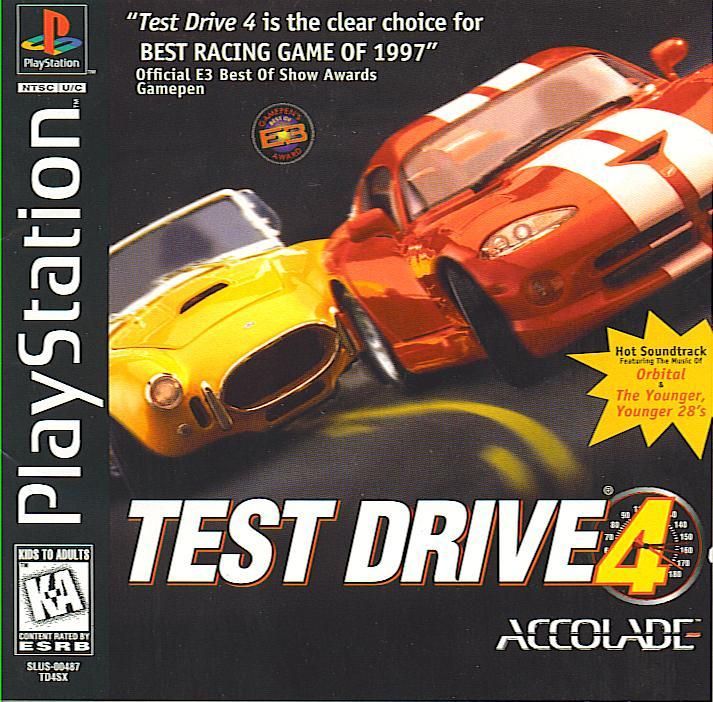
Welcome to Test Drive 4. This game is a race in some of the hottest production cars from around the world, featuring high technology wonders and powerful American muscle cars. Test Drive 4 uses real-world physics for authentic interaction between vehicles and terrain, with a touch of the supernatural for speed. You can play solo or against friends for an adrenaline-packed race. Race in international locations like Keswick in England's Lake District, San Francisco (Golden Gate, Fisherman's Wharf), Washington DC (Pennsylvania Avenue), the Swiss-Italian Alps (Bern), and Kyoto, Japan. These are long road courses, not short loops.
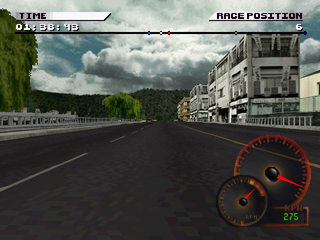
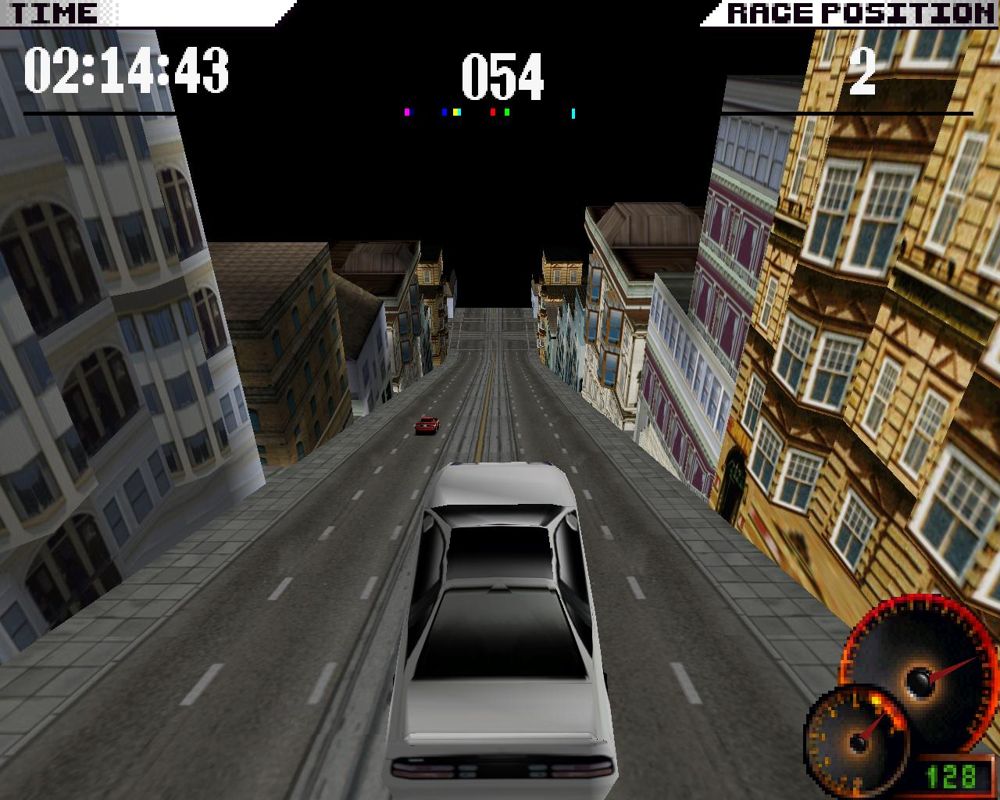
Each track has several checkpoints marked by banners. You must reach each checkpoint before the timer at the top center of the screen goes to zero to continue. Watch out for traffic, spinouts, tight turns, and cops if you exceed the speed limit.
Starting the Game
It is advised that you do not insert or remove peripherals or Memory cards once the power is turned on. Make sure there is enough free blocks on your Memory card before commencing play.
1. Set up your PlayStation™ game console according to its Instruction Manual. Make sure the power is off before inserting or removing a compact disc. 2. Insert the game disc and close the disc cover.
3. Insert game controllers and turn on your PlayStation™ game console. 4. Follow the on-screen instructions to start the game.
Main Menu
The Main Menu offers several options. Use the Directional button to select an option and then press the X button. Press the ▲ button to go back one menu.
ONE PLAYER
Select this option to race against computer-controlled opponents. The screen automatically advances to the Race Menu. You must choose ONE PLAYER to enter any of the Cup tournaments.
DUEL
Select this option to race against a friend by taking turns on the same track. You will see a ghost car driving exactly like your opponent's previous attempt. After making this selection, the screen automatically advances to the Track Menu. Traffic is eliminated for an equal match.
LINK
Select this option to race against a friend by connecting two PlayStation game consoles with a Link Cable. Refer to the link cable instructions for attachment. When both games display the Main Menu, each player selects "LINK". Both consoles will show "Establishing Link" and then "Link Established".
BOTH PLAYERS MUST PRESS THE X button TO BEGIN A LINKED GAME. Select your cars and a track to start racing. The X button is used to unpause the game. If you get a "CONNECTION TERMINATED" message, double check link cable and power connections, then RESET both consoles. Repeat the instructions.
NB: Reset the console prior to beginning a one player game.
HIGH SCORES
Select this option to view high score tables for various races. There is a high score table for each track showing several statistics, and a high score table for each of the Cup Races.
CREDITS
Select this option to find out more about the designers and developers of this game.
OPTIONS
Select this option from the Main Menu to access controller configuration, audio configuration, Memory card manager, screen configuration, or game options. This brings up the Options sub-menu.
Use the Directional button to select an option and then press the X button. Press the ▲ button to exit OPTIONS and go back to the previous menu.
Controller Configuration
This sub-menu customizes the control layout or selects alternative controllers from the list of supported controllers. Use the Directional button to select an option and then press the X button.
Audio Configuration
This sub-menu sets the sound volume for the game. The Sound Menu shows three icons for MUSIC volume, Sound EFFECTS (FX), and SURROUND Sound. Use the Directional button to select an option and then use the Directional button to adjust the volume.
Screen Configuration
This sub-menu adjusts the position of the image on the TV. Use the Directional button to pick a direction and tap the X button to move. Press the ▲ button to exit.
Game Options
This sub-menu customizes your speedometer (mph or kph), checkpoint timer (on/off), and road traffic (on/off). Use the Directional button to select and press the X button to toggle an option. Press the ▲ button to exit.
Memory Card
Select this option from the Main Menu to access your Memory card plugged into the PlayStation game console. This brings up the Memory card sub-menu. Use the Directional button to select an option and then press the X button. Press the ▲ button to go back one menu. Save
Select the Save icon to save the current state of all aspects of the game. This includes high score tables, unlocked bonus cars, and reverse tracks. A sub-menu appears; follow on-screen instructions to save a game.
Load
Select the Load icon to load the current state of
.png)

.png)
