Getting Started
•
Follow your system directions to open the Disc cover and place the CD onto the bed of the drive, ensuring the printed side faces upwards.
•
Close the Disc cover. If the unit is switched off, press the POWER button to begin play. If the unit is already on, press the RESET button.
•
Skip through intro screens by pressing the X button on the Controller.
Important Warnings
•
It is advised that you do not insert or remove peripherals or Memory cards once the power has been turned on.
•
Make sure you have enough free blocks on your Memory card before commencing play.
Controlling The Game
•
L1 and R1 buttons: Change View
•
Triangle: Rescue Helicopter (Endurance Mode Only)
Game Screens
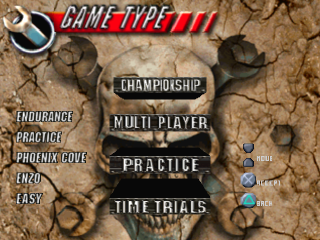
Main Menu Options
•
Takes you to the Options Menu.
•
Starts your chosen game.
•
Selects the Circuit Racing competition. •
Use the Up and Down Directional buttons to move the pointer to the circuit you want. Press the X button to confirm your choice.
•
NOTE: If you are playing the game in Championship mode, you race the circuits in a pro-set order, therefore you won't be able to choose which circuit to race on.
•
Selects the Endurance competition.
•
Use the Left and Right Directional buttons to cycle through the available courses until the one you want is displayed. Then use the Up and Down Directional buttons to cycle through the available courses at that location. Press the X button to confirm your choice.
•
NOTE: If you are playing the game in Championship mode, you race the courses in a pro-set order, therefore you won't be able to choose which course to drive on.
•
Selects the Car Crushing competition.
•
Selects Championship mode.
•
NOTE: This mode is not available in conjunction with the Car Crushing competition.
•
Selects the Multiplayer game.
•
Use the Left and Right directional buttons to move the indicator between 2 players and 9 players. Press the X button when the correct number of players is indicated.
•
Then use the Left and Right Directional buttons to choose a vehicle for each player - press the X button to confirm your choice. The first vehicle chosen will be driven by Player 1, the second will be driven by Player 2, etc.
•
NOTE: This mode is not available in conjunction with the Car Crushing competition. It should also be noted that 1 Controller is used for all players, with each player taking their go in turn.
•
Selects a Practice session.
•
Selects a Time Trial session.
•
Use the Up and Down Directional buttons to select the circuit required. Press the X button to confirm your choice.
•
NOTE: This mode is only available in conjunction with the Circuit Racing competition. Select Truck Menu
•
Use the Left and Right Directional buttons to cycle through all the available vehicles. When the one you want is displayed, press the X button to confirm your choice.
Driver Profiles
•
Enzo drives a big solid truck and ties back his flowing locks with the fan belt plucked from his favorite engine. He pretends to be
Load Screen
•
Before attempting to load a game, you must have a Memory card inserted correctly according to the system instructions. Remember that you are advised against inserting or removing Memory cards once the power has been turned on.
•
Use the Left and Right Directional buttons to switch between Load File or Delete File. Once your choice is displayed, press the X button to select it.
•
Use the Directional buttons to select the Memory card slot you wish to load or delete. Once the chosen slot is highlighted, press the X button to confirm.
•
If you have chosen to delete a file, you will be prompted to make sure you wish to continue. Use the Left and Right Directional buttons to choose between the check (for yes) or X (for no) then press the X button to confirm.
Save Config Screen
•
If you want to save the current configuration, select Save Config. This takes you to the Save Config screen.
•
Before attempting to save a configuration, you must have a Memory card inserted correctly according to the system instructions. Remember that you are advised against inserting or removing Memory cards once the power has been turned on.
•
Use the Left and Right Directional buttons to switch between Save File or Delete File. Once your choice is displayed, press the X button to select it.
•
Use the Directional buttons to select the Memory card slot you wish to delete or to which you wish to save. Once the chosen slot is highlighted, press the X button to confirm.
•
If you have chosen to save, you will need to enter a file name. Use the Directional buttons to select a letter, pressing the X button to confirm each letter. Highlight the left facing arrow icon and press the X button to delete a letter. Highlight the check icon and press the X button when the file name is entered correctly. The configuration will then be saved.
•
If you have chosen to delete a file, you will be prompted to
.png)



.png)
.png)
_1.png)
.png)
.png)
.png)