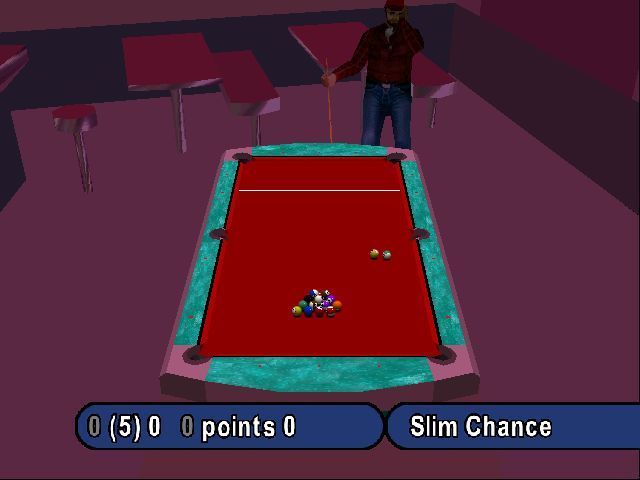
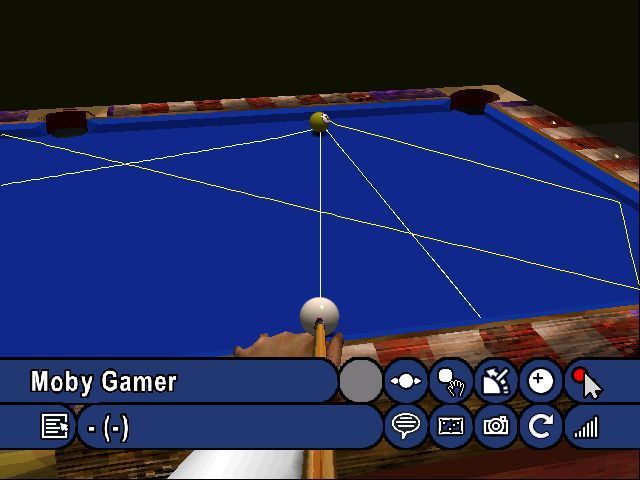
The Game Display
•
Player Name – Shows the name of the player currently taking a shot.
•
Current Control Icon – Indicates the current control being used by a human player.
•
Next Ball – Indicates the color of the target ball.
•
Player's Score – Indicates the score for the current player, including point totals and the number of games won in the match.
Lining up the Shot
A comprehensive set of controls is provided to help set up and take a shot. As you press and hold a control button, an icon will be displayed on the screen (the Current Control Icon).
Releasing the control button will exit the control mode and return to the default Aim/Adjust mode. To help learn the controls and play the game better, try playing in the School Of Pool mode first.
Aim/Adjust
Ultimate 8 Ball will automatically switch to the Aim/Adjust control as default. As you look down the cue, press Left or Right on the Directional Button to aim left or right.
Adjust the vertical point of vision by pressing Up/Down on the Directional Button.
Overhead View
Press and Hold the Overhead View button to see a bird's eye view of the entire table, showing the positions of all of the balls. While holding the button, you can adjust your aim by using the Directional Button.
English (spin)
The black dot on the cue ball marks the point where the cue stick will strike the cue ball. To apply spin to the cue ball, press and hold the English button, then use the Directional Button to move the strike point on the cue ball.
Butt Angle
Hold the Butt Angle button, then use the Directional Button to adjust the angle of the cue stick against the ball.
Zoom/Peek
To get a better look at the table, press and hold the Zoom/Peek button, then use the Directional Button to make the adjustments.
Move Ball
At certain points in the game (such as before the break or after a foul), reposition the cue ball by pressing and holding the Move Ball button. Change the ball position by using the Directional Button.
Next Ball
Toggle the aim from one ball on the table to the next. Quickly target a different ball by pressing Left/Right on the Directional Button.
Since the Next Ball button targets the center of each ball, you still need to aim your shot.
Fine Tune
Slow the operating speed of the control system to provide greater accuracy and precision. By pressing and holding the Fine Tune button, any other action will become more sensitive and precise.
Striking the Cue Ball (Controller)
Once the shot is set up, you will be ready to set the power level and strike the ball. Press and Hold the <X> button to show the Power Meter. The black bar shown indicates the amount of power that will be applied to the shot.
Adjust the maximum strength of the shot by holding the <X> button, then press the Directional Button Left/Right to change the size of the black bar. The larger the meter, the stronger you will hit the cue ball.
Once adjusted, the power meter's strength will remain the same for the next shot. This allows you to find a comfortable power level to suit your style of play.
Release the <X> Button to see the multi-colored power meter begin to move. The size of this power level will dictate the actual power of the shot, but it will never move beyond the maximum size of the black bar.
By pressing the Overhead View button, you can stop the moving power meter and return to the default Aim/Adjust control. To take the shot, tap the <X> Button as the power level reaches the desired strength. The closer the power level gets to the right, the harder the shot will be.
Striking the Cue Ball (Mouse)
Using the PlayStation Mouse, all of the control icons will appear on the screen. Simply move the cursor over the icon and select it using the Left Mouse button. Hold the button down and move the mouse to the desired position. Let go of the Left Mouse button to return to the Aim/Adjust mode. To shoot the ball, select the Shoot icon and adjust/use the shooting meter as detailed above.
Post Shot Camera
After taking a shot, the player can move the game camera around to view the table by using the Directional Button, or can press the Overhead View button to view the entire table. This will allow you to track all of the balls on the table until they stop moving.
Main Menu
•
Start - Select START to Load a game, to set up a Match or Tournament, or to play the main One-Player Hustle mode.
•
Options - Choose OPTIONS to Save Data, Adjust Volumes and Screen Position, and to edit your Character.
•
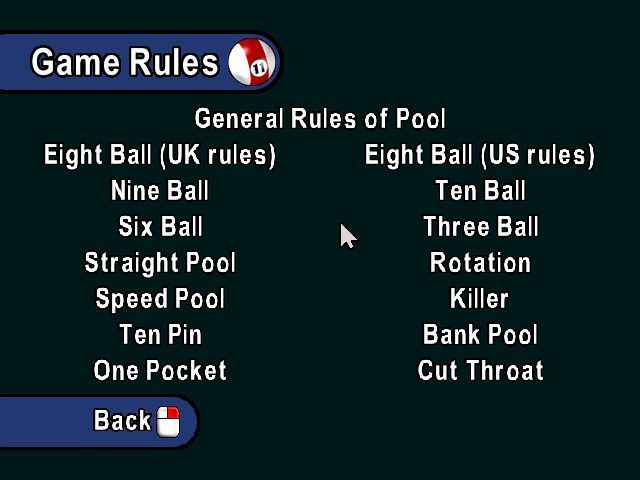
School Of Pool - Select SCHOOL OF POOL to launch the in game Tutorial. Here, play through an extensive Tutorial, read more about Game Rules, Practice your shots, or learn how to make famous Trick Shots.
•
View Rankings - Check out the current Hustle Mode rankings and see how you match up with the Computer Opponents. Press the Directional Button Left/Right to select a new character's statistics. The game will keep track of statistics for all 16 Players, in addition to the Computer Opponents.
•
Credits - Find out who created and developed Ultimate 8 Ball.
Start Menu
Before starting a new game, select the style of game to be played. Each style of game will have adjustable features including the number of players, the
.png)