Getting Started
Set up your PlayStation® game console according to its Instruction Manual. Ensure the power is off before inserting or removing a compact disc.
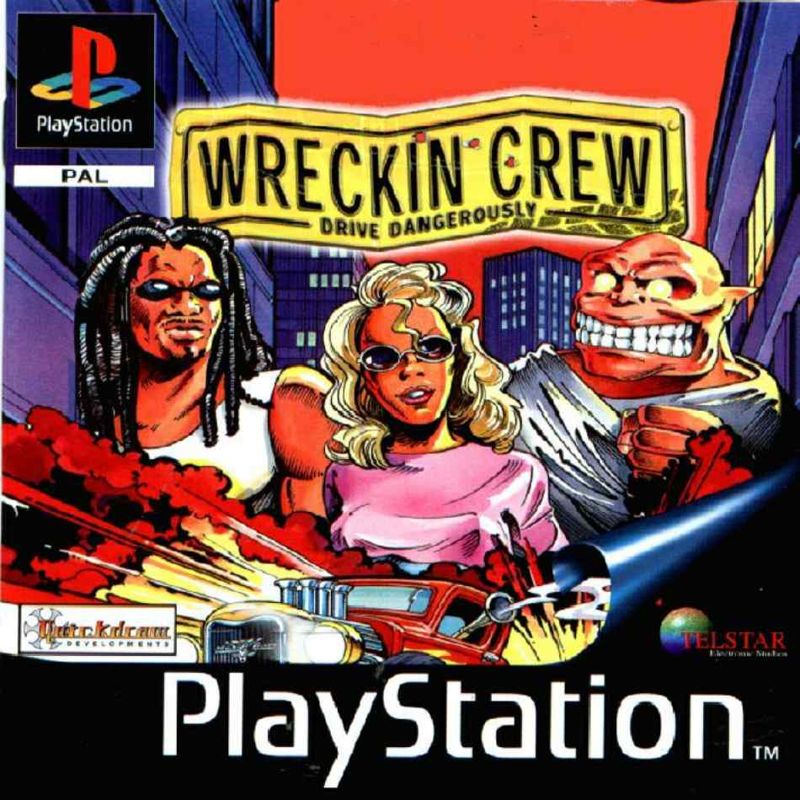
Insert the Wreckin Crew disc and close the disc cover. Insert game controllers and turn on the PlayStation® game console. Follow on-screen instructions to start a game.
Press the X Button to skip any introduction screens.
Throughout the game, highlight your selection using the Directional buttons and confirm your selection by pressing the X Button. The ▲ Button takes you back to the previous screen.
Important Note
Do not remove any Memory cards, Controllers, or other peripherals during the game.
Console Components
Pause Menu
Press START to pause the game. You will see three options: CONTINUE, RESTART RACE (Arcade races only), and QUIT. Use the Directional buttons to highlight your choice and press the X Button to confirm.
Takes you back to your current game.
Takes you back to the start of your current track. (Arcade races only)
Press the X Button to confirm your wish to quit and return to the Main Menu.
Supported Peripherals
Wreckin Crew supports Controllers, Memory cards, the Namco neGcon™, and the Analog Controller.
Controller
Before turning on the power to your PlayStation game Console, insert one Controller for standard play. Inserting two Controllers allows access to Two Player games.
To configure your Controller, go to the SETUP section of Options. Removing a Controller while the game is playing will Pause the game.
Memory Cards
You can save your progress onto a Memory card inserted into Memory card Slot 1. Ensure the Memory card you want to use is inserted before turning on the power to your console.
Make sure there are enough free blocks on your Memory card before commencing play. Do not remove the Memory card while the power to your PlayStation game Console is on.
Namco neGcon™
Go to Options, select Setup to calibrate your neGcon™.
Default neGcon Controls
•
Left Directional button = Fire left
•
Right Directional button = Fire right
•
Up Directional button = Special move 1
•
Down Directional button = Special move 2
Game Modes
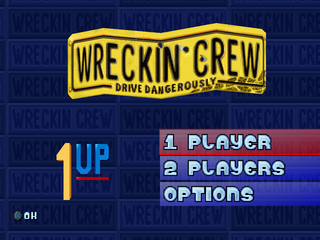
ARCADE RACE (one or two players)
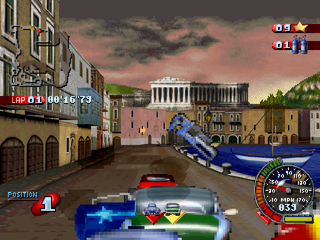
Choose this to get straight into the action. Choose your car and course, and all you have to do is win the race. With two Controllers inserted before turning on your PlayStation game Console, you can play split-screen against another human.
COMPETITION (one or two players)
Choose this option to work your way through the Wreckin Crew™ Championship. Select your car and then try to qualify for each of the progressively difficult races, making the most of the bonus Stunt Arena courses.
This can be played with two players, with both players going through to the next Championship Cup if one qualifies. You can only move onto the later Championship Cups when you have been victorious in your current Championship Cup.
STUNT ARENAS (bonus level)
Stunt Arenas are a bonus stage of the Championship Series, in which the race is against the clock. Put pedal to the metal and head for as many pick-ups and jumps as you can within the given time.
Make the time-gates to extend your time. The more laps you complete, the more pick-ups you could start your next race with.
TIME TRIALS (one player)/ HEAD TO HEAD (two players)
Select your car and course and play until you can't squeeze another second out of it. You can only do Time Trials on courses for which you have already qualified, in other sections of the game.
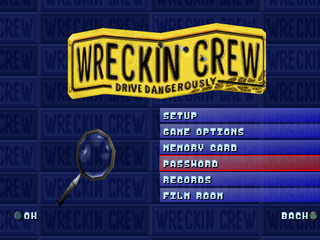
OPTIONS
•
CONTROLLER SETUP: Select this to see/alter the control setup for either your Controller, neGcon™ or Analog Controller.
•
SCREEN SETUP: Select this to have the ability to center the display according to your own television.
•
SOUND SETUP: Select this to alter the Sound Effect and Music volumes and also to choose whether you want mono or stereo sound.
•
GAME OPTIONS: Select this to alter the Difficulty setting, number of laps and Turn Weapons ON/OFF to suit your style and experience.
MEMORY CARD LOAD GAME
Press the X Button on this option to load your Wreckin Crew saved game.
SAVE GAME
Press the X Button on this option to save your progress. A saved game will take up 1 block on your Memory card, so make sure there are enough free blocks on your Memory card before commencing play.
PASSWORD
If you do not have a Memory card, you can save your progress by using Passwords. Highlight the PASSWORD option, press the X Button, and you will be shown the password to access your current stage.
Make a note of that password if you intend to re-enter it at a later date. Below the current password is the Enter New Password option. Press the action buttons to enter the symbols (,,X, O) you require and press START when done.
RECORDS
This is where the Fastest Lap Times and Fastest Race Times are shown for each of the courses. The player can



.png)
.png)
_1.png)
.png)
.png)
.png)