STARTING THE GAME
•
Set up your PlayStation® game console according to the instructions in its Instruction Manual. •
Make sure the power is OFF before inserting or removing a disc.
•
It is advised that you do not insert or remove peripherals or memory cards once the power is turned on.
•
Insert the XS MOTOTM disc and close the Disc Cover.
•
Insert game controllers and turn on the PlayStation® game console. Make sure there are enough free blocks on your memory card before commencing play. XS MOTO uses 2 blocks to create a saved game.
RESET BUTTON
POWER INDICATOR
POWER BUTTON
CONTROLLER PORT
OPEN BUTTON
DISC COVER
WELCOME TO XS MOTO
XS MOTO gives you control of TEAM XS MOTO's Superbike, allowing you to experience the latest in superbike technology. You will control almost 1000 ccs of power over a range of tournaments spanning 22 international tracks.
Difficulty Settings
XS MOTO offers 3 difficulty settings, making it accessible to both novices and veterans.
•
Novice mode: Helps with steering, braking, and navigation.
•
Amateur mode: Boosts the challenge a little.
•
Professional mode: Gives you full control of one of the most awesome vehicles in motor sports today.
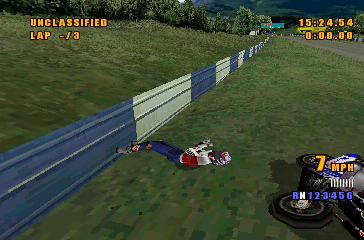
When racing at Professional level, you must take full control of the steering, braking, and cornering of your bike. You must also keep an eye on the damage your bike will pick up as you navigate the in-game tracks. Too much damage and you're definitely going to come in last. Be sure to play Amateur and Professional modes to enjoy XS MOTO at its very best. MAIN MENU
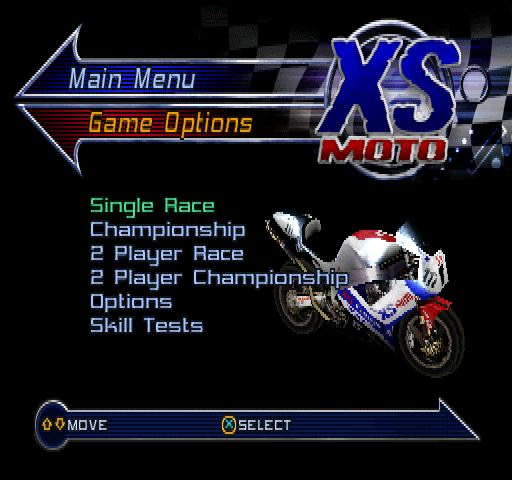
The Main Menu screen is the starting line for the XS MOTO experience. From this screen, you can change game options and decide on which tracks you wish to race.
To select one of the Main Menu options, highlight your selection with the directional buttons and press the button to confirm. Each of the options available on the Main Menu screen will be described in detail throughout this software manual.
Main Menu Options
•
1) Single Race: Compete in a single race against computer opponents on any of the game's tracks.
•
2) Championship: Race one of a variety of championships. Completion of all championships will unlock a number of extra tracks, depending on the difficulty level of the championship selected.
•
3) 2 Player Race: Race a Single race, with 2 players competing from a split screen viewpoint.
•
4) 2 Player Championship: 2 players can play a full championship, split-screen.
•
5) Options: Toggle a wide range of game settings.
•
6) Skill Tests: Designed to test your driving ability. Completing Skill Tests enables you to race championships at higher difficulty settings, enabling you to access extra tracks. 1) SINGLE RACE
Select Rider Name
First, you will need to select the name of your rider. Use the directional buttons to highlight the letter you require and press the button.
You can erase letters by selecting 'DEL'. When you have finished inputting your name, highlight 'END' and press the button. You will then proceed to the 'Difficulty' screen.
Difficulty
This screen allows you to select the difficulty of your race. You can choose between 'Novice', 'Amateur', and 'Professional' difficulty settings.
•
Novice: Steering assist is on, braking assist is on, and damage is off.
•
Amateur: Steering assist is on, braking assist is off, and damage is off.
•
Professional: Steering assist is off, braking assist is off, and damage is on.
NOTE: 'Amateur' and 'Professional' modes are initially unavailable. To enable racing in these modes, you must complete the appropriate 'Skill Tests'. Once you have selected your difficulty setting, you will proceed to the 'Choose Laps' screen.
Choose Laps
This screen lets you choose the length of your race. You are able to select between 3, 5, or 10 laps, or a full race of 100 kilometers. Once you have made your selection, you will proceed to the 'Choose Track' screen.
Choose Track
From here, you select the track you wish to race on. XS MOTO features a total of 22 tracks, across many different countries. Many of these tracks are only available when all championships are completed at each of the game's difficulty settings.
You will then proceed to the Race screen. This screen displays an icon showing the weather conditions of your race. Wet weather (represented by a raindrop) is not available in 'Novice' mode.
Race
Choose either 'Start Race' to proceed to the Qualifying session for your chosen track, or choose 'Setup Player 1 Bike' to change your bike's setup before a race.
•
Start Race: Advance to the qualifying stage of the race.
•
Setup Player 1 Bike: Advance to the 'Workshop' screen to customize the settings of your bike.
Workshop
This option allows you to alter the settings of your bike for maximum performance. Highlight and change selections using the directional buttons.
Your bike setup for every track can be saved to the
.png)