GETTING STARTED
Set up your PlayStation®2 computer entertainment system according to the instructions supplied with your system. Check that the system is turned on (the on/standby indicator is green).
Insert the GUITAR HERO® 5 disc in the system with the label side facing up. Attach game controllers and other peripherals as appropriate. Follow the on-screen instructions and refer to this manual for information on using the software.
Memory Card (8MB) (for PlayStation®2)
To save game settings and progress, insert a memory card (8MB) (for PlayStation®2) into MEMORY CARD slot 1 of your PlayStation®2 system. You can load saved game data from the same memory card or any memory card (8MB) (for PlayStation®2) containing previously saved games.
Note that Guitar Hero 5 does not support multitap (for PlayStation®2). MAIN MENU
Career
Choose your favorite Guitar Hero character or create your own. Play at a variety of venues and choose the gigs that you want to play. Choose to play as a guitarist, drummer, vocalist, bassist, or as a part of a band and start your career. Quickplay
In Quickplay all songs are unlocked for play by default and you and your friends can create a Playlist of up to 6 songs. Play with a band of guitarist, bassist, vocalist and drummer. Users may also play with 2 guitarists or 2 bassists in the same band.
Free Play
Play a set of up to 6 songs without any risk of failing.
Party Play
Party Play allows players to play in a friendly, non-competitive atmosphere. Up to 4 players can play in Party Play at a time, using any instrument at any difficulty level. User can access Party Play from the main menu screen. Songs are selected randomly by the game.
Head to Head
Compete with an opponent in a guitar battle.
•
Pro Face-Off: This is the ultimate duel for guitar, bass and drum champions. Battle it out by playing the same note chart at the same time on their selected difficulty levels.
Training
•
Practice: Practice any part of any song in the game. Slow the speed down if you're having trouble.
•
Tutorials: Get a lesson on how to properly rock.
Rock Star Creator
Start from scratch and create the rocker you've always dreamed of. Choose from different body features, outfits and much more.
OPTIONS
Input Cheats
•
Enter codes to enhance your experience.
Band Info
•
Rename Band: Change the name of your band.
•
Edit Band Logo: Use the graphic editor to create a unique logo for your band.
Save/Load
Calibrate Lag
Some televisions and stereo systems have an audio/visual lag that can make it difficult to play the game. Use this screen to calibrate your television's lag.
Audio Settings
Change the volume of any instrument in the band as well as the crowd and sound effects. Enable Mono if you have a television with Mono audio output.
Functional Options
•
Drum Lefty Flip: Turn on Lefty Flip to play left-handed.
•
Guitar/Bass Lefty Flip: Turn on Lefty Flip to play left-handed.
•
Vocals: Choose from Scrolling or Static lyrics options.
•
Countdown: Turn off or on the countdown when unpausing the game.
•
Star Power Tilt: Turn off or on the ability to deploy Star Power by tilting the guitar.
•
Touch Strip: Turn off or on the ability to use the touch strip for slide note sections.
•
Progressive Scan: Turn on Progressive Scan for better quality video if your TV supports 480p video resolution.
Videos
Watch special behind the scenes videos and trailers.
TOP ROCKER
Check out who the top rockers are!
HOW TO ROCK
GUITAR CONTROLLER
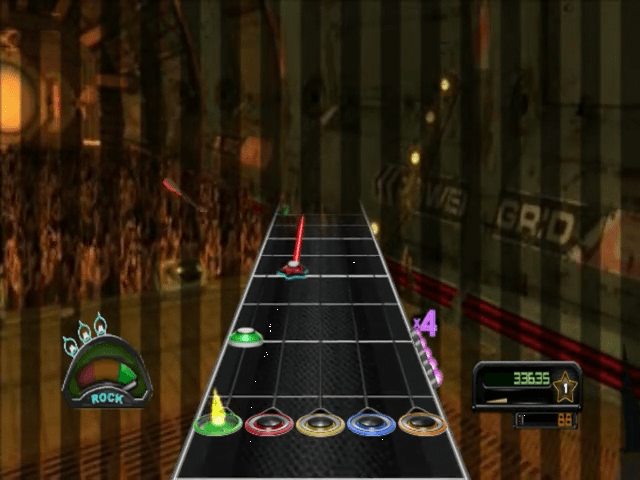
Press the Fret Buttons and strum on the Strum Bar UP or DOWN in sync to the notes that are on the screen.
Basic Notes
1. Hold the Fret Button that corresponds to the note on the screen.
2. Strum on the Strum Bar when the note passes the strike line to play the note.
Long Notes (otherwise known as sustains)
1. Hold the correct Fret Button down.
2. Strum.
3. Hold the Fret Button down until the whole note has played.
Chords
•
Chords are two or more notes played at the same time. These can come in the form of Basic Notes and Long Notes.
Slider Notes
1. Tap the Slider while pressing the Fret Buttons to simulate strumming.
2. Slide your finger on the Slider during Long Notes to alter the sound of the note.
3. When you see clear notes you can catch them by touching the Slider without pressing the Fret Buttons.
Note that when using guitar controllers without the Slider features, hit the Slider Notes using the Fret Buttons.
Open Notes (only for Bass)
•
Strum without pressing any Fret Buttons. Open notes are displayed as a purple bar on the screen.
The Whammy Bar
•
Press the Whammy Bar in and out on Long Notes to add your own style
.png)

.png)

.png)
_1.png)
_1.png)



_1.jpg)

_1.png)
 (En,Fr,De).png)

_1.png)