GETTING STARTED
Set up your PlayStation®2 computer entertainment system according to the instructions supplied with your system. Check that the system is turned on (the on/standby indicator is green). Press the OPEN button to open the disc cover.
Place the (Guitar Hero II) disc with the label side facing up in the disc holder, and then close the disc cover. Attach game controllers and other peripherals as appropriate. Follow the on-screen instructions and refer to this manual for information on using the software. Memory Card (8MB) (for PlayStation®2)
To save game settings and progress, insert a memory card (8MB) (for PlayStation®2) into MEMORY CARD slot 1 of your PlayStation®2 system. You can load saved game data from the same memory card or any memory card (8MB) (for PlayStation®2) containing previously saved games.
MAIN MENU
Career
Live the life of a true rock star! In Career mode you unlock new songs and new venues, and also earn cash that you can use to buy additional songs, characters, guitars, guitar finishes, equipment, and other items in the store!
Character Select Screen
Pick your axe-wielding hero from this screen! Each rocker has a unique set of moves.
Guitar and Guitar Finish Select Screens
Which guitar are you going to use to shred up the stage? Purchase different guitars and guitar finishes in the store.
Career Status Screen
From this screen you can see your overall career status, change your character, change your guitar, or buy gear.
Store
Time to spend the cash you earned with your blood, sweat and tears. Inside the Store you can buy new songs, new guitars, new guitar finishes, bonus videos and even new characters.
Quick Play
Jump right in and start shredding! In Quick Play you're free to play any song you've currently earned or unlocked.
Multiplayer
Get ready for dueling axes of distortion! In the Multiplayer mode there are three different ways to play:
•
Face-Off: Two players compete against each other while alternating play on the same note chart. Each player can adjust the difficulty to fit their skill level.
•
Cooperative: Two players work together to make it through a song and get the highest score possible! In this mode one player plays the lead guitar and the other player either plays the rhythm guitar or bass guitar. Each player can adjust the difficulty to fit their skill level. If you want to succeed in cooperative mode you really need to work as a team. You share a rock meter with your co-player, and to activate star power you'll both need to tilt your Guitar Hero SG Controller at the same time. Unlike the other multiplayer modes, in this mode you can fail a song! •
Pro Face-Off: This is the ultimate duel for guitar champions. Two players battle it out playing the same note chart at the same time on the same difficulty level. Finish any Career level to unlock this mode.
Training
Kick out the jams like you mean it. Guitar Hero II offers two forms of training: •
Tutorials: These interactive tutorials teach you everything you need to know about Guitar Hero II and are highly recommended for both beginners and experienced players. •
Practice: You can take any song in the game that you've currently played and can practice any part of it. You can choose to play the song at the normal setting, or you can slow the song down to really help you out.
Options Menu
Tune your settings here. You can access many of these options from the in-game pause menu as well as from the main screen.
•
Audio Settings: Change the volume of the band (background music in game), guitar (the part you're playing in game) and sound FX (crowd volume, background noises) in the game. You can also turn Stereo Sound on and off. •
Lefty Flip (Player 1 and Player 2): Flips the note locations around on the screen for players that like to hold to controller in their left hand.
•
Widescreen Display: Adjusts the picture to fit widescreen televisions.
•
Progressive Scan: If your television supports progressive scan (and you have the correct component cables), you can turn progressive mode on using this option.
•
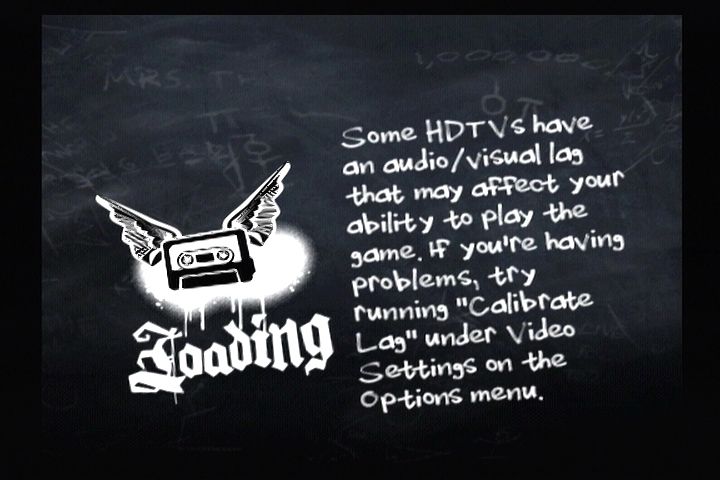
Calibrate Lag: Some televisions have an audio visual lag that can make it difficult to play the game. Use this screen to calibrate your television's lag.
•
Manage Bands: Delete or rename the bands you've created.
•
Data Settings: Save your game progress, load a game from the memory card, or turn auto save on or off.
•
Bonus Videos: Watch the bonus videos you've purchased in The Store.
•
Credits: Check out all the hard-workin' people who helped make this game possible!
NAMING YOUR PROFILE
Coming up with a cool band name is as important as deciding which post-concert party you're going to crash. This band name will serve as the name of your Guitar Hero II Profile. You can edit this name later in "Manage Band" located in the Options Menu. HOW TO ROCK
.png)

.png)



_1.png)
.png)
_1.png)

_1.png)
.png)
_1.png)