GETTING STARTED
1. Set up your PlayStation®2 computer entertainment system according to the instructions in its Instruction Manual.
2. Make sure the MAIN POWER switch (located on the back of the console) is turned on.
3. Press the standby/RESET button. When the power indicator lights up, press the open button and the disc tray will open.
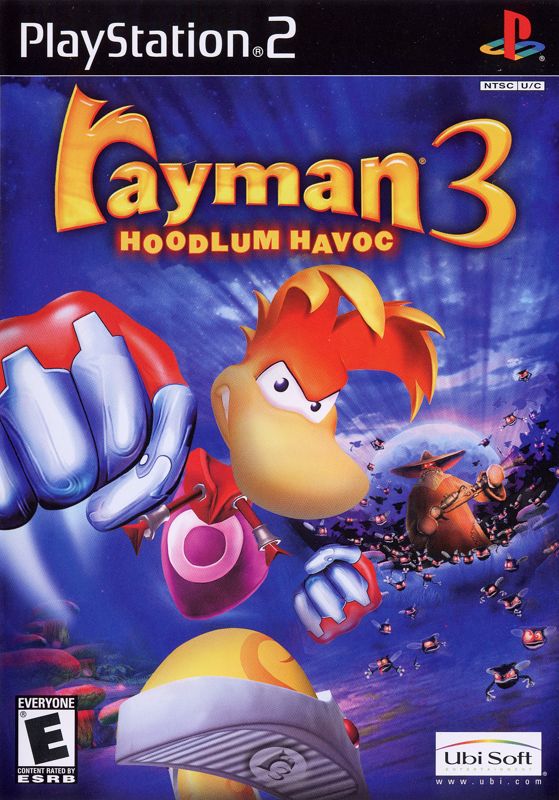
4. Place the Rayman® 3 Hoodlum Havoc disc on the disc tray with the label side facing up. Press the open button again and the disc tray will close. 5. Attach game controllers and other peripherals, as appropriate.
6. Follow on-screen instructions and refer to this manual for information on using Rayman® 3 Hoodlum Havoc. STARTING THE GAME
Use the directional buttons to select the language for the game menus, character voices, and texts. Validate your selection by pressing the button. The language can only be chosen when starting the game, so check the flag to avoid making a mistake.
When the title screen appears, follow the instructions on the screen: press the START button to access the Main Menu. It is not advisable to insert or remove a peripheral when the console is on.
MAIN MENU
•
Select New Game to begin a new game. If the words Nuovo Gioco appear, you've got the wrong language. You'll have to press the standby/RESET button.
Use Load to access a saved game. This option is only active if a Memory card (8MB) (for PlayStation®2) is present and if a game has been previously saved.
Select Options if you want to configure the game settings: controller, audio, video.
Select Album to access the album of game photos stored on your memory card.
NEW GAME
Select New and confirm your choice by pressing the button. You then go to the screen for creating a new game.
Use the directional buttons or the left analog stick to select the letters and validate with the button. Once you've entered your name, select OK and validate with the button.
LOADING AN EXISTING GAME
In the Main Menu, select Continue and validate with the button. You then go to a screen that groups together all your saved games.
Select the game you want to load with the left analog stick and validate your choice by pressing the button.
OPTIONS
To access the Options Menu, select Options in the Main Menu. For all the Options screens, use the button to go back and validate all your choices.
CONTROL SETTINGS
Select Controller Options in the Options Menu and validate with the button. Select the controller configuration that suits you best with the left analog stick.
SOUND SETTINGS
Validate Audio with the button in the Options Menu. Use the left analog stick to set the volume for Music, Special FX, and Dialog, and to choose your sound system (Stereo on-off).
VIDEO SETTINGS
Select Video and validate with the button to access this menu. By validating Screen Centering, you can adjust the position of the image on the screen with the left analog stick or the directional buttons.
You can select the type of screen you want (16/9 or 4/3) and test to see whether your TV is compatible with a 60Hz progressive scan mode. To do this, select a mode and start the test. After a few seconds, the program asks you if the display is correct. If nothing is displayed during the test, your TV isn't compatible with the selected mode.
LOADING
You can load another game at any time, provided you've inserted a Memory card (8MB) (PS2) containing a saved game in MEMORY CARD slot 1.
To do this, press the START button to display the menu. Next, press the button to access the game menu directly. Select Load; then validate with the button. A screen with all your saved games appears. Now select your game.
SAVING
Saving is automatic during the game, provided you've inserted a Memory card (8MB) (PS2) in MEMORY CARD slot 1. You don't have to do a thing to record your progress in the game.
You can create a new save file at any time in the game. To do this, press the START button to display the menu. Then press the button to access the game menu. Select and validate Save.
You then access the screen for creating a game, with the name of your current saved game. You should change this name to create a new file. It will contain the same information as the last automatic save.
SECONDARY OBJECTIVES
THE CAGES
The Hoodlums have captured all the Teensies and put them in cages to use them for shooting practice. It's up to you to set them free. Listen carefully! You can hear them calling for help when you go near a cage.
Each time they're set free, the Teensies give you a present and a jewel medallion fills up. When the 6 jewel medallions are full, the Life Bar increases.
THE SCORE
All actions score points:
•
Collecting Pick-Ups. These are splendid jewels that are scattered around Rayman's world. The Hoodlums also collect .png)

.png)

_1.png)
.png)
.png)
.png)
.png)

.png)