Getting Started
Set up your PlayStation®2 computer entertainment system according to its Instruction Manual. Make sure the MAIN POWER switch (located on the back of the console) is turned on.
Press the RESET button. When the power indicator lights up, press the open button and the disc tray will open. Place the TOP GUN - Combat Zones disc on the disc tray with the label side facing up. Press the open button again and the disc tray will close.
Attach game controllers and other peripherals, as appropriate. Follow on-screen instructions and refer to this manual for information on using the software.
Memory Cards
Throughout this manual, the term 'Memory Card' is used to describe the Memory Card (8MB) (for PlayStation®2). Memory Cards designed for use with PS one™ format software are not compatible with this game.
To save game settings and progress, insert a Memory Card into MEMORY CARD slot 1 of your PlayStation®2. You can load saved game data from the same Memory Card, or any Memory Card containing previously saved Top Gun Combat Zones data. Make sure there is enough free space on your Memory Card before commencing play. Menu Screen Operation
•
Press the directional buttons to highlight an option, then press the button to confirm.
•
To return to the previous screen, press the button.
From the Top Gun Combat Zones title screen, press START. The Main Menu
Choose to create a new game, continue a game or view the credits from this menu. You can choose from New, Load or Credits.
Saving and Loading Games
Create New Pilot
To save your progress, you'll need to create a Pilot file on your Memory Card.
At the Title Screen press the Start or Button to access the Main Menu. Then select NEW. The Difficulty screen lets you decide on the difficulty level of this game. Use the up and down directional buttons and then press the Button to confirm the selection. The Create New Pilot Screen will now be displayed.
Enter your Pilot's callsign by pressing the directional buttons and then press the Button to confirm the selection. You must now select YES to confirm that you wish to create the new pilot file on your Memory card. The file will now be saved.
You can select No, but if you do, you will need to use the SAVE option in the Game Mode Select menu, to save your current game and mission scores.
Load Pilot From Memory Card
To load a game that you've previously saved to Memory Card, press the Start or Button to access the Main Menu from the Title Screen, select LOAD. Choose the saved game you want to load by using the left and right directional buttons and press to select and then choose YES to confirm.
Game Mode Select Menu
Choose the type of game you want to play from this menu. You can choose from SAVE, GAME, QUICKSTART, Options or Quit. To return to the Title Screen, choose the Quit option.
Options
Audio
•
You may adjust the MUSIC VOLUME
•
You may adjust the EFFECTS VOLUME
•
You may adjust the VOICE VOLUME
Controller
•
You may select one of the four possible controller configurations
•
You may turn the vibration on the DUALSHOCK™2 Off or On
Save
This save option can be used to save the current game status to the memory card.
This save option only needs to be used to save a previously unsaved game, or when you have been playing a previously saved game without the memory card present.
Game
To start the game you will have to select the Era, the Mission and the plane that you want to fly. The further you get into the game the more options will be open to you. You can always return to missions that you have already flown to improve your score. Certain bonus planes will only be unlocked, if you have high scores in all missions.
The Era Selection Menu
Use the up and down directional buttons to highlight your chosen Era and the button to confirm, and then choose either to fly ACADEMY or WARZONE missions, by pressing the left and right directional buttons. Press the button to confirm your selection.
The Mission Selection Menu
Use the directional buttons to select your mission. Press the button to confirm your selection.
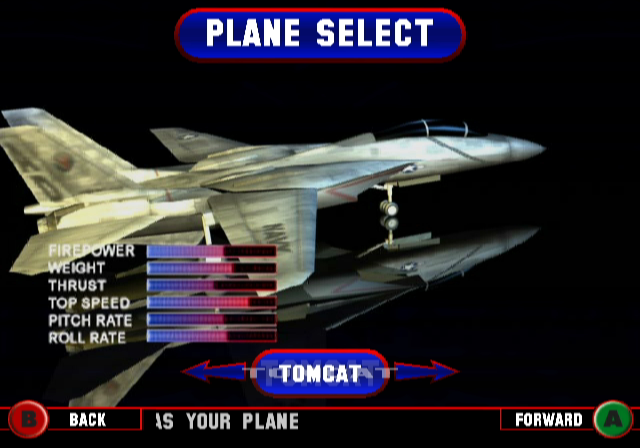
The Plane Selection Menu
Use the left and right directional buttons to select your plane. Press the button to confirm your selection. You will notice that the bonus planes are still in their crates. The only way to open them is to be Top Gun. Briefing Screen
The Briefing screen describes the type of terrain and the type of encounters you are likely to experience during your mission. Your mission orders are revealed here, highlighting the key objectives and rules that must be achieved/followed for successful mission completion.
You can move back from this menu if you wish to choose another of the missions that are available to you at that time. Press the button to go back. Once you're happy and you know what's required of you press the button to go flying.
Weapons
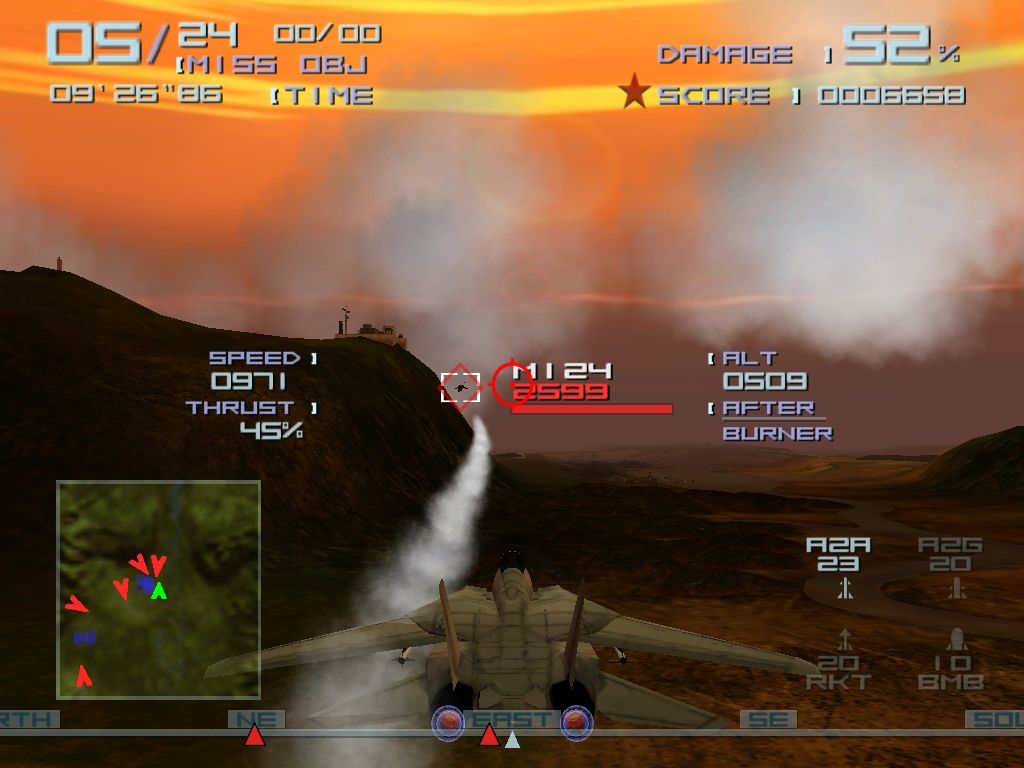
Use the cycle weapon button to change current secondary weapon.
•
Air to Air missiles will lock Helicopters and Planes.
•
Air to Ground will lock all ground-based enemies, whether stationary or moving.
•
Rockets fly in a straight line, and as they do not lock, are best used against static targets, but with skill they can be used against any type of enemy.
.png)

.png)
.png)
.png)
