PlayStation 2 Setup
Set up your PlayStation®2 computer entertainment system according to its Instruction Manual. Ensure the MAIN POWER switch (located on the back of the console) is ON. Press the RESET button.
When the power indicator lights up, press the OPEN button to open the disc tray. Place the Ultimate Board Game Collection disc on the tray with the label side facing up. Press the OPEN button again to close the disc tray. Attach game controllers and other peripherals as appropriate. Follow on-screen instructions and refer to this manual for software usage. It is advised not to insert or remove accessories once the power is on.
Memory Card
To save game settings and progress, insert a Memory Card (8MB) (for PlayStation®2) into MEMORY CARD slot 1 of your PlayStation®2 system. You can load saved game data from the same memory card or any Memory Card (8MB) (for PlayStation®2) containing previously saved games.
Before starting the game, ensure you have enough free space on the Memory Card (8MB) (for PlayStation®2).
Introduction
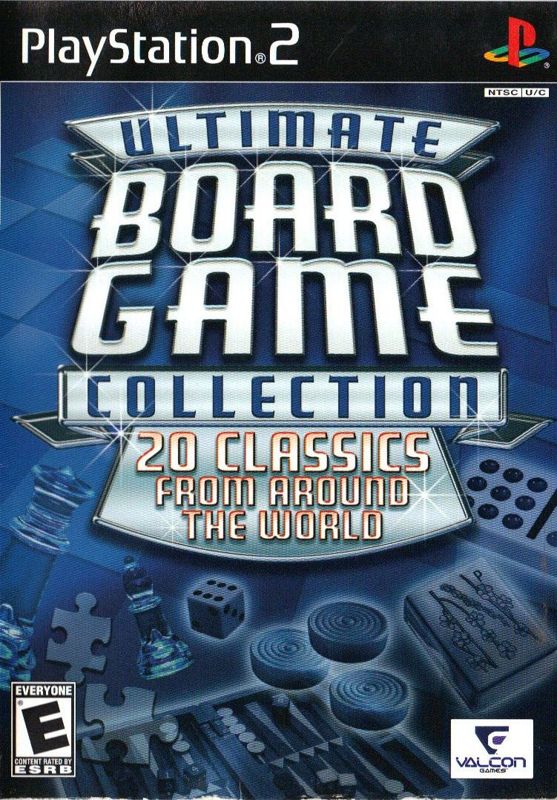
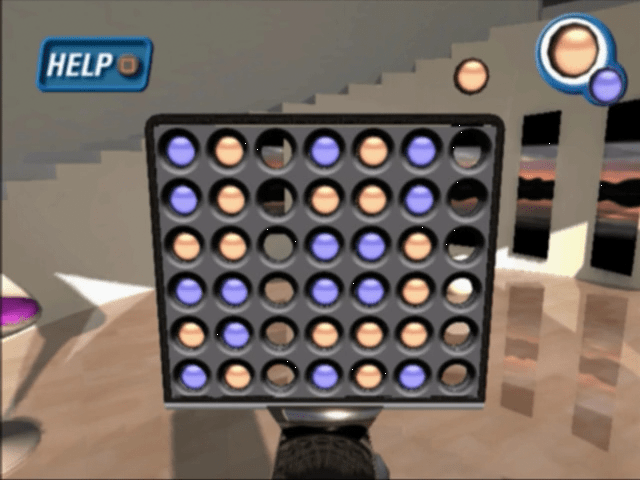
Ultimate Board Game Collection features twenty different games played worldwide throughout history. Each game has unique rules and visuals, but all are accessed simply and intuitively. The rules for each game can be viewed on-screen, allowing you to learn new games. Each game offers choices for rules, options, environments, and graphic customizations.
All twenty games are available from the start. You can unlock trophies by completing various goals within each game. Visit the trophy room to see your trophies or learn how to unlock specific ones.
Profile Management
To load a previously saved profile, start Ultimate Board Game Collection with a Memory Card (8MB) (for PlayStation®2) in MEMORY CARD slot 1 that contains your saved profile. Selecting "Load" from the initial menu will load this data. Loading a profile will unlock your trophies and restore settings like volume and music style.
Main Menu
After choosing to start a new game or load a saved game, you will see a screen displaying five of the twenty games. Pressing left or right on the directional buttons will change the highlighted game.
As you change the selection, an additional game will appear on the right or left side of the screen. Once you have selected the desired game, press X.
An option menu for the selected game will appear (note: there is no option menu for Word Cubes). Use the directional buttons to set focus on either the pieces used or the environment (up and down), and to change the highlighted option (left and right).
When satisfied with your selections, press X to continue. Pressing △ cancels your previous selection, allowing you to choose a different game.
Pressing the SELECT button from the Main Menu will take you to the Trophy Room. See the section on the Trophy Room for more information.
Note: Not all games have more than one environment available.
Game Start Options
Every game presents an additional set of options after it loads. These include setting the number of human players and the computer opponent's difficulty level. Some games also offer options for various rules or board configurations.
Use up and down on the Directional buttons to choose which option to change, then left and right to adjust the highlighted option. Pressing X will begin the game with the displayed selections.
Pressing △ will take you back to the previous screen, allowing you to adjust the player setup for the game.
Playing with Multiple Players
To play a game with more than one player, use the game start option menu to change the player type to "Human" for each real player you want to add. When playing, pass the controller to the player whose turn it is.
Note that some games, such as Naval Battle and Dominoes, can only be played by one human player.
Trophy Room
Pressing SELECT from the main menu will take you to the Trophy Room. Before the Trophy Room is displayed, you will have an opportunity to save your game state.
Select YES with the right directional button and press X to save your current game and proceed to the Trophy Room. Selecting NO will take you directly to the Trophy Room.
Once in the Trophy Room, you can view unlocked Trophies or see what tasks must be completed to unlock a specific trophy.
Options Menu
The Options Menu is accessed from within each game by pressing the START button. Use the up and down directional buttons to select an item.
To adjust music or sound effects volume, select the volume item with the up or down directional buttons. Increase volume by pressing the right directional button, or decrease it by pressing the left directional button. When satisfied, select "Continue" and press the X button.
To jump to a new game, highlight the "Game" item with the up or down directional buttons, then use the left and right directional buttons to select a new game. Press X to quit the current game and load the newly selected game.
Options Menu - Soundtrack
You can select the style of background music that plays during a game. Using the up and down directional buttons, highlight the "Soundtrack" option, then press the left and right directional buttons to change the style.
Note that if you move off a style and then back to it, a different track from that style will begin to play.
Options Menu - Other Options
Other options are accessed by highlighting them using the up or down directional buttons and pressing X. When you are done, select
.png)

.png)

.png)
_1.png)
_1.png)


.png)



 (Disc 1).png)


.png)
.png)
.png)

.png)
