Preparing for Combat
Insert the Advance Wars Game Pak into your Game Boy Advance.
Note: This Game Pak is not for use with Game Boy or Game Boy Color game systems.
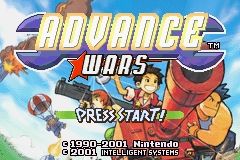
When you turn the power ON, the Game Boy logo will appear followed by the opening cinema. Once the opening cinema is finished, or once you press the A Button or START, you'll see the Advance Wars Title Screen.
Name Entry
Press START or the A Button on the Title Screen to move to the Name Entry Screen. You can enter any name you like. Use the + Control Pad to choose a letter and the A Button to confirm your selection. Press the B Button to cancel a selection.
When you have finished entering your name, move the cursor to OK and press the A Button. Next, the game will explain more about the mechanics and continue on to the Mode Select Screen.
! Once you have saved a game in progress, the Name Entry Screen will no longer be displayed.
Mode Select
There are eight modes to choose from in Advance Wars, but only three modes are open at the beginning of the game.
•
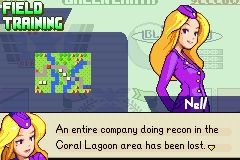
Field Training: Go here to receive special instruction on the art of war.
•
Vs. Mode: This is the single-system, single-Game Pak multiplayer mode.
•
Link Mode: In this mode, you can link up two or more game systems for more multiplayer action.
Additional Modes
•
Campaign: Play through the Story Mode here.
•
War Room: Go here to test your strategic prowess.
•
Stats: Select Stats to view your combat record and rank.
•
Design Maps: This mode allows you to design your own maps.
•
Battle Maps: Enter Battle Maps to purchase items with the coins you earn.
Combat Progression
Battles consist of a CO issuing orders to his or her deployed units, then selecting End to complete that turn. All COs in the field do the same. When all armies have finished issuing orders, day one of the battle is complete. This process repeats until one army emerges victorious.
War Funds & Unit Deployment
War Funds
It takes funds to deploy units into the field. You receive funds by capturing and holding neutral or enemy properties. The more properties, the more funds your army receives. Unused funds are carried over to the next turn.
•
Cities, airports, ports, and bases are the only properties that can be captured.
•
Funds cannot be carried from one map to the next.
Unit Deployment
To deploy units, place the cursor on a deployment property-a base, airport, or port-and press the A Button. Then on the Deployment Menu use the + Control Pad to select the unit you want to deploy and press the A Button to confirm the decision.
•
New units can be used on the turn following their deployment.
•
A single army can deploy a maximum of fifty units.
Moving Units
To move a unit, you must first select it. Place the cursor on the unit you want to move and press the A Button. Once a unit is selected, its movement range is displayed. Place the cursor in the space you want to move the unit to and press the A Button. The unit will follow the path shown by the Movement Arrow.
•
The Movement Arrow is the red arrow that traces the route from the selected unit to its destination.
After a unit reaches its selected destination, the Wait command appears. When you select this command, the unit changes to a darker color. Darkened units cannot receive further orders until the next turn.
! You can move all of your units using these steps. You cannot deploy more than one unit per space.
About Fuel
Units consume fuel as they move. Planes and ships burn fuel even when they are not moving. When out of fuel, ground forces are unable to move, while air and naval units either crash or sink.
Capture
When you move an infantry or mech (mechanized infantry) unit to a neutral or enemy property, the Capture command appears. Select this command to make your unit begin securing that property.
Fire
When a unit is in position to attack the enemy, Fire will appear in the Command Menu. Select this command to display the Attack Cursor. Use the + Control Pad to choose which enemy unit to attack and press the A Button. Your unit will begin its attack.
You command both direct and indirect combat units. Direct combat units move into attack position next to the enemy and fire in the same turn. Indirect combat units must move into attack position some distance from the enemy and then wait a turn before firing.
•
The benefit of indirect fire is that the attacking unit is safe from counterattack.
•
Developing a strategy that uses these two distinct unit types successfully is one of the keys to becoming a solid CO. ⚠️ The attack range varies among indirect combat units.
If you reduce an enemy unit's HP to zero, the unit vanishes from the field of battle. Of course, the same thing occurs if one of your units has its HP reduced to zero.
Supply
You can supply your units with fuel and ammo. There are two ways for units to receive supplies.
1. All units that are on bases or adjacent to an APC (Armored Personnel Carrier) will have their fuel and ammo automatically replenished at the beginning of each turn. The units on bases will also regain two HP. 2. You can also resupply a unit by moving an APC into an adjacent space and selecting Supply from the Command Menu. All units are capable of receiving supplies. If there are multiple supply vehicles deployed,


_2.png)
 (Rev 1).png)
.png)
 (En,Fr,De,Es).png)
