Preparing for Combat
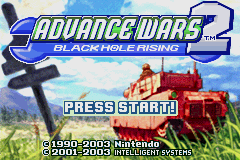
Insert the ADVANCE WARS™ 2: BLACK HOLE RISING Game Pak into your Game Boy Advance™ and turn the power ON. The GAME BOY logo will appear, followed by the Language Selection Screen where you can choose one of the languages (ENGLISH, FRANÇAIS, DEUTSCH, ESPAÑOL, or ITALIANO) using the D-Control Pad. Press START on the Title Screen to move to the Select Mode Screen.
Select Mode Screen
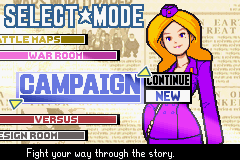
ADVANCE WARS 2: BLACK HOLE RISING has six game modes to choose from. Use the D-Control Pad to select a mode, and press the A Button to confirm your choice. Depending on the mode you select, a sub-window with further choices may be displayed. •
NEW: In some sub-windows, you can only select NEW when starting the game for the first time. Saving
There are two ways to save game data: by completing a mission or by selecting SAVE from the Map Menu during a mission.
Completing a Mission
When you finish a mission, you will be asked if you want to save your game data. Use the D-Control Pad to select YES, and press the A Button to confirm your choice.
Map Menu
You can save your game data at any point during a battle. Select the SAVE command from the Map Menu and press the A Button. You will be asked to save your current game data. Restore your game by selecting CONTINUE from the Select Mode Screen.
•
Note: Games played in Link Mode cannot be saved.
Combat
Battles consist of COs issuing orders (FIRE, CAPT, etc.) to their troops, then waiting while the enemy CO does the same. When all COs are finished, a day ends. This process continues until a victor emerges.
Armies
You'll find five separate armies in ADVANCE WARS 2: Orange Star, Blue Moon, Yellow Comet, Green Earth, and Black Hole (enemy). You will give orders to all the soldiers, with the exception of the enemy army, via your commanding officers.
Battle Outcome
Mission Complete (VICTORY)
There are two main ways to win a mission: HQ Capture or Enemy Rout. For an HQ Capture, move one of your INFANTRY or MECH units onto the enemy field HQ and select CAPT. To rout the enemy troops, you must defeat all deployed enemy units.
•
Depending on the rule settings and the Battle Map, you might be able to win by Base Capture - capturing a pre-determined number of properties. Mission Failure (DEFEAT)
There are three ways to lose on the field of battle: HQ Capture, Rout, and Surrender. HQ Capture and Rout are the same as above. To surrender, simply choose YIELD from the Options Menu on the Map Menu.
•
The terms for victory vary between game modes.
Units
Soldiers, vehicles, and artillery that appear on the map represent entire units. Each unit starts with a total of 10 HP (Hit Points).
War Funds
It takes money to deploy units into the field. War funds are collected from the properties (bases, cities, HQ, etc.) each army controls on any given map. These funds are added to your total at the start of every turn.
•
Unused funds are carried over to the next turn, but your funds are not carried from map to map.
Unit Deployment
Units can be deployed from one of three deployment properties: a base, an airport, or a port. Press the A Button to display the Deployment Menu, then use + and - on the Control Pad to select the unit you want to deploy. •
Confirm your choice by pressing the A Button again.
•
The unit then appears on that property and can receive orders on the next turn.
Movement
Each unit can move once per turn. Use the cursor to select the unit you want to move, and press the A Button. When the unit is selected, its movement range appears. Place the cursor where you want the unit to move. A red arrow traces the unit's path. After the unit moves, the Command Menu appears.
•
Note: Two units cannot occupy a single space at the same time.
The following orders may appear in the Command Menu: CAPT (Capture), WAIT, FIRE, SUPPLY, JOIN, LOAD, DROP. Use + and - on the Control Pad to select an order, and press the A Button to confirm. Once a unit has been ordered to wait, it can receive no further orders until the next turn.
Gas
Ground units burn fuel only when ordered to move. Air and naval units consume fuel every turn. They crash or sink if they run out of fuel, so check the fuel status on the Cursor Intel Window.
Cancelling Movement Orders
You can cancel movement orders until you've given secondary orders from the Command Menu.
•
Normally, units don't consume fuel if their movement orders are cancelled.
•
However, in FOG OF WAR, units consume fuel even if their movement orders are cancelled.
Capture (CAPT)
The Capture command appears when you move one of your infantry or mech units onto a neutral or enemy property. Confirm the Capture orders with the A Button to make your unit begin securing the property. Each property has a capture number, which is reduced each turn by the number of HP the capturing unit has.
•
An infantry or mech unit with 10 HP can capture a property with a capture number of 20 in 2 days.
•
Once a property is secured, it turns the colour of the army that captured it.
**F

_2.png)
 (En,Fr,De,Es,It).png)
.png)
