Getting Started
1. Make sure your Game Boy® Advance System power switch is set to OFF; insert the BOOKWORM Game Pak into the Game Boy® Advance System.
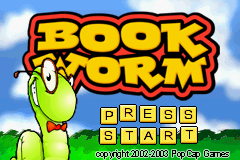
2. Turn on the Game Boy® Advance System. In a few moments, the Bookworm Title Screen should appear.
3. Press START to display the Game Save Screen.
Important Note: If nothing appears on the screen, turn the power switch to OFF. Check to make sure the Game Pak is inserted correctly. Then try again. (Always set the power switch to OFF before inserting or removing the Game Pak.)
The Pause Menu
While the game is paused, the Pause Menu appears. On this menu, you can select the following:
•
Save Game: Selecting this option saves the status of the current game into the previously selected Memory Slot.
•
New Game: Select this option to end the current game and start a new one.
•
Music: Use this to turn on and off the game music.
•
High Scores: This option displays the current High Score Screen. Press the A Button to resume the game.
•
Main Menu: Select this option to end the current game and return to the Game Save Screen.
Loading and Saving Games
BOOKWORM allows you to save up to three games at one time. You may access these games on the Save Game Screen. On this screen, the available Memory Slots are displayed on the left side, with information pertaining to each displayed on the right side of the screen.
You may access each Memory Slot by pressing the Control Pad UP or DOWN to highlight it. With the desired Memory Slot highlighted, you may press either the A Button or B Button to execute the current option displayed at the bottom of the screen.
Memory Slots
Each game is saved in a Memory Slot. You may select which of the three Memory Slots will save your game, or from which Memory Slot you will load a previously saved game. You may also delete a previously saved game from any Memory Slot.
Game Rules
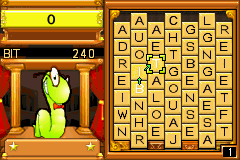
The game rules for BOOKWORM are simple: link letters together to make words to feed the hungry bookworm! When the game begins, you will see your Library, full of random, juicy letters... Look around for letters that can be joined up to create a word!
1. Move the cursor using the Control Pad to the first letter in the word and press the A Button to select it.
2. Move the cursor to the second letter in the word and press the A Button again to link it up!
3. Finally, move the cursor to the last letter in the word and press the A Button to link it to the previous letters.
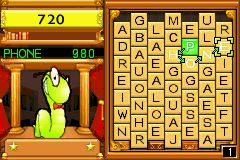
If you have formed a real word, you'll see its point value appear in the window on the left. To submit your word, press the A button again while the cursor is on the last letter. Press A again on the last letter to submit the word!
You can press the B Button to go backwards, canceling the last letter you selected. This can be useful if you've made a mistake. You may also simply select another letter that is not bordering the currently selected letter to cancel the current word.
The Game Screen
The game screen for BOOKWORM is comprised of the following elements:
•
Score: This indicates your overall game score.
•
Level Number: This displays the current game level.
Leveling Up
Lex eats the word and new letters drop in from above to fill up your library! Every time you create a word, the Progress Bar will fill up a bit more. When this bar is full, you will advance to the next level!
Your progress will be automatically saved, and you can see your rank, the best word you created, and the game time so far. Press the A Button when you're ready to continue to the next level.


.png)
.png)
.png)





.png)
.png)

.png)






.jpg)

.jpg)