How to Start the Game
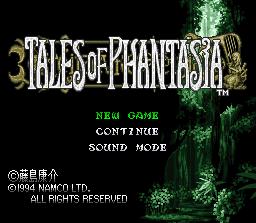
At the title screen, select the mode with the D-pad and decide with the A button or the Start button.
New Game
When playing for the first time, decide the protagonist's name. If you are satisfied with the default name, align the cursor with 'Confirm' using the D-pad and press the A button. If it displays 'Is this okay?', select 'Yes' and press the A button to confirm.
•
Deciding the name yourself: Align the cursor with the name field and press the A button. When the cursor moves to the character field, select a character and press the A button to enter it. You can scroll the character display forward and backward with the L or R buttons. To re-enter a name, press the B button to return the cursor to the name field, then press the B button again.
•
Computer decides: If you select 'Random' and press the A button, it will automatically change to a different name. Each time you press it, a different name will appear. If you find one you like, proceed with 'Confirm'.
Continue
If you have saved the game, you can load that data and continue playing. Select the data with the D-pad and press the A button. The display 'Is this okay?' will appear. Select 'Yes' and press the A button to start.
Saving
To load a game, you must save the data using the 'Save' command on the menu screen. You can save up to 3 locations. If you save, you can play from that point when you restart the game.
Sound Mode
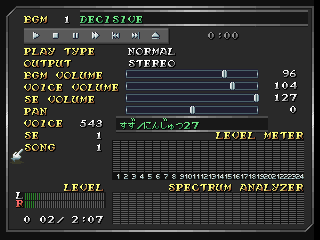
You can listen to the game's BGM and sound effects. You can perform various tuning, so please try it.
•
Song Name: Use the Control Buttons, or the L or R button to select a song.
•
Control Buttons: Select with the Cross Button, and execute with the A Button. Options include Play, Stop, Pause/Resume, Fast Forward, Select Song (Previous/Next), and To Title Screen.
•
Setting Data: Select an item with the up/down Cross Button, and change it with the left/right Cross Button.
•
S.EFFECT: Playback of sound effects.
•
OUTPUT: Adjusts to the output of the television or other equipment. Options: MONAURAL, STEREO, and SURROUND.
•
DSP: Settings for reverb effects. REVERB is spacious, DRY is no reverb. PANDELAY (Pan Delay) is an effect where the reverb moves from side to side.
•
PLAYTYPE: NORMAL plays the selected song. CONT (Continue) plays in number order. RANDOM plays by selecting automatically.
•
LOOP: Number of plays (if set to 0, plays intro only).
•
S.E.V: Volume of sound effects.
•
PAN: Left/Right balance in stereo.
•
TRANS: Changes the musical key of the song in semitone units.
•
PITCH: Changes the pitch of the song in finer detail than TRANS.
•
Graphic Equalizer: Sets the level for each frequency band. First press the Select button, then select the frequency with the left/right Cross Button, and change the level with the up/down buttons.
Sound Mode Caution
1. When using a monaural television, setting the OUTPUT to SURROUND may cause the sound not to be heard properly. Please set to MONAURAL for monaural equipment.
2. The settings for OUTPUT, BGM and sound effect volume, and the graphic equalizer also affect the music in the game.
3. In dungeons and such, sound may be an important hint. Please play while listening to the sound as much as possible.
Game System
The player controls the protagonists, moving them across the map to continue their journey. Along the way, the protagonists meet various people, get involved in incidents and battles, and are eventually led to an adventure.
The game is mainly played through three types of screens, which switch automatically depending on the situation or are used as appropriate.
•
Map Screen: When the game begins, the first thing you see is the scenery of a certain village. This type of view looking down from a diagonal angle is called the map screen and serves as the basic foundation of the gameplay. When you leave the village, an even larger map spreads out outside. When necessary, you can display the world map to know your current location. Also, there are towns and caves on the map, and passing over them allows you to enter.
•
Menu Screen: To check the status of the protagonists or when you want to use commands, you do it in the menu screen. The menu screen can be called up at any time with the B button.
•
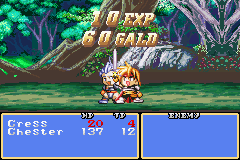
Battle Screen: During movement on the map screen, or when you encounter enemies through events, the game shifts to the battle screen. Battles are conducted with a real-time battle system, and the protagonists gain experience and become stronger by winning battles.
Menu Screen: Equip
Weapons and armor are useless if you simply hold them as items. Please equip them on your characters using this command. Selecting the "Equip" command and deciding the order of characters will bring up the equip screen. Here, select a command once more and confirm with the A button.
•
Equip: First use the + button up and down to select the type of equipment, then press the A button. The items that can
.png)

.png)
