Menu Navigation
Use the Menu to select actions and change settings. To open the Menu, press Select.
If Menu options are blue instead of white, they are not available due to current playing circumstances.
The first 10 options are actions, while the last 10 are settings.
Selecting Actions
1. Use the Control Pad to move the arrow to your selection.
2. Press A to start the action.
The Chessboard appears after selection.
Changing Settings
1. Use the Control Pad to move the arrow to your selection.
2. Press A until the desired setting appears.
3. Press Select to confirm the setting.
The Chessboard appears after confirmation.
Action Options
•
Begin New Game: Stops any game in progress and starts a new one.
•
Change Sides: Allows you to play as White while The Chessmaster plays Black. Use this at the beginning of the game to make The Chessmaster play the White pieces.
•
Play Against Chessmaster: Play a game of Chess against The Chessmaster. •
Autoplay: Watch The Chessmaster play against itself. Press Select to interrupt and return to the Menu.
•
Play Against Another Human: Play against another player with The Chessmaster acting as referee. The second game controller controls Black's hand.
•
Force Chessmaster to Move: Forces an immediate move when The Chessmaster is thinking. This is also used in the Infinite level of play.
•
Get Advice From Chessmaster: The Chessmaster demonstrates the move it recommends for you.
•
Take Back/Replay Mode: Enter a mode to take back or replay moves. In this mode, you can perform the following:
1. Press L to take back a move.
2. Press R to replay a move.
3. Press Select to resume normal play.
•
Note: You can press L to take back a move directly from the Chessboard.
•
Set Up The Board: Arrange pieces on the board using the displayed Grab Bag.
Setting Up the Board
To remove a piece from the Chessboard:
1. Use the Control Pad to position the hand over the piece you want to remove.
2. Press A to pick up the piece.
3. Use the Control Pad to move the piece off the board.
4. Press A to drop the piece.
•
Note: You cannot remove the Kings.
Setting Options
•
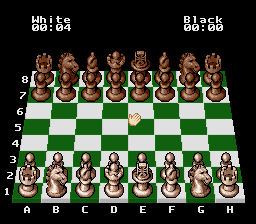
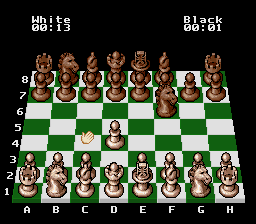
Board Coordinates On/Off: Set the rank and file display.
•
On: Displays coordinates (1-8 and A-H) along the edge of the board.
•
Off: Hides the coordinates along the edge of the board.
•
White Pieces on Bottom: Set the board rotation so White pieces are in a specific position.
•
Options: Bottom, Top, Left side, Right side.
•
Note: Rotating the board also rotates the rank and file coordinates.
•
Board View Is 2D: Set the display mode.
•
Board View Is 2D: Normal full-screen display.
•
Board View Is 3D: Three-dimensional view.
•
Board View Is War Room: Enter the War Room. See War Room.
•
Chess Set Is Staunton/Fantasy: Set the type of chess set. •
Staunton: Standard chess set. •
Fantasy: Fantastical chess set (not available in the War Room). •
Background Music Is On/Off: Toggle background music.
•
Mate in 1 Move(s): Used with Solve for Mate. Set a number from 1 to 5 to define the moves ahead for a forced mate.
War Room
In the War Room, a smaller version of the Chessboard is displayed alongside several informational features:
•
Move List: Shows the last 4 moves by each player in rank and file notation.
•
Example: `h5-h6`, `f3-g5`, `d1-d2+`, `d2-d4`.
•
`+` indicates a Check; `++` indicates a Checkmate.
•
Best: The best line of moves The Chessmaster has found so far.
•
Hint: The move The Chessmaster considers your best bet given your position.
•
Captured Pieces: Shows all pieces removed from the board.
•
PL: The ply, representing the number of moves ahead The Chessmaster is thinking about.
•
MV: The number of legal moves in the current ply.
.png)

.png)