Welcome to Hal's Pizza
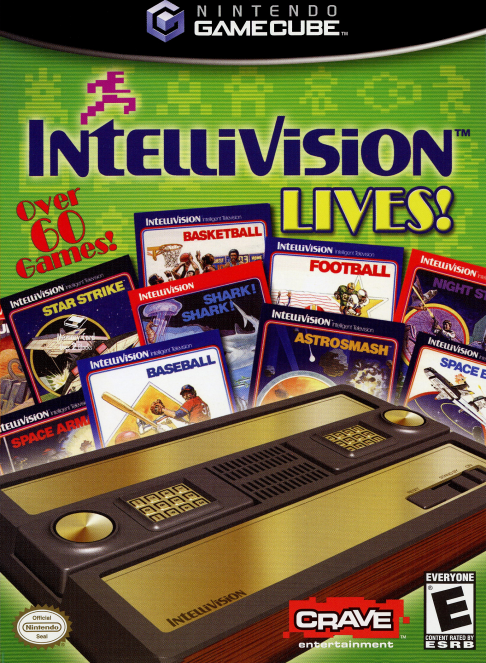
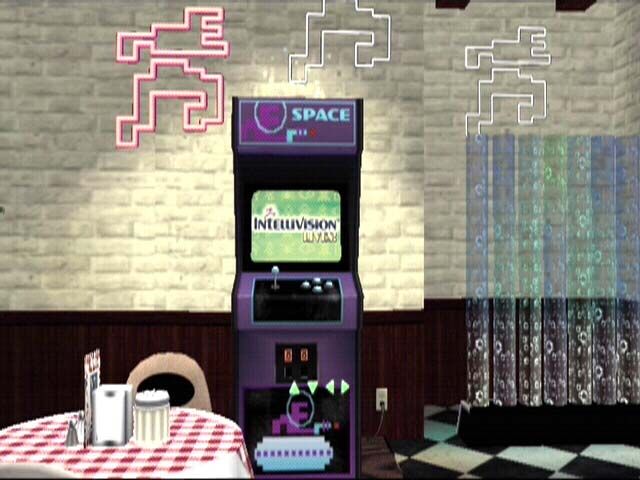
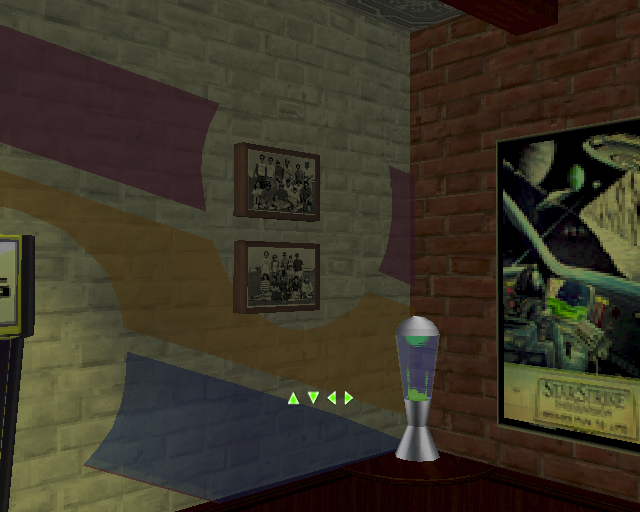
Welcome to Hal's, where the 80s never stopped. Arranged around the room are over 60 classic Intellivision™ games grouped into game machines.
Game Machines
•
SPACE: Explore the outer regions with these fast-paced space shooters.
•
ARCADE: Get your twitch on with this collection of action games.
•
GAMING STRATEGY: Match wits with the computer.
•
SPORTS: Bring your game face when you play this huge collection of sports games.
•
COMBAT SORCERY: War games, both real and fantastic.
•
CHILDREN'S: Simple games for the little ones. Educational games, too.
•
UNRELEASED: You can unlock unreleased games by clearing the play goal from other machines. Your unlocked games will appear here.
Machine Menu and Play Goals
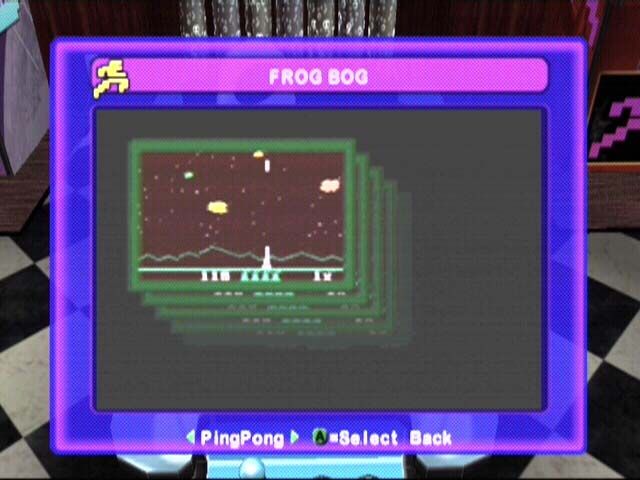
When you navigate to any machine (using the Control Pad) the first menu you see will list all the games available in that machine.
Some games are for one player, some are for two players, and some support both. A yellow single-player icon appears next to those games designed for one player. A yellow two-player icon appears next to those games designed for two (or sometimes more) players.
Certain games will have a red dot next to their name. If you highlight this game in the menu, you will see its play goal. Play goals are milestones that you must clear in order to unlock the bonus material for that cabinet (e.g., score a certain number of points or win a certain number of games).
The bonus material includes unreleased Intellivision™ games, bonus TV commercials or radical game modes.
Note on Controllers
Due to its complex nature, playing certain games requires that you have two Nintendo Game Cube™ Controllers connected to your Nintendo Game Cube™ console. The names of these games will appear grayed-out in the machine menus until you connect a second Controller.
Game Menu
Once you choose a game from one of the machines, you will see the following options:
•
INSTRUCTIONS: View brief instructions to help get you started. To view the full original instructions for each game, visit http://www.intellivisionlives.com/halspizza
•
PRODUCTION NOTES: Learn inside dope and fun facts (including known bugs!) from the original Intellivision™ developers.
•
WATCH BONUS COMMERCIAL: Watch an original television commercial.
•
VIEW BOX: Examine the original Intellivision™ game cartridge package.
•
RADICAL GAMEPLAY MODES: Take it to the next level with these superchallenging, eye-bending twists on the classic Intellivision™ games.
•
HIGH SCORES: View the high score you've achieved so far. You will need to have a Memory Card inserted and autosave enabled in the Options menu in order to record your high scores. (Note: Only certain games such as Pinball support High Scores.)
Saving High Scores
Your high score will be saved only when you exit the game. Certain games will restart after the "Game Over" message if you press any button on your Controller. If you have a high score you want to save, be certain to exit out of your current game by pressing START/PAUSE to pause the game, then the B Button to exit.
Playing a Game
When you select Play from any game menu, you will see a custom controller configuration designed especially to optimize play for that game using the Nintendo Game Cube™ Controllers. Once you're familiar with the controls, press the A Button to launch the game.
At any time during gameplay, you can press START/PAUSE to access the in-game pause menu. From this menu you can review the Controller configuration, the instructions, or adjust any of the game options.
Using the Intellivision™ Keypad
Many Intellivision™ games were designed to make full use of the 12-button keypad on the original Intellivision™ hand controllers. Most games shipped with two durable keypad inserts which slipped over the keypad and featured custom artwork and button labels to ease gameplay and clearly identify various game functions.
Keypad Controls
•
At any time during gameplay, hold the Z Button while pressing the B Button to bring up the keypad.
•
Select a specific function by moving the yellow highlight with the control stick and pressing the A Button.
•
Hold the Z Button while pressing the B Button again to remove the keypad from view.
•
Alternatively, you can use the C Stick to quickly select keypad functions. To use this feature, move and hold the C Stick in the direction of the number you wish to use and press the R Button.
•
When this feature has been enabled for a particular game, the onscreen control configuration will state "1-9 Enabled."
Game Options
You can access the Game Options menu by navigating to the Hal's Pizza jukebox. The options menu displays the following choices:
•
AUTOSAVE: Enabling this feature allows you to save your high scores, goals progress and options choices to your Memory Card.
•
RUMBLE FEATURE: Turn the Rumble Feature of the Nintendo Game Cube™ Controller on or off. (Note: only select games, such as Astrosmash support the Rumble Feature.)
•
SFX VOLUME: Adjust the sound effects volume.
•
MUSIC VOLUME: Adjust the music volume.
•
INTELLIVISIONTM VOLUME: Adjust the sound level of the Intellivision™ games. (Note: All sound levels can go to 11.)
Music Options
You can choose one track to
.png)